Customer expectations in e-commerce continue to evolve, and one of the most effective ways to improve engagement and conversions is by offering live previews for WooCommerce products.
When shoppers can see visual changes in real time as they customize a WooCommerce product, they gain a clearer understanding of what they are buying. This reduces uncertainty, builds trust, and makes the entire shopping experience more interactive and enjoyable.
Live previews are especially valuable for stores that sell customizable or configurable products such as personalized gifts, apparel, accessories, furniture, print on demand items, or build your own bundles.
In this article, you will learn what live previews are, why they matter, and how to set them up in WooCommerce using a powerful visual configurator tool such as WP Configurator Builder (WCB).
What are live previews for WooCommerce products?

A live preview is a dynamic visual representation of a product that updates instantly when the customer makes a selection.
Instead of guessing what a different color, material, or component will look like, the customer sees changes directly on the product image.
Live previews typically include elements such as:
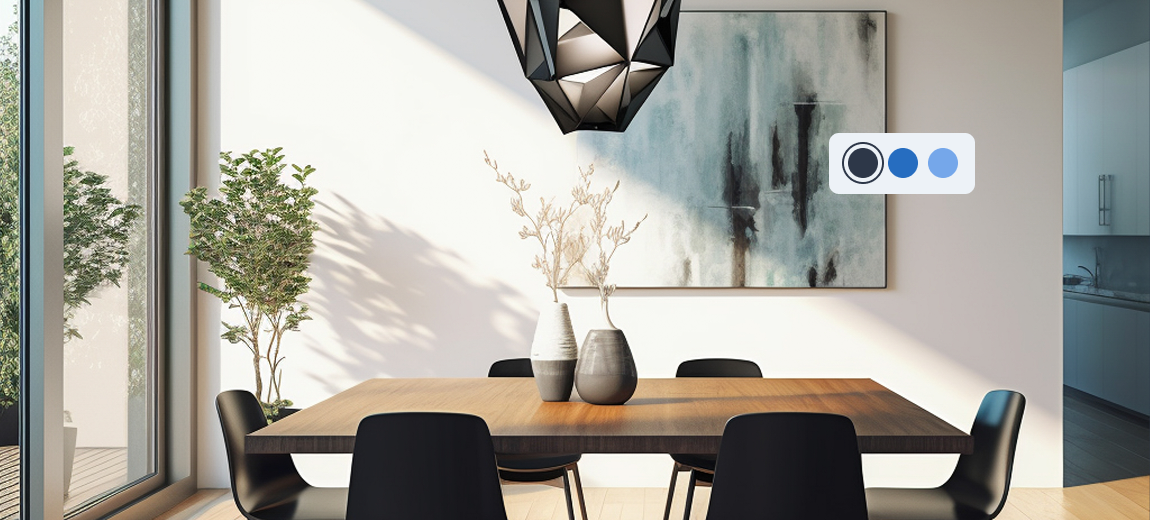
- Color changes
- Material textures
- Component switches
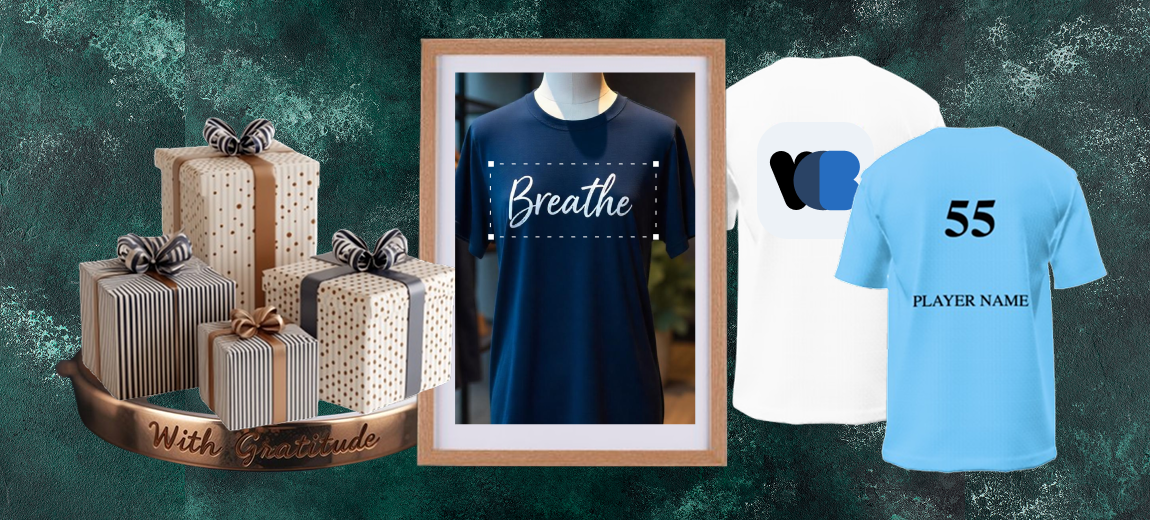
- Text or engraving overlays
- Uploaded images
- Add-ons or accessories
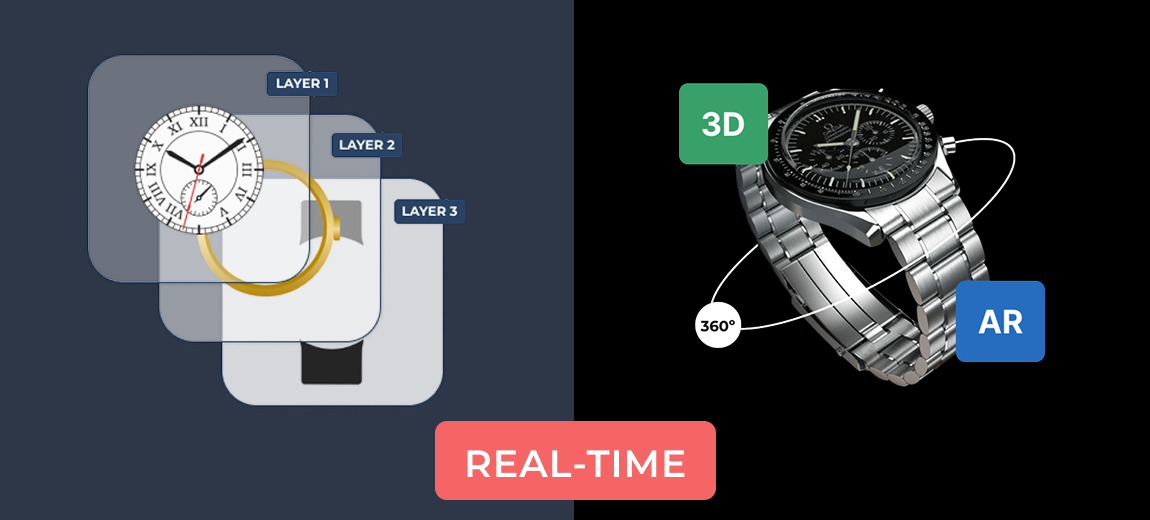
Rather than static images, the final design appears layer by layer as the user interacts with the options. This creates a professional and engaging product page that gives customers the confidence to complete their order.
Why live previews for WooCommerce products are important
Shoppers rely heavily on visuals when making buying decisions. Without clear previews, they may hesitate or abandon the purchase. Live previews solve this problem by giving customers immediate visual feedback.
Top reasons why customers love live previews:
- Increase buyer confidence
Customers know exactly what they are buying - Reduce product returns
Misunderstandings about color, placement, or design are reduced - Increase user engagement
Interactive product pages keep shoppers exploring longer - Boost your webshop conversions
A realistic preview helps justify the purchase - Create upselling opportunities
Upgraded materials or premium add-ons are easy to add and appear instantly
In short, live previews for WooCommerce products turn static shopping into a personalized experience.
Why WooCommerce does not offer live previews by default
WooCommerce provides a strong foundation for e-commerce stores, but it was not built with advanced visual customization in mind.
While it supports variations and attributes, it cannot dynamically update product images based on user selections.
To create real time previews, layered images, and interactive customization steps, you need a dedicated configurator plugin that adds this functionality.
How to set up live previews for WooCommerce products

Setting up live previews requires three main components:
- A plugin capable of rendering layered images
- Product images prepared for each layer or option
- A configuration structure that links the preview to customer selections
The most effective way to accomplish this is by using a specialized builder such as WCB Configurator Builder, which provides everything needed for visual product customization.
Step 1: Install and activate WP Configurator Builder
Begin by installing and activating the WP Configurator Builder plugin in your WordPress dashboard. Once activated, a new menu appears that allows you to create and manage visual configurators.
This tool is specifically designed to generate live previews for WooCommerce products, making it suitable for both simple and complex customization scenarios.
Step 2: Add customization options
Create extra product fields based on how customers should customize the product. For example:
- Choose color
- Choose material
- Add text or engraving
- Add accessories
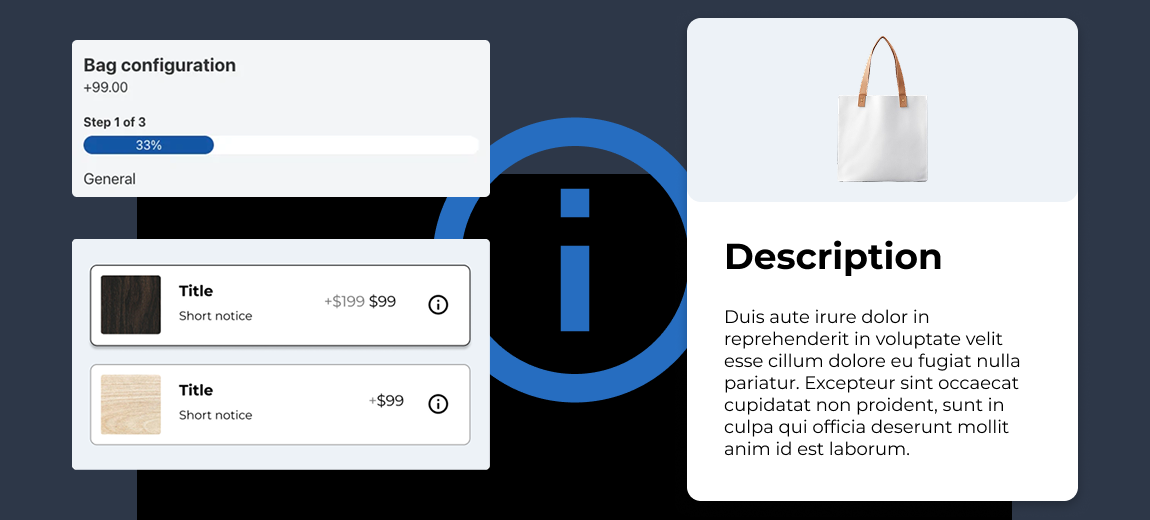
For each extra field you can define your options. An option can hold a label, note, thumbnail and price. The live product images for the custom options will be added in step 5.
Step 3: Create the configurator form
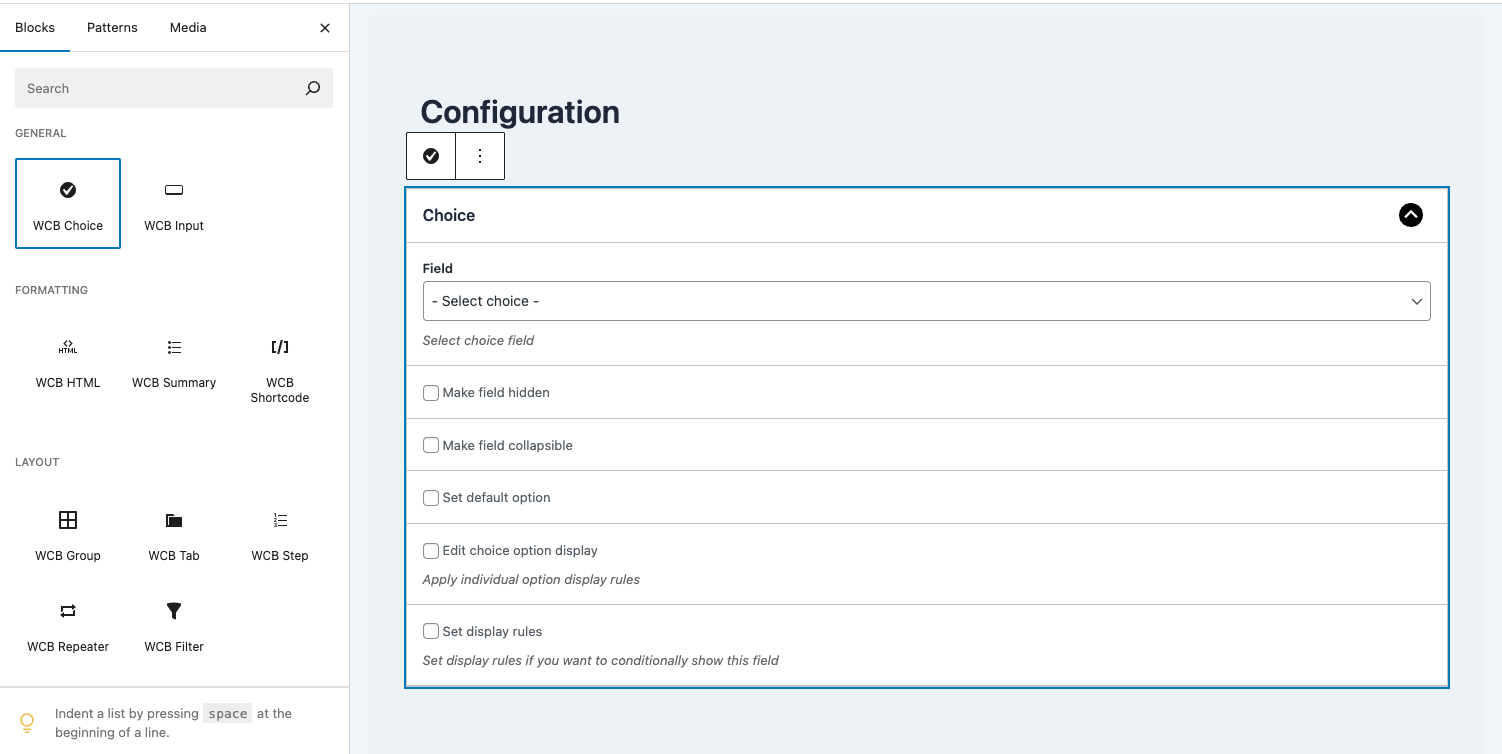
Navigate to the Configurators section and create a new configurator. Give it a descriptive name that matches your product, such as “Custom Hoodie Builder” or “Personal Mug Designer”
You can choose a layout structure based on how complex your product is. A multi step approach works well for products with many customization options, while a single page layout may be ideal for simpler items.
Next, add all the choices you have created in the previous step.
Finally, assign the configurator form to a new or existing WooCommerce product. Your product page now displays a fully interactive customization interface with live previews.
Step 4: Apply conditional logic if needed
For more advanced products, conditional logic ensures that only relevant options appear. For example:
- Certain components only show for premium models
- Engraving fonts appear only when text is enabled
- Accessories hide if they conflict with selected options
This helps keep the user interface clean and prevents confusion.
Step 5: Upload image layers for live previews

Head over to WCB > Visuals and create a new visual group. Here you can upload your product visuals and link them to the corresponding field options.
The key to creating live previews is preparing layered images. Each layer represents a part of the product that can change, such as:
- Base product
- Color overlay
- Pattern or texture
- Engraving area
- Add on components
- Uploaded image placeholder
PNG files with transparent backgrounds typically work best because they can stack cleanly over one another.
Upload these layers into the configurator and assign them to the appropriate customization options.
Tips for better live previews in WooCommerce
To maximize the quality and impact of live previews, follow these best practices.
1: Use high resolution images
Crisp visuals increase trust and elevate the perceived value of your product.
2: Keep customization steps simple
Avoid overwhelming customers with too many choices at once.
3: Provide real time pricing updates
Let customers see cost changes alongside visual changes.
4: Test on mobile
Many shoppers customize products on their phones. Make sure the preview area feels responsive and intuitive.
5: Highlight the preview feature
Mention “Real time preview available” in your product description to encourage interaction.
Bottom line
Setting up live previews for WooCommerce products is one of the most effective ways to improve customer confidence, increase engagement, and boost conversions. Modern shoppers expect to see exactly what they are designing, and live previews deliver that clarity.
Although WooCommerce does not offer this functionality by default, tools such as WCB Configurator Builder make it simple to create interactive, visually rich customization experiences.
Whether you sell personalized gifts, apparel, furniture, or build your own products, adding live previews will transform the way customers interact with your store.