Composite configurator with linked WooCommerce products
Connect WooCommerce products directly to configuration options in your WP Configurator Builder. Sync product data automatically, add linked items to the cart separately, and simplify inventory management for composite and configurable products.

Linked WooCommerce products are useful for
What are linked WooCommerce products?
Linked WooCommerce products allows you to connect WooCommerce products directly to configuration options inside your WP Configurator Builder.
Instead of creating standalone configuration options with manually entered pricing and stock data, each option can be linked to an actual WooCommerce product. The configurator then uses the WooCommerce product as the source for pricing, inventory, images, SKUs, and other product information.
When customers build a custom product, the linked WooCommerce products can also be added to the cart separately instead of being merged into one generic configured item.
By linking real WooCommerce products to configurator options, you create a much more scalable and WooCommerce-native configuration workflow.

Why use linked WooCommerce products?
Managing configurable products becomes difficult when configuration data is disconnected from your WooCommerce catalog. Without linked products, store owners often need to duplicate pricing manually, manage inventory separately, update product information in multiple places and create complex custom fulfillment workflows.
Linked WooCommerce products solves these issues by making WooCommerce the single source of data for your configurator options.
Key features and benefits



product management and reporting.
How to use linked WooCommerce products in WP Configurator Builder
Linking products to product options in WCB can be easily achieved with the right setup. Make sure you have the inventory management add-on installed or the pro plugin bundle.
Here’s how you can do it:
Step 1: Create your WooCommerce products
Start by creating the products you want to use as configurable components inside WooCommerce.
On the product edit page, define the basic details of your product, including product name, description, price, etc.
Make sure pricing, stock, and product details are configured correctly.
Step 2: Link products to form options
Once your have created your products, you can link them to the WCB choice options.
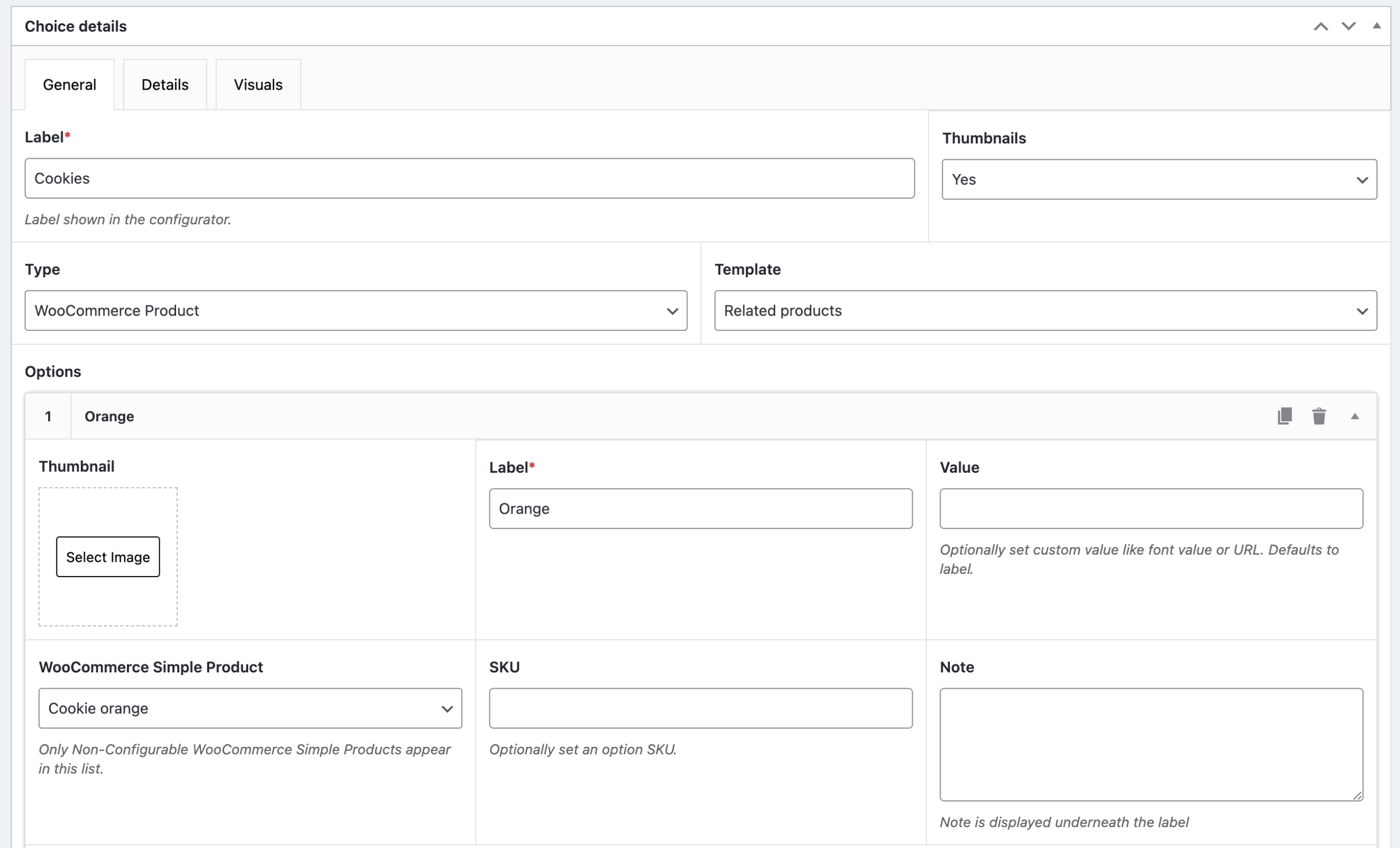
Head over to WCB > Choices and select your choice or create a new one
Make sure the type of choice is set to Product
Now you can select the WooCommerce product for each of the choice options.
Finally, save the choice.
Now your options are linked to the corresponding WooCommerce products and the configurator can pull product information automatically from WooCommerce.
Step 3: Configure pricing and stock
When linking products to options, you can set different prices or adjust the stock based on the product options selected. For example, a customized T-shirt with embroidery might have an additional cost, which you can apply when the customer selects that option.
Step 4: Test the product link
Before going live, test the setup on your product page. Ensure that the options work as expected, and the linked products appear correctly when different choices are made.
Step 5: Enable separate cart items (optional)
Choose whether linked products should be merged into one configured product or added separately to the WooCommerce cart.
For composite products and inventory-heavy workflows, separate cart items are usually recommended.
In the latter case, head over to WCB > Settings > Checkout and activate the option “Save WooCommerce products as separate line items”

How to create WooCommerce linked product options
Seamlessly link individual products together as options to enhance your sales potential
Continue reading
How to create a WooCommerce bundled product
Learn how to create product gift boxes, starter kits, or build-your-own bundles
Continue readingBest practices when using linked WooCommerce products
Use separate products for shared components
If multiple configurations use the same component, create a dedicated WooCommerce product for that component. This improves inventory tracking, reusability and accuracy.
Keep WooCommerce as the single data source
Manage pricing and stock inside WooCommerce instead of manually overriding data inside the configurator whenever possible. This reduces synchronization issues and administrative overhead.
Use separate cart items for composite products
For advanced configurable products, adding linked products separately to the cart creates cleaner workflows for fulfillment, shipping, inventory deduction and accounting
Organize linked products clearly
Use consistent product naming schemes, SKUs, categories and attributes. This makes large configurator systems easier to maintain over time.
Test inventory scenarios
Before launching, test stock deduction, out-of-stock behavior, cart synchronization, quantity updates and order processing.
This ensures all linked products behave correctly throughout the WooCommerce purchasing workflow.
Use linked WooCommerce products to build scalable WooCommerce Product Configurators
Linked WooCommerce products creates a powerful bridge between WP Configurator Builder and WooCommerce product management.
By linking real WooCommerce products directly to configuration options, you can create advanced configurable product experiences while maintaining:
- Accurate inventory
- Centralized product management
- Better WooCommerce compatibility
- Scalable composite product workflows
- Cleaner order processing
Whether you sell configurable consumer products, industrial systems, modular kits, or custom assemblies, linked WooCommerce products provide a more efficient and maintainable way to build advanced WooCommerce configurators.