WCB multi-language support
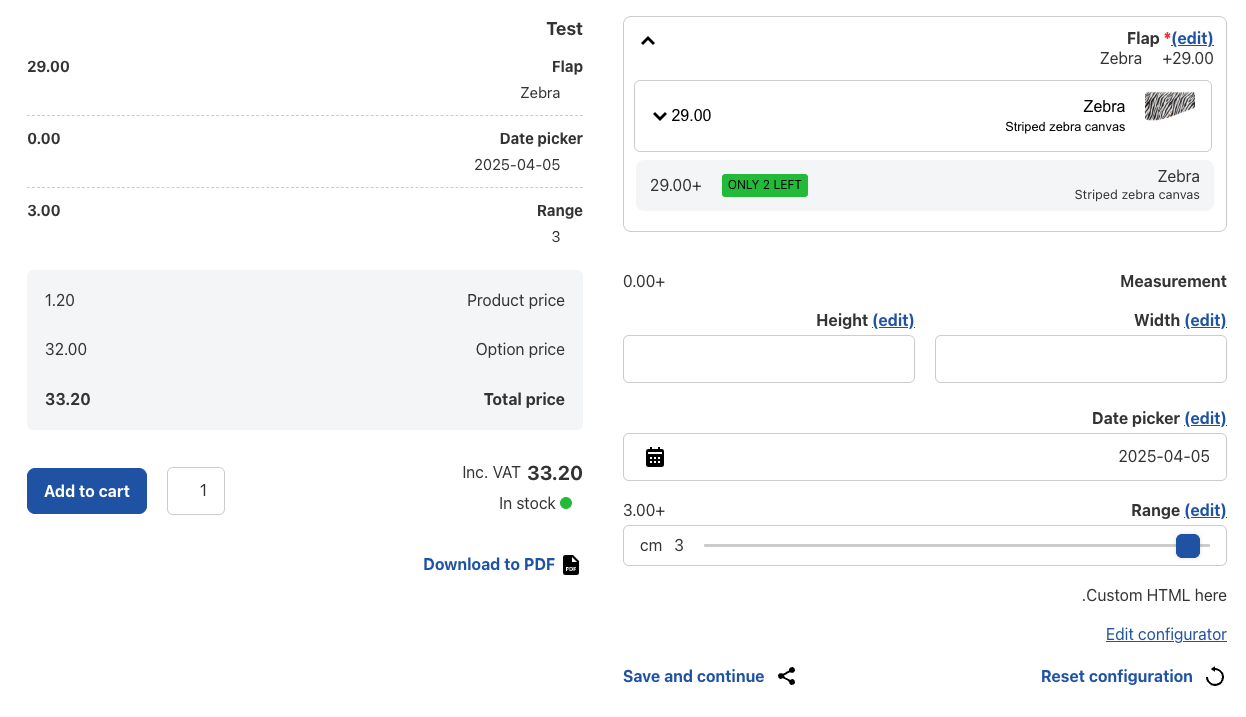
Multi-language support allows you to translate and display your configurations in multiple languages. This feature empowers you to create localized versions of your website, so visitors from different regions can view your site in their native language. Whether you’re targeting specific international markets or just want to expand your reach, offering multiple language options increases accessibility and user satisfaction.
Integrations
WPML
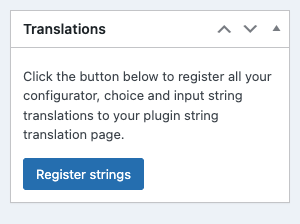
Translate texts with WPML string translation and/or translate configurators, choices and inputs post objects
Polylang
Translate texts with Polylang string translation and/or translate configurators, choices and inputs post objects
LocoTranslate
Translate configurator, choice and input texts with the LocoTranslate plugin

Key features and benefits

Translation of all configurations
You can translate all aspects of your configuration forms, including labels, buttons, fields, and visuals. This ensures that product configuration forms are accessible to international users, regardless of what they are looking for.

Reach a global audience
By offering content in multiple languages, your website becomes more accessible to visitors from different countries and cultures. This can increase traffic, engagement, and conversions, as people are more likely to stay on your site and complete a purchase or take action when the content is in their native language.

Better user experience
A multilingual website provides an improved user experience by making visitors feel comfortable and understood. When users can access content in their own language, they are more likely to trust your brand and engage with your offerings. This leads to higher retention and increased customer loyalty.

SEO benefits
Multi-language sites are also favored by search engines, which help your website rank in international search results. By optimizing each language version of your site with localized keywords, your site can become more discoverable by users in different regions.

Support for RTL languages
For websites catering to regions that use right-to-left (RTL) languages such as Arabic, Hebrew, or Persian, multi-language support ensures that the layout and design adjust automatically to accommodate RTL text. This feature ensures that your website is visually appealing and functional for speakers of RTL languages.

Centralized content management
Manage your translations directly from your WordPress dashboard, whether you’re adding new languages or updating existing content. Translation plugins provide a centralized system for managing all your language versions, ensuring everything is consistent and up to date.
Use cases for multi-language support
WooCommerce stores
If you’re running a store like WooCommerce, offering multiple languages can help international customers understand product details, make informed purchasing decisions, and check out with ease in their preferred language.
Single product websites
Single product owners can also increase their reach by translating their product page into multiple languages. This allows them to expand their customer base to different regions.
How it works
Step 1: Install a multi-language plugin
Choose a popular WordPress translation plugin such as WPML, Polylang, Weglot or LocoTranslate. These plugins are specifically designed to integrate seamlessly with your WordPress site, making it easy to add and manage multiple languages.
Step 2: Configure the plugin and add your languages
After activating the plugin, select the languages you want to support on your site. Many plugins offer a wide range of languages to choose from, and some may even automatically detect the user’s preferred language based on their location or browser settings.
Step 3: Select preferred translation type
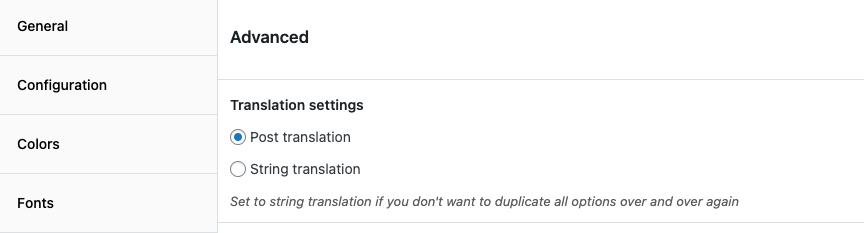
WCB plugin offers two ways to translate your configurations:
- Post translation
Create new configurations, choices and inputs for each translation. Best if you want full control over each option per language - String translation
Translate configuration, choice and input labels only. Best if you want to translate your configuration forms quickly, without having to set up the whole configuration again
You can select your preferred type in WCB > Settings > Advanced.
Step 4: Translate your configuration content
Finally, translate your configuration content, including configurations, fields, visuals and labels. Depending on the configuration setup, you need to create new posts for all items, or translate labels only
For string translations, make sure you have filled out all fields correctly. Otherwise they might not show up in the string translation editor of your chosen multi language plugin

We also support multiple currencies
Integrate with WooCommerce multi-currency plugins to update the configurator price display to the selected WooCommerce currency
Explore multi-currency