

What are guided selling forms?
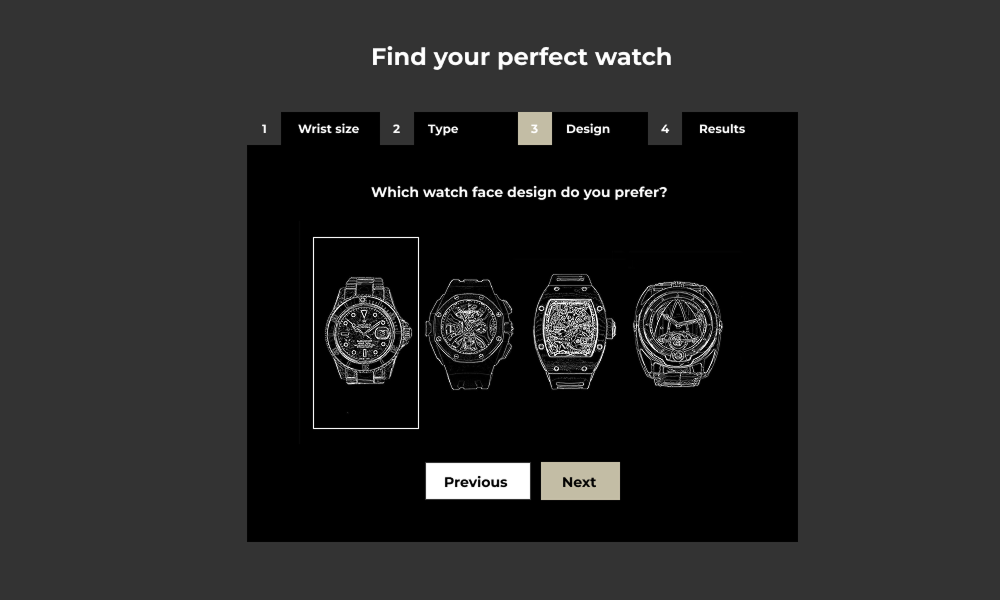
Guided selling forms are interactive tools that help potential customers navigate through your product offerings by asking a series of questions, applying filters, or using a decision-tree approach to narrow down their choices.
These forms typically start by asking broad questions about the customer’s needs or preferences and then progressively refine the selection based on their responses.
For example, a guided selling form for a furniture store might ask customers:
- What type of furniture are you looking for? (e.g., sofas, chairs, tables)
- What’s your preferred material? (e.g., leather, fabric, wood)
- What size would you like? (e.g., small, medium, large)
- What color do you prefer? (e.g., gray, brown, black)
Based on these answers, the form will present products that match the customer’s criteria, leading them to the best fit in your store.
Why are guided selling forms important in WooCommerce?

A guided selling form simplifies this process by asking relevant questions and showing only the products that fit the customer’s needs. This leads to quicker decisions and a more enjoyable experience.

This level of personalization can increase customer loyalty and drive repeat business.

By providing a guided form to help them find the right product, you reduce uncertainty, increase confidence, and lower abandonment rates.

This can be especially helpful for stores with a broad or complex product range, where shoppers might struggle to find the best fit without guidance.
Industries that can benefit from guided selling forms
By breaking down the decision-making process, guided selling forms can lead to a more personalized shopping experience, enhancing both customer satisfaction and the likelihood of a sale.
Guided selling forms can be used for a wide range of products and industries, such as:

Helping customers choose the right gadget or accessory based on their needs (e.g., laptop or camera specifications).

Assisting shoppers in selecting the right size, color, and style based on their personal preferences.


WooCommerce professionals use WCB to save a lot of time

“Perfect templates, great features, fast and very powerful for a Woocommerce site”

Unlock the full power with WCB pro
Experience the full power of the WCB configurator builder plugin. Create multi step forms, apply conditional logic, and more
Best practices for using guided selling forms
Recommended add-ons



How to use guided selling forms with WCB in WooCommerce
The WCB plugin allows you to create guided selling forms as well. Here is how it works
Step 1: Define your questions and filters
Think about the key criteria that customers would use to make their purchasing decisions. Depending on your store’s products, these questions might include:
- Product type (e.g., size, color, style, or category)
- Preferences (e.g., material, brand, or function)
- Budget (e.g., price range or discount availability)
- Specific needs (e.g., features like battery life, compatibility, or durability)
You can create as many steps in the form as necessary to help customers refine their choices. The more relevant and simple your questions are, the more likely customers are to engage with the form and make a purchase.
Step 2: Create the configuration and connect it to your products
Once you’ve defined your choices, head over to WCB > Choices and create choices with options for each relevant question.
For example, if you’re selling a variety of furniture, the form might ask questions like “What type of room is the furniture for?” or “Do you prefer modern or classic designs?”
After each step, you can use conditional logic to filter the products based on the selected answers, leading customers to the right product.
The key here is to ensure the form is connected to your product database so that the recommendations are accurate and dynamic. Each customer response should narrow down the results until the ideal product is displayed.
To achieve this, you need the advanced fields add-on to link the form options to the WooCommerce products.
Step 3: Test the form for functionality
Before launching your guided selling form, test it thoroughly to ensure it works smoothly on all devices. Check that the answers are filtering the product recommendations correctly, and ensure that the form is easy to navigate. Ensure it integrates properly with your product pages and cart system.
Step 4: Promote your guided selling form
Once your form is live, promote it on your product pages, homepage, and through email marketing campaigns. Use calls to action like “Find Your Perfect Fit” or “Take Our Quiz” to encourage customers to engage with the form. Highlight the benefits of personalized recommendations and how the form can save them time and effort.
FAQ
Can I add conditional logic to show or hide add-ons?
Yes. WCB Configurator Builder allows you to set conditions for each field with the conditional display add-on, so you can show or hide specific add-ons based on previous selections. This is helpful for creating dynamic forms and simplifying the customer experience.
How do I track how add-ons are performing?
You can use WooCommerce reports, plugins like Metorik, or Google Analytics with enhanced eCommerce tracking to see which add-ons are being selected and how they impact average order value. Tracking this data helps refine your upselling strategy.
Can I set minimum/maximum item selections?
Yes. You can control how many options users must or can select per group with our advanced fields add-on
Can I use WCB without WooCommerce?
Yes! WCB works fully standalone on WordPress.
How many options can I add for each choice?
Depends on your server speed, but we are confident the plugin handles up to 50 attribute options per choice (or more). There is practically no limit to the amount of options you can add.
Is WCB compatible with Elementor or Gutenberg?
Yes, WCB works with both. You can insert configurator products on any page or template. Or transform WooCommerce pages by linking the configuration to a WooCommerce product.
Will the plugin work with my theme?
The plugin is optimized to work with all well-coded themes and page builders.
Where can I download the plugin?
You can download the plugin on our WordPress.org plugin page.