If you’re running a WooCommerce store that sells custom printed products, logo-branded merchandise, or photo gifts, giving your customers the ability to upload their own images is essential.
With the WCB (WooCommerce Configurator Builder) plugin, adding an image upload field to any WooCommerce product is simple. Whether it’s a logo for a T-shirt, a photo for a mug, or custom artwork for canvas prints, WCB gives you full control over the customization experience.
In this guide, you’ll learn how to add image upload fields to WooCommerce products using the WCB Configurator Builder plugin.
Why add image upload fields in WooCommerce?
Image uploads allow you to:
- Accept custom logos, graphics, or photos
- Offer personalized print-on-demand items
- Streamline order processing with user-submitted files
- Charge more for personalization services
And with WCB Configurator Builder, you can:
- Add a clean file upload field
- Make uploads required or optional
- Charge extra for the upload
- Use file previews or even link uploaded images to live product images (Pro)

Best products for custom image uploads in WooCommerce
Adding image upload fields is ideal for:
- Custom T-shirts and hoodies
- Branded mugs, bottles, or packaging
- Canvas prints or photo frames
- Promotional products and giveaways
- Wedding and event merchandise
Add image upload fields with WCB
Prerequisites
- WordPress site with WooCommerce installed
- WCB Configurator Builder Pro or advanced fields add-on
Step 1: Install and activate WCB Configurator Builder
- Go to your WordPress Dashboard
- Navigate to Plugins > Add New
- Search for WCB Configurator Builder
- Click Install and then Activate
- Upgrade to WCB Pro to unlock file upload support
Step 2: Create or edit a product configuration
- Go to WCB > Configurations > Add New (or edit an existing one)
- Name your configurator (e.g. “Custom Logo T-Shirt”)
- Assign it to a WooCommerce product under the Linked Product section
Step 3: Add an image upload field
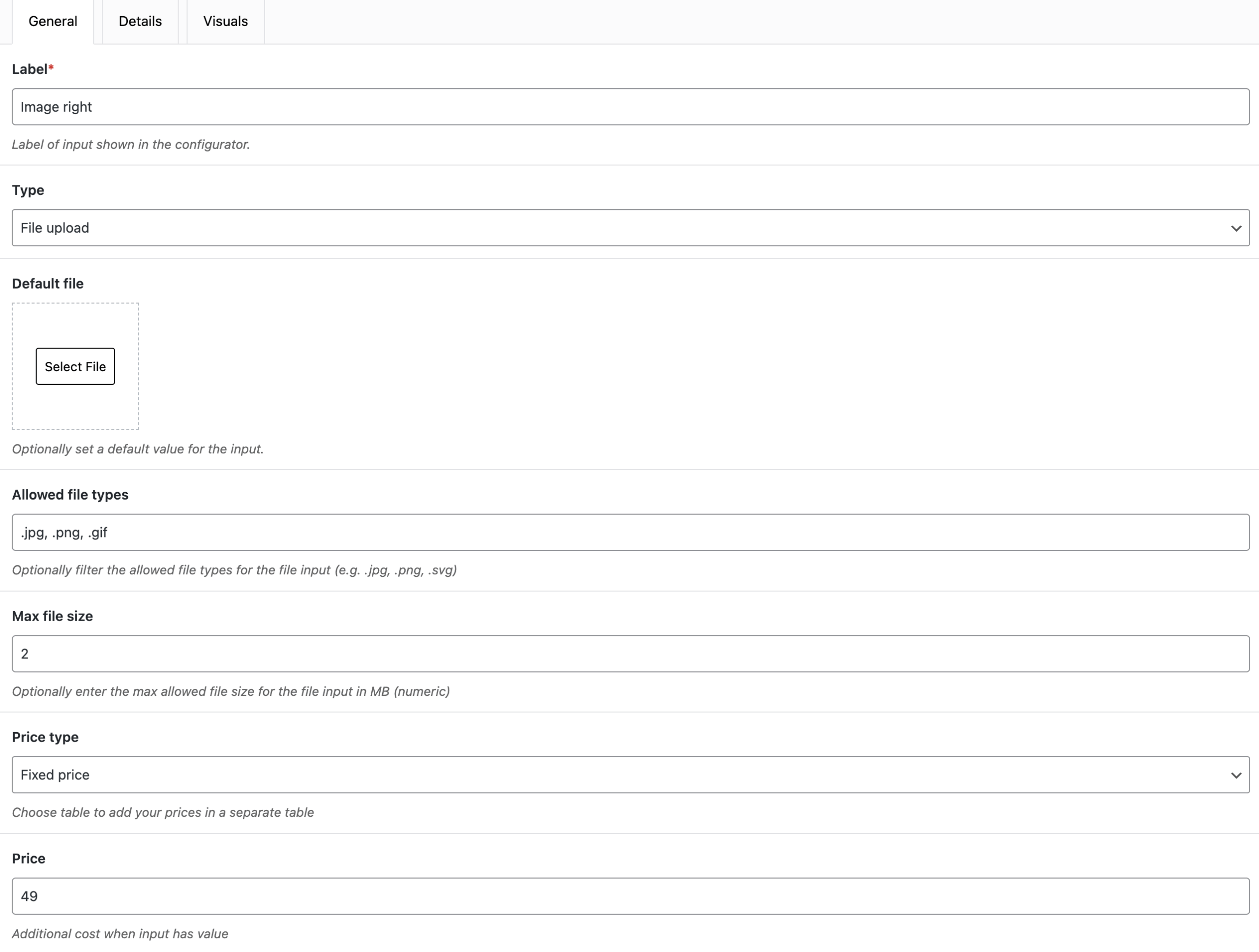
- Head over to WCB > Inputs > Add new and give it a title (e.g. name it “Upload Logo”)
- Set the Field Type to File Upload
- Configure the upload field settings:
- Label: “Upload Your Image”
- Allowed File Types: .jpg, .png, .svg, .pdf (set based on your use case)
- Max File Size: e.g. 5MB
- Required: Enable if you want to force users to upload a file
- Price Adjustment: Add a fee if image customization costs extra
- (Optional) Add a note like: “Please upload a high-resolution logo for best results.”
- Click Save
Step 4: Enable conditional display (optional)
You can use conditional display to show the upload field only if a customer chooses a certain option (e.g., “Add custom image”).
Steps:
- Add a checkbox or toggle first (e.g., “Add custom image?”)
- Set your image upload field to only display when the checkbox is selected
Step 5: Preview and test
- Show preview of the product page
- Try uploading a test image
- Add to cart and check:
- Is the file name showing in the cart?
- Is it included in the WooCommerce order?
- Can you access the file in the WordPress admin order screen?
Bonus: Live product preview with uploaded image
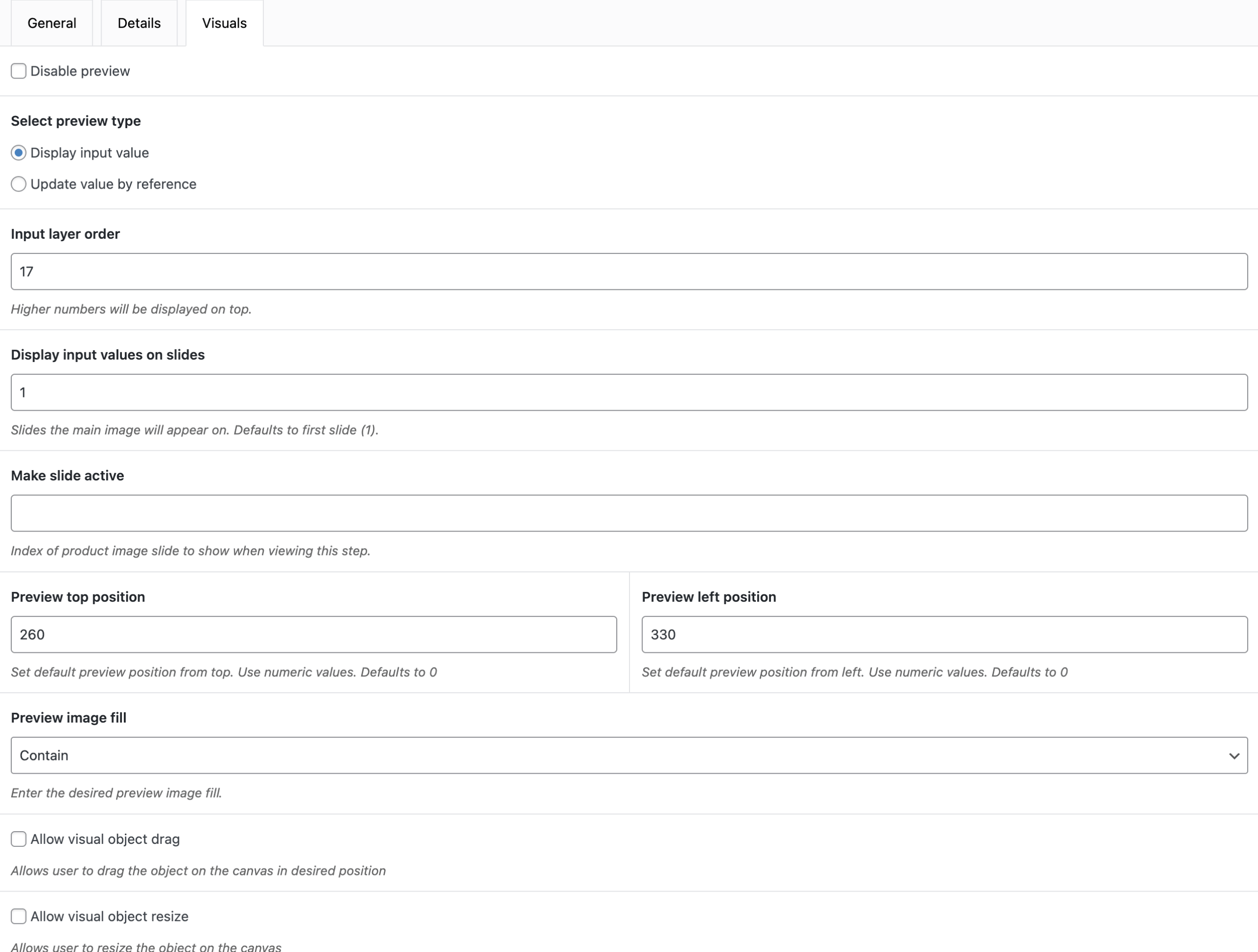
Want the uploaded image to appear directly on the product image in real time? You can do that using WCB’s Visuals settings.
- Go to the the Visuals tab in your input field.
- Adjust position, size, and layer settings to display the uploaded image on top of your product mockup
This creates a live preview experience — excellent for custom apparel, signage, or photo gifts.
Best practices for image upload fields
- Use clear file size and type limits
- Charge appropriately for image-based customization
Final thoughts
Adding image upload fields to your WooCommerce products is a game-changer for any store offering personalized or custom-printed items.
With WCB Configurator Builder, you can give your customers a smooth, intuitive experience, while keeping your order workflow organized and automated. With just a few clicks, you’ll be on your way to selling personalized products at scale.
FAQ
Do I need WCB Pro for image uploads?
Yes. File upload fields are available only in the Pro version of WCB Configurator Builder.
Can I restrict upload size or type?
Yes! You can define allowed file types and max upload size for each upload field.
Can customers see a preview of their uploaded image on the product?
Yes, if you use WCB visuals feature, you can overlay the uploaded image on the product mockup.