Overview
The wishlist feature allows your customers to save configurations to their wishlist.
This is an easy way to store your favorite configurations without having to order directly.

Documentation
The wishlist feature allows your customers to save configurations to their wishlist.
This is an easy way to store your favorite configurations without having to order directly.
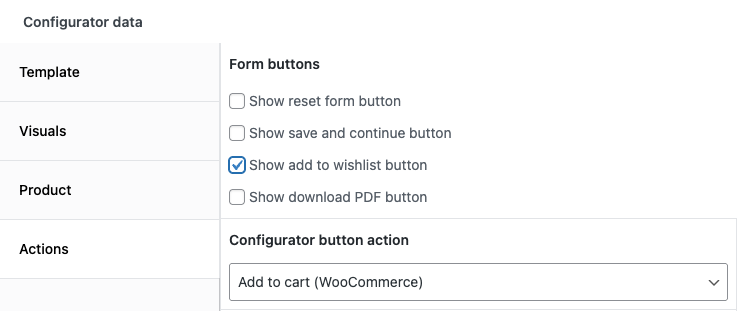
To enable this feature, head over to your configuration form and open up the “Actions” tab
Now check the box “Show add to wishlist button” in the form buttons field and save the changes
The add to wishlist action will be shown underneath the configuration form totals.
If you have the WooCommerce plugin installed, you can also choose to display the wishlist on the WooCommerce account page.
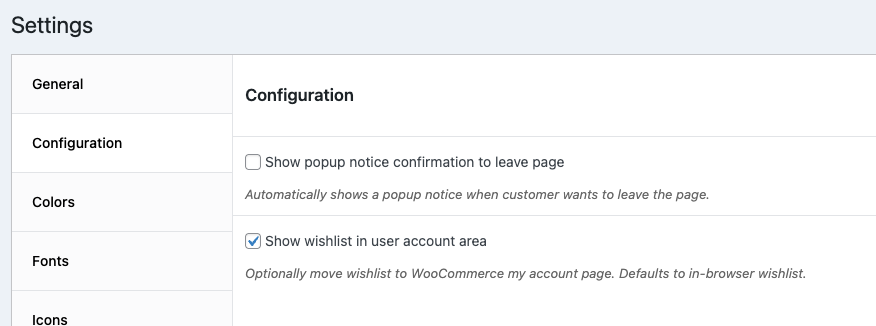
To change this, head over to WCB > Settings > Configuration and check the option “Show wishlist in user account area”
This will move the wishlist panel to the WooCommerce account page.
If you activate this option for the first time, the wishlist page might throw a 404 error. This is a common issue. Simply head over to Settings > Permalinks and save the permalinks. Now the page should work.
You can customize the button labels in WCB > Settings > Labels