

What is a 3D product configurator for WooCommerce?
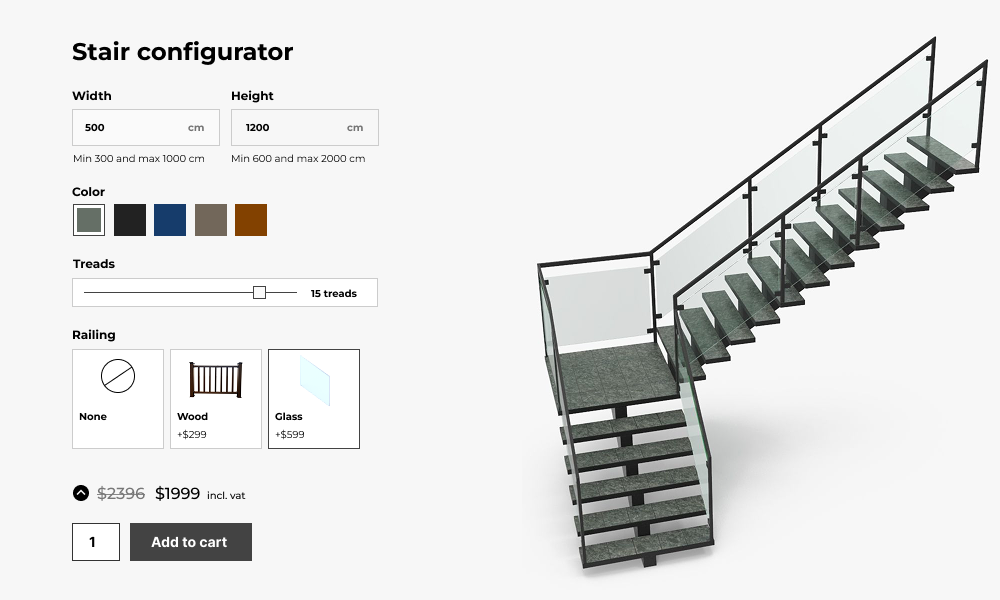
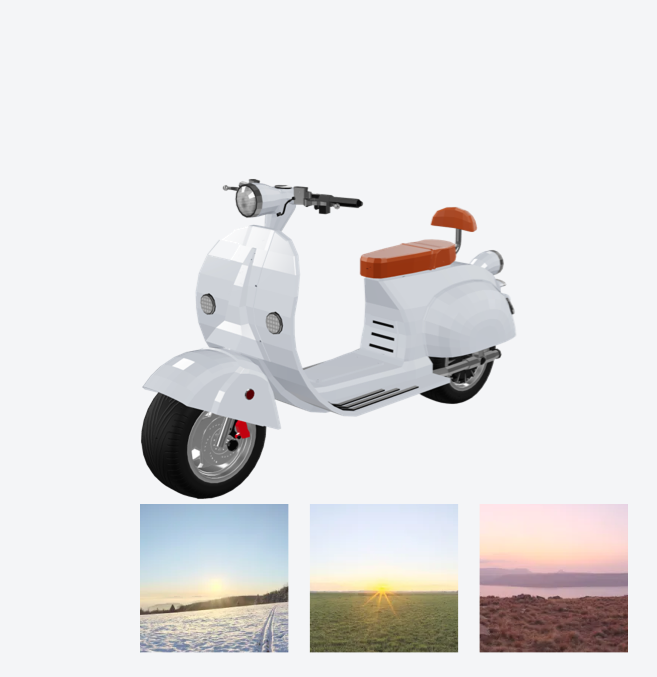
A 3D product configurator is an interactive tool that enables customers to visually customize products in real time.
This tool allows users to modify various features, such as color, size, material, or design, and immediately see the changes reflected in a 3D model of the product.
Unlike traditional 2D images, 3D configurators give users a more immersive and detailed view of their personalized products, making it easier for them to visualize their choices and feel confident in their purchase.
For example, if you’re selling custom furniture, a 3D product configurator would allow customers to choose fabric, color, size, and leg style, and see the furniture in 360 degrees as they make changes.
Similarly, in the case of tech gadgets, customers could pick components such as storage capacity, screen size, or color, with an interactive 3D model showing the final result.
WP Configurator Builder 3D features




WooCommerce professionals use WCB to save a lot of time

“Perfect templates, great features, fast and very powerful for a Woocommerce site”

Unlock the full power with WCB pro
Experience the full power of the WCB configurator builder plugin. Create multi step forms, apply conditional logic, and more
Why you need a 3D product configurator for your WooCommerce store

With a 3D product configurator, customers can preview their customized products in detail before ordering. This reduces the risk of them receiving a product they are unhappy with, ultimately lowering return rates and increasing customer trust.

By incorporating this innovative tool into your WooCommerce store, you provide a high-quality shopping experience that sets you apart from competitors.

A 3D product configurator can significantly boost conversion rates by simplifying decision-making and making the shopping process more enjoyable
This interactive experience captivates customers and encourages them to spend more time on your site, increasing the likelihood of a purchase.

The ability to make personalized selections that reflect their style or needs leads to higher customer satisfaction, which can translate to positive reviews, repeat purchases, and word-of-mouth referrals.

Key features of a 3D product configurator for WooCommerce
360-degree product view
A 360-degree view is essential for a true 3D experience. Customers should be able to rotate the product in any direction to view it from all angles. This feature helps customers better understand the dimensions, details, and quality of the product.
Mobile responsiveness
In today’s mobile-first world, it’s crucial that your 3D product configurator is optimized for mobile devices. A responsive design ensures that your configurator works seamlessly across smartphones and tablets, allowing customers to customize products and view 3D models no matter what device they’re using.
Recommended add-ons



Best practices for optimizing your 3D product configurator
To get the most out of your 3D product configurator and create a smooth, enjoyable experience for customers, follow these best practices:

Simplify the user interface
While offering many customization options is great, make sure the user interface (UI) remains clean and simple. Group similar options together, use clear labels, and ensure that the customization process is intuitive.
Too many choices or a complicated UI can overwhelm customers, leading to frustration and potentially lost sales.

Enable AR technology to view products in your own room
The 3D viewer comes with built-in support for Augmented Reality (AR)
This enables your customers to show their configured products in their own room, giving them a much better understanding of the product at hand.
Provide clear instructions and tooltips
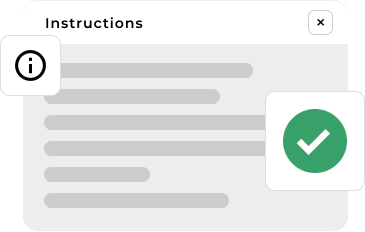
Offer clear instructions or tooltips for customers who may be unfamiliar with the configurator. Explain the customization process in simple terms, and use visual cues (e.g., arrows or highlights) to guide users through each step.
The easier you make it for customers to navigate, the more likely they will engage with the tool.
The WCB plugin allows you to display clear instructions via a popup message so customers know exactly how to interact with the 3D viewer.

Provide personalization options
Consider offering additional personalization options, such as the ability to add custom text, logos, or images to the product.
These options can further enhance the appeal of your products and allow customers to create unique items tailored to their preferences.

Optimize for speed
Loading times are crucial for a great user experience. Ensure that your 3D models and configurator features load quickly, even on slower internet connections.
Slow load times can cause customers to abandon the customization process before completing their purchase. Use optimized 3D models and caching techniques to improve speed.

Use high-quality 3D models
Ensure your 3D models are of high quality. Detailed textures, accurate proportions, and realistic lighting all contribute to a more immersive and believable product experience.
Poor-quality models can lead to a frustrating user experience and lower customer confidence.

Test on all devices and browsers
Cross-device and cross-browser compatibility is essential. Before launching, thoroughly test your 3D configurator on various devices (desktop, tablet, mobile) and browsers (Chrome, Firefox, Safari, Edge) to ensure it functions properly.
A consistent experience across platforms will ensure customers can use the configurator regardless of how they access your store.
How to implement a 3D product configurator in your WooCommerce store with WCB
Set up your product customization options
Once the WP configurator builder plugin is installed, you can begin adding customizable options for your products.
Depending on the product, this could include selecting colors, materials, sizes, or adding custom text or images. Make sure the customization options are clearly labeled and easy for customers to select.
To add customizable options, head over to WCB > Choices and start creating your choices.
Update the 3D model visual based on selections
To make sure the 3D model updates based on the selected options, make sure to create a new visuals set. Head over to WCB > Visuals and list your visuals. For each option, you can choose to update the material, color or 3D part. Or even play animations if you like.
Test and launch
Before going live, test the configurator on various devices to ensure it’s responsive and fully functional. Check that the 3D model updates in real time, the pricing is accurate, and the integration with WooCommerce’s cart and checkout system works seamlessly.
Once you’ve confirmed everything is working correctly, you can launch the configurator on your store.
Promote your configurable products
After your 3D product configurator is set up, promote it across your store and marketing channels. Highlight the customization options and encourage customers to try out the configurator. Feature it on product pages, in emails, and through social media campaigns to drive engagement and sales.
FAQ
Is a 3D configurator better than 2D?
For complex, customizable products: yes, 3D offers more realism and a better shopping experience. But for simpler items, 2D can be more efficient and cost-effective.
Do I need to know 3D modeling to use WCB Configurator Builder?
While you need to upload a GLB file, you don’t need to create one yourself. You can hire a designer or use existing 3D assets.
If you decide to create 3D models yourselves, you do need to have a basic understanding of 3D modeling, preferably in Blender.
Does the visual drag controls work in 3D visual mode?
Yes, we also support drag and drop controls for 3D viewers. You can drag and resize the position on the 3D model around using controls in the configuration form.
What file format does the 3D model need to be in?
WCB supports GLB (.glb) and glTF (.gltf) a modern, web-optimized 3D format that’s lightweight and fast-loading across devices.
Will a 3D configurator slow down my website?
Not necessarily. If your GLB files are optimized it should not affect your website performance. Tip: use compressed models under 10MB, and WCB ensures WebGL compatibility for smooth performance.
Will the plugin work with my theme?
The plugin is optimized to work with all well-coded themes and page builders.
Where can I download the plugin?
You can download the plugin on our WordPress.org plugin page.