What are extra product options for WooCommerce?
Extra product options for WooCommerce refer to additional input fields you can add to your product pages, giving your customers the ability to provide more detailed customization, specifications, or personalization for the products they are purchasing.
These extra product options can be used for a variety of purposes, such as personalizing products, collecting more information for orders, or offering additional options to customers.
Extra product fields allow for a range of options such as:
- Text input: let customers add custom text (e.g., engraving, messages).
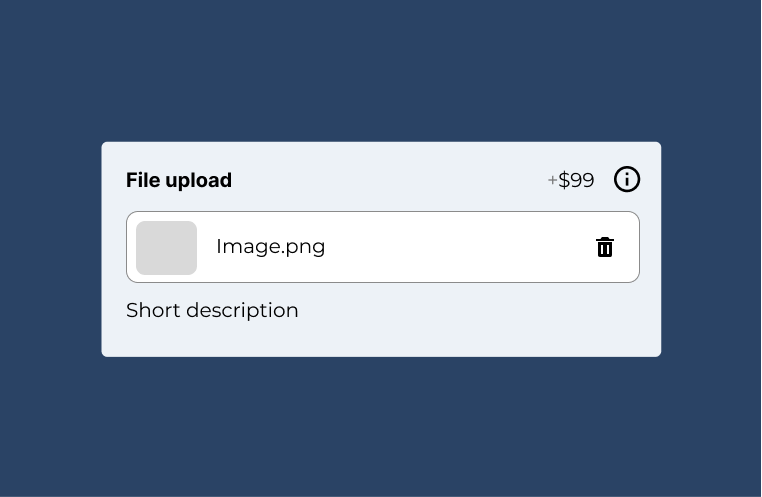
- File upload: allow customers to upload images, documents, or designs for custom products.
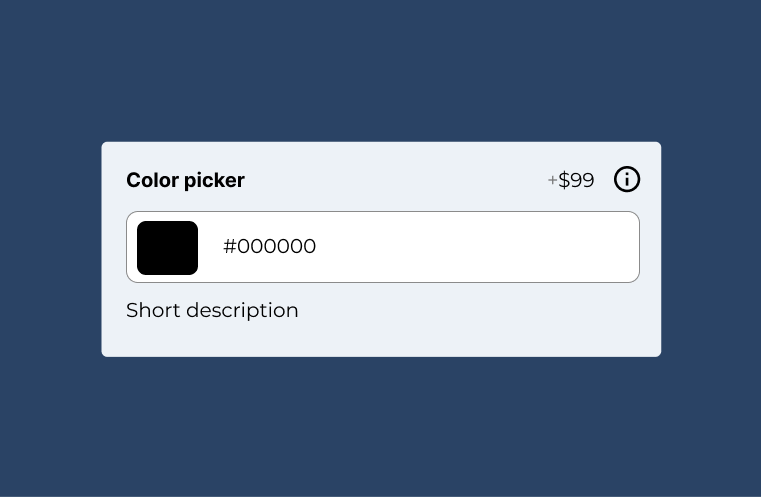
- Select options or checkboxes: Let customers choose from multiple options such as colors, sizes, or features.
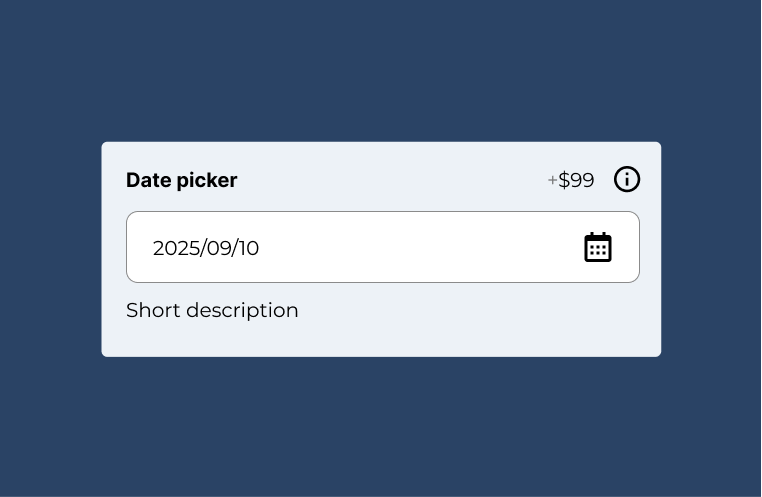
- Date pickers: ideal for booking-related products or specifying delivery dates.
- Radio buttons and dropdowns: provide a cleaner, organized way for customers to select from preset options.
- Multi-line text fields: perfect for longer descriptions, special requests, or notes.
Why add extra product options to your WooCommerce products?
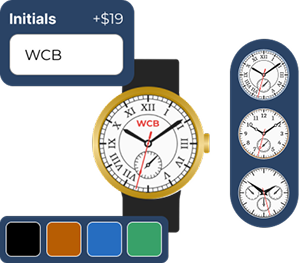
Customers love being able to customize their purchases, whether it’s engraving a name on a jewelry piece, uploading a custom design for a t-shirt, or adding a special message to a gift.
Offering these options can increase customer satisfaction and drive more sales.

Extra product options for WooCommerce give you an easy way to collect this data upfront. For example, if you’re selling made-to-order furniture, you may need customers to provide specific dimensions or details about the materials they want.
Collecting these details at the point of sale saves time and reduces the need for follow-up communication.
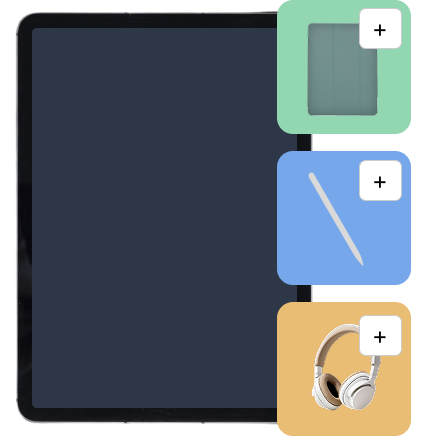
This can help increase your average order value and improve your store’s profitability.
WooCommerce professionals use WCB to save a lot of time

“Perfect templates, great features, fast and very powerful for a Woocommerce site”

Unlock the full power with WCB pro
Experience the full power of the WCB configurator builder plugin. Create multi step forms, apply conditional logic, and more


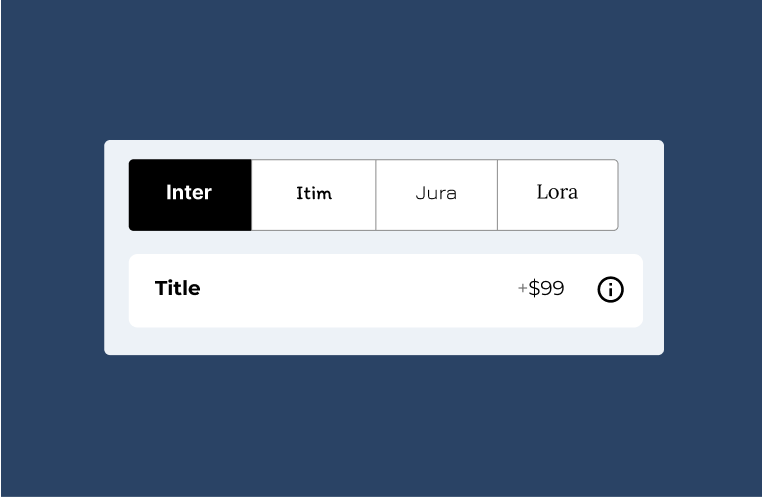
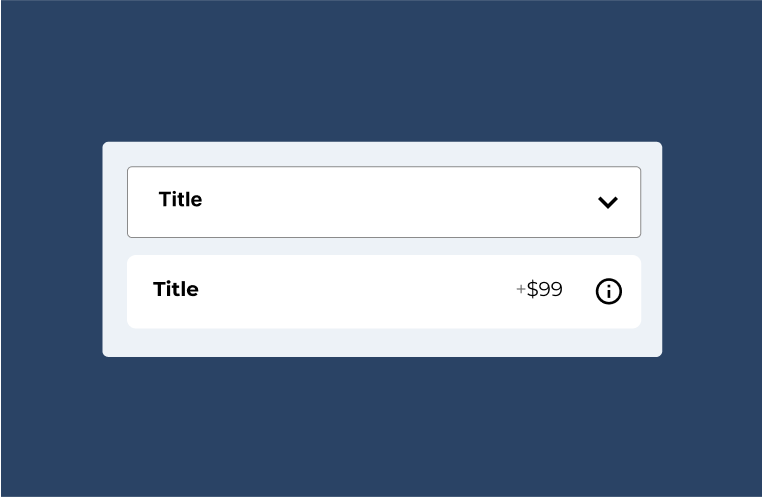

Types of extra product options







Hidden fields
Sometimes, you may want to capture hidden or backend information, such as tracking codes or promotional discounts, that doesn’t need to be visible to the customer. Hidden fields can store this data without affecting the user interface.


Recommended add-ons


How to add extra product options to your WooCommerce product
Install and activate the plugin
Install and activate the WCB configurator builder plugin via your WordPress dashboard. Follow the setup guide for configuring the extra product options.
Add options to your products
Once activated, go to WCB > Choices. Here you can add your extra options (choices). You can create input fields in WCB > Inputs. For each field you can define the field type (text, checkbox, date picker, etc.), label, and various other details, depending on the field type.
Customize field display and conditions
Finally you can customize how and when options are displayed. You can change color and font settings in WCB > Settings.
You might also want to display options under certain conditions. For example, you may want a file upload field to appear for certain product categories or after a customer selects a specific option.
In this case, you will want to check out our plugin add-ons.
Best practices for extra product options in WooCommerce
Keep it simple
Don’t overwhelm customers with too many options. Only ask for essential information that is relevant to the product.
User-friendly design
Ensure that the options are easy to use and visually integrated with your product page. Avoid cluttering the page with too many options.
Clear instructions
Provide clear, concise labels and tooltips to guide customers on how to fill out the fields correctly.
Mobile optimized forms
Make sure that the fields are responsive and work well on mobile devices.
FAQ
Are swatches mobile-friendly?
Absolutely! WCB Configurator Builder is responsive by design. You can control the amount of swatches per row for desktop, tablet and mobile.
Can I add conditional logic to show or hide add-ons?
Yes. WCB Configurator Builder allows you to set conditions for each field with the conditional display add-on, so you can show or hide specific add-ons based on previous selections. This is helpful for creating dynamic forms and simplifying the customer experience.
Can I add text and images to the product image?
Absolutely! You can personalize the product image with text and images using the text visual controls. For image uploads you need our advanced fields add-on
Can I charge extra for custom text?
Absolutely. You can set a fixed or percentage-based price for the field.
Can I mix color and image swatches in the same field?
No, you cannot use mix color swatches and images swatches in the same field. Each field should contain either color or images swatches.
Can I set minimum/maximum item selections?
Yes. You can control how many options users must or can select per group with our advanced fields add-on
Can I restrict upload size or type?
Yes! You can define allowed file types and max upload size for each upload field.
How do I find the configurator shortcode?
Go to WCB > Configurations and look for the “Display” column. The shortcode is listed in that column when configuration display type is set to “Shortcode”.
Is WCB compatible with Elementor or Gutenberg?
Yes, WCB works with both. You can insert configurator products on any page or template. Or transform WooCommerce pages by linking the configuration to a WooCommerce product.
Can I use WCB without WooCommerce?
Yes! WCB works fully standalone on WordPress.
Will this work with variable products?
Yes you can extend WooCommerce variations with custom options as well. But WCB can also replace the need for WooCommerce’s built-in variations by giving you full control through our own option system.