If you have the Classic Editor plugin active, please make sure you disable this for the “wpcb_configuration” post type. Otherwise you won’t be able to use our Gutenberg-based configuration form builder
Documentation
Form builder
In this article
Gutenberg form editor
The WCB configuration form builder is based on the Gutenberg block editor. This editor has become the main editor in WordPress now.
In the form builder you can choose from various WCB blocks:
- Choice
- Input
- Shortcode
- Summary
- Tab group
- Field group
- Custom HTML

Choice block
The choice block allows you to display a WCB choice field in the configuration form

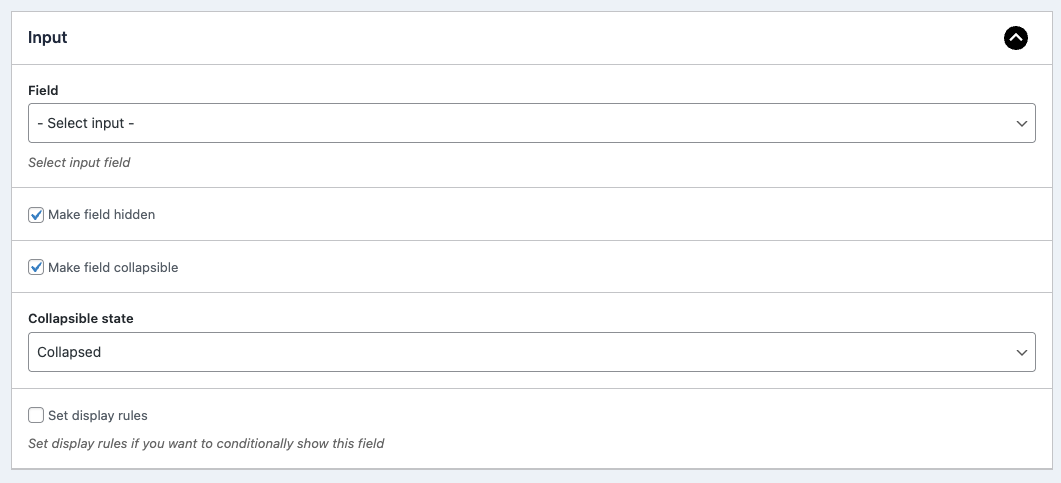
Input block
The input block allows you to display an input field in the configuration form
Shortcode block
The shortcode block allows you to output any contents using a shortcode. Any shortcode is supported. Just make sure to enter the full shortcode, including the brackets: [shortcode]

Summary block
The summary block will show a list of selected configuration options. This will update automatically. You will also find this summary block included in our main configuration templates, so adding this in is only useful when building custom form templates.
Tab group block
The tab group block allows you to create a tab group in the configuration form. You can add inputs and choices inside the tab group, which will be displayed when the tab is active.

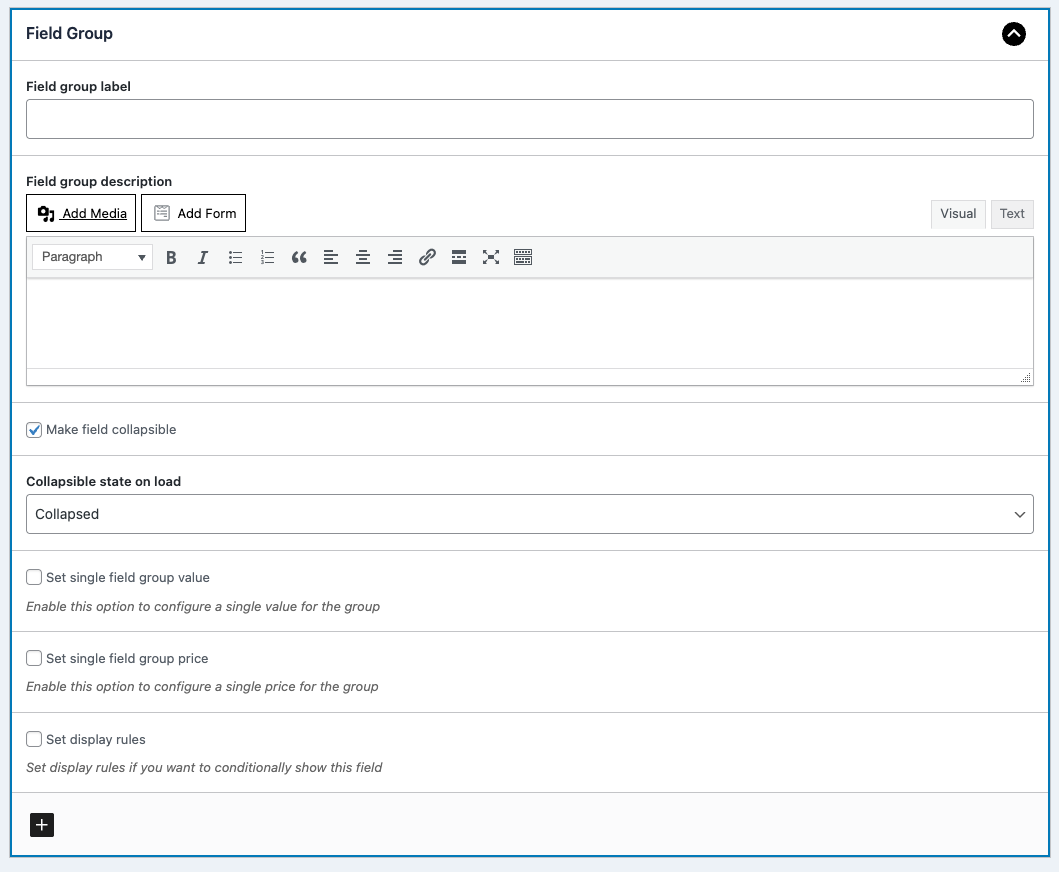
Field group block
The field group block can be used to group certain fields together. You can control the field width of the subfields, allowing for more compact layouts with multiple fields on a single line.
You can also use the field groups for advanced calculations when paired with the advanced calculation add-on.
Custom HTML
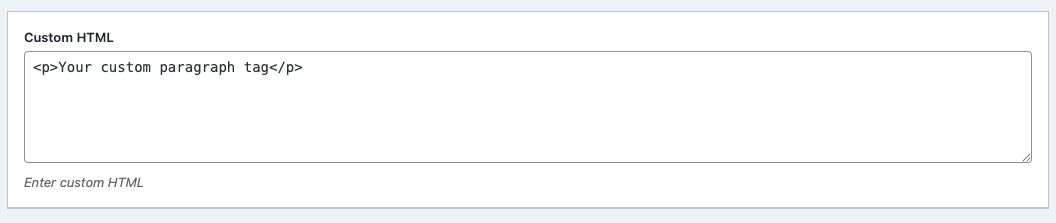
Finally we allow you to add custom HTML to enrich your form markup. You can add any html you like, from links to images to titles.
Extra fields add-on
If you want to create complex forms, you can get our advanced fields add-on. This will unlock access to:
- Step field group
- Repeatable field group
- Filter panel group
This allows you to create repeatable fields and multi step forms.
Step group block
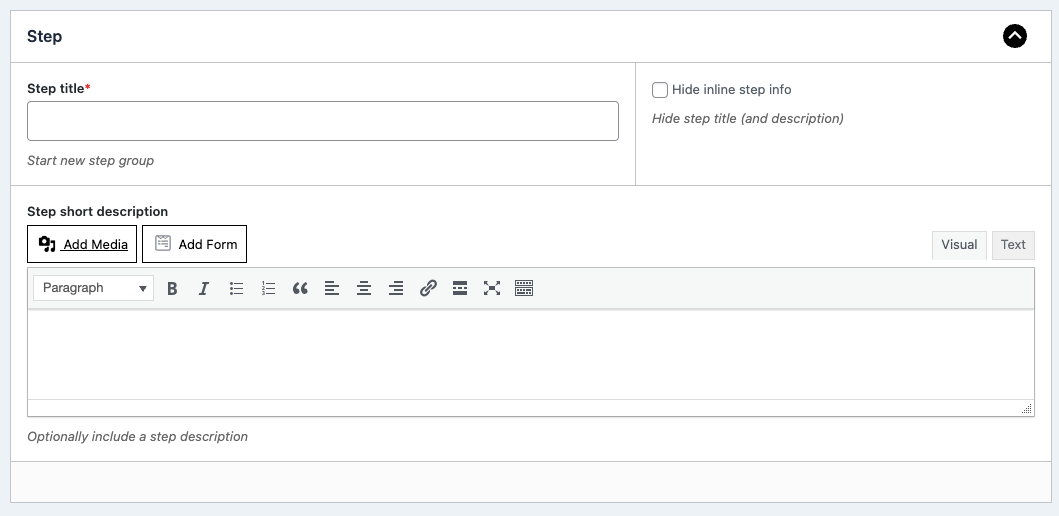
The step group block allows you to create a multi step form. You can add the fields as sub fields to the step group. All the sub fields will be displayed when the current step page is active.
Field filter block
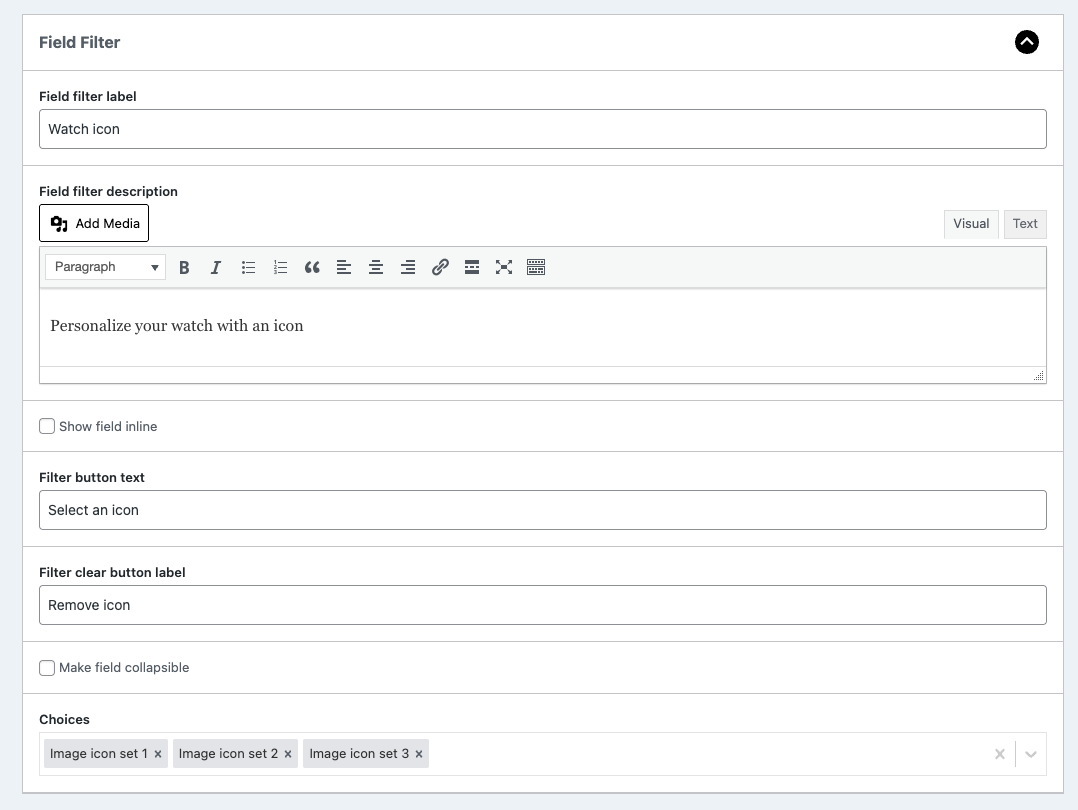
The field filter group block allows you to create an off-page panel that contains (multiple) choice options. You can add the choices as sub fields to the filter group. All the sub fields will be displayed inside the panel.
You can also choose to show all sub fields inline if you like to keep the options on the page.
Finally, you can mark all subfields collapsible.
Note: the visual controls still need to be configured per choice.
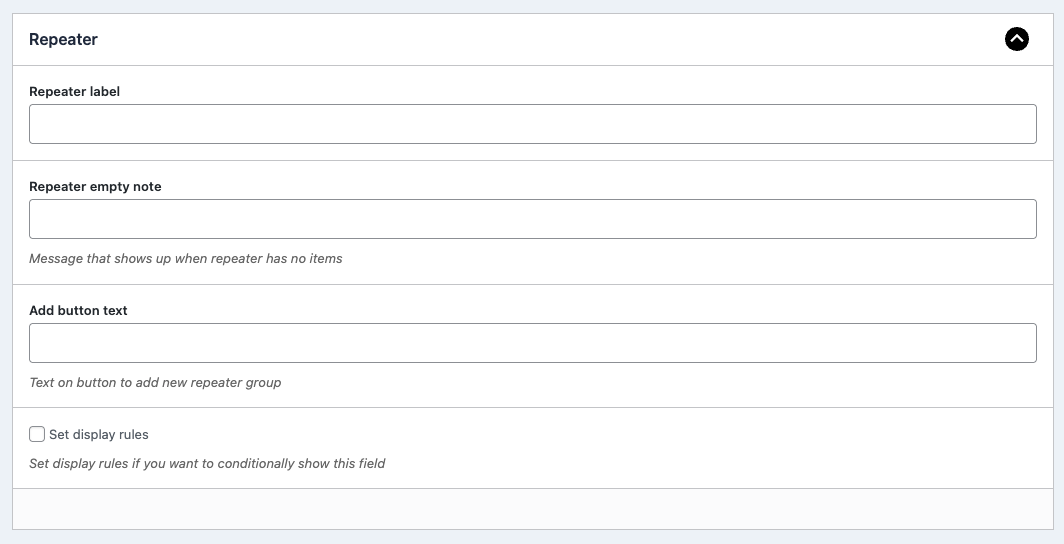
Repeater block
Finally, you can create repeatable field groups using the repeater block. Each input or choice added to the repeater block can be repeated as many times as you like.