Product customization has become a powerful trend in eCommerce, allowing customers to shape products to their exact tastes and needs. Whether they’re personalizing furniture, designing apparel, or configuring electronics, shoppers expect a seamless, modern experience, including the ability to save their custom design for later.
In WooCommerce, adding a save my configuration feature can greatly improve customer satisfaction and increase conversions. Below, we explore why this feature matters and the easiest non-technical ways to implement it.
Why customers need the ability to save their configurations
Customizing a product can take time. Customers may spend several minutes choosing colors, materials, features, or layout options. During this process, customers often explore different ideas, compare variations, or seek input from others. It’s rare for most users to complete a configuration and check out in one session.
Without a save option, all progress is lost if they leave. This leads to frustration and significantly increases the chance of losing a sale. A saving feature ensures that customers can return to their design whenever they want, which reduces friction and keeps them engaged.
Beyond convenience, saving a configuration helps build trust. Shoppers feel reassured that your store values their effort and gives them control over their buying experience.
How saving configurations improves the customer journey
A save my configuration” feature doesn’t just prevent frustration, it also enhances the whole shopping experience. When customers know they won’t lose their progress, they explore more freely and interact more deeply with your product. This increased engagement often translates to higher conversion rates as well.
Saved configurations also make it easier for customers to make more thoughtful decisions. A shopper designing a custom desk, for example, may want to revisit different setups or show their design to a colleague before purchasing. When your store allows them to save and return later, you create a more supportive and professional buying journey.
Additionally, saved configurations encourage repeat visits. Customers who return to complete or adjust their design are more likely to finalize their purchase than those starting from scratch.
Non-technical ways to add a save feature in WooCommerce
If you’re not technical (or simply prefer a simpler path), you’ll be happy to know that WooCommerce offers several easy methods to enable saving without writing code or modifying your theme.
1: Using the WCB form actions add-on plugin for built-in saving options
Some WooCommerce product configuration plugins already include features for saving or bookmarking designs, such as the WCB configurator builder. Turning on the save function is as simple as toggling a setting. This built-in feature integrates smoothly with user accounts, allowing customers to return and pick up where they left off.
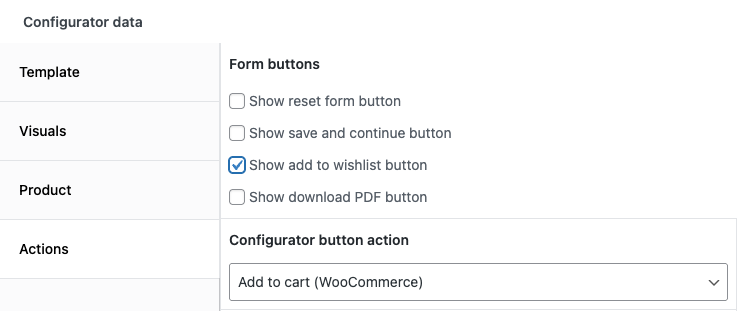
If you’re already using the WCB configurator builder plugin, it’s worth checking out the form actions add-on so your customers can save configurations or store designs inside their account page.
2: Adding a wishlist plugin that supports configurable products
Wishlist plugins are among the most popular ways to offer saving functionality without technical work. When paired with configurable products, they allow users to save the exact product version they’ve customized. This method effectively turns the wishlist into a “my saved designs” area.
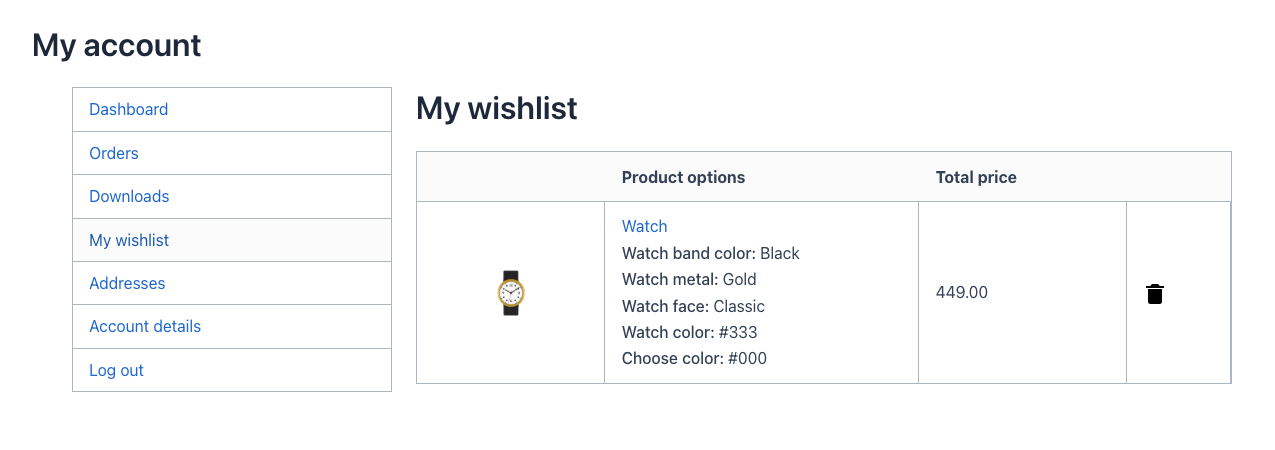
The WCB form actions add-on also comes with an option to store wishlist items in the WooCommerce account area, ensuring seamless integration with the WooCommerce ecosystem.
If you are using WCB, simply head over to “WCB > Settings > Configuration” and check the option “Show wishlist in user account area”
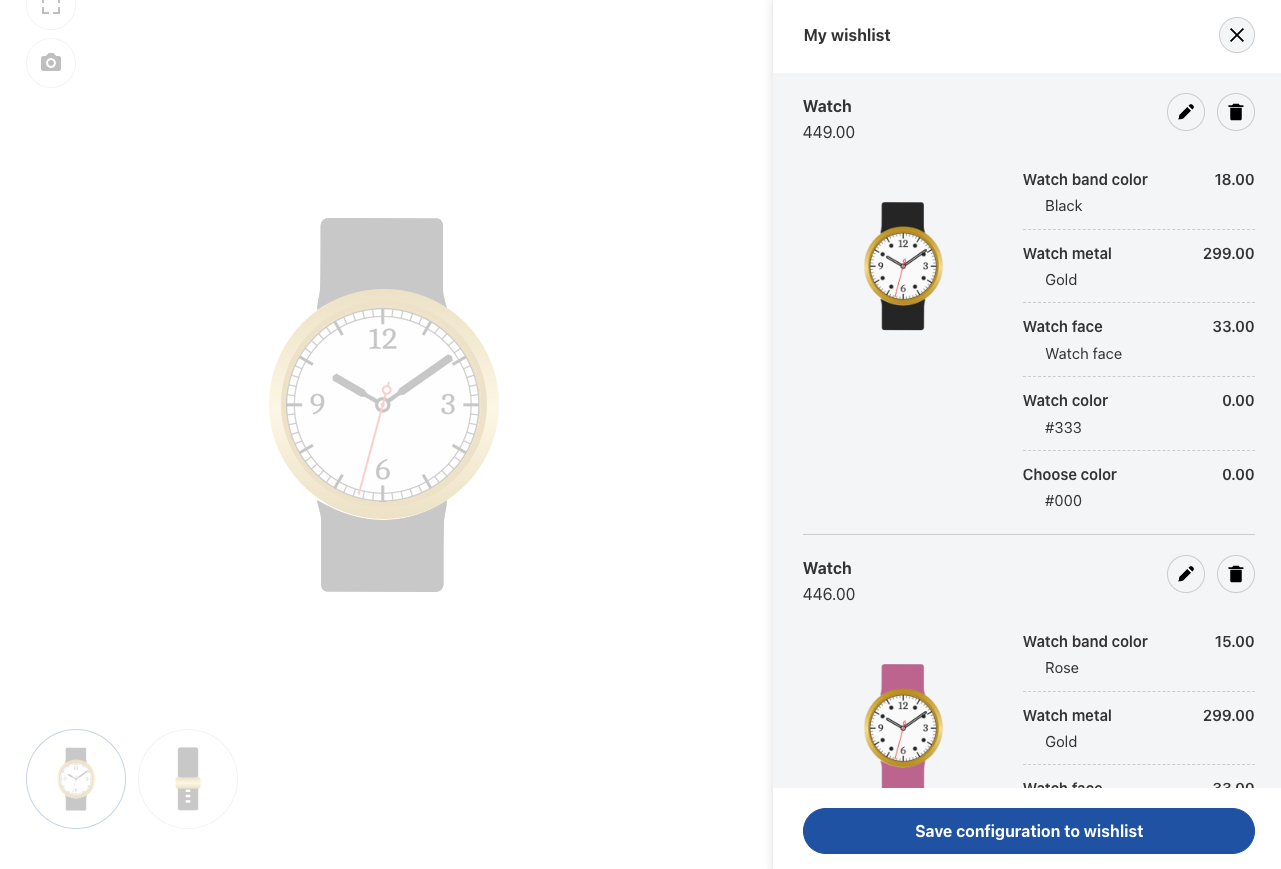
Plugins like TI WooCommerce Wishlist or YITH WooCommerce Wishlist handle all the customer account integration, saving, and display. For many store owners, this option offers the easiest path to a polished, reliable save experience.
3: Using save for later or wishlist plugins
If you prefer something simpler than a full wishlist system, wishlist or save for later plugins work very well. These tools add a save button to your product pages and store the customer’s choices in their account area.
They’re lightweight, easy to set up, and perfect for stores where customers may want to save several potential variations before deciding which one to buy.
4: Leveraging shareable configuration links
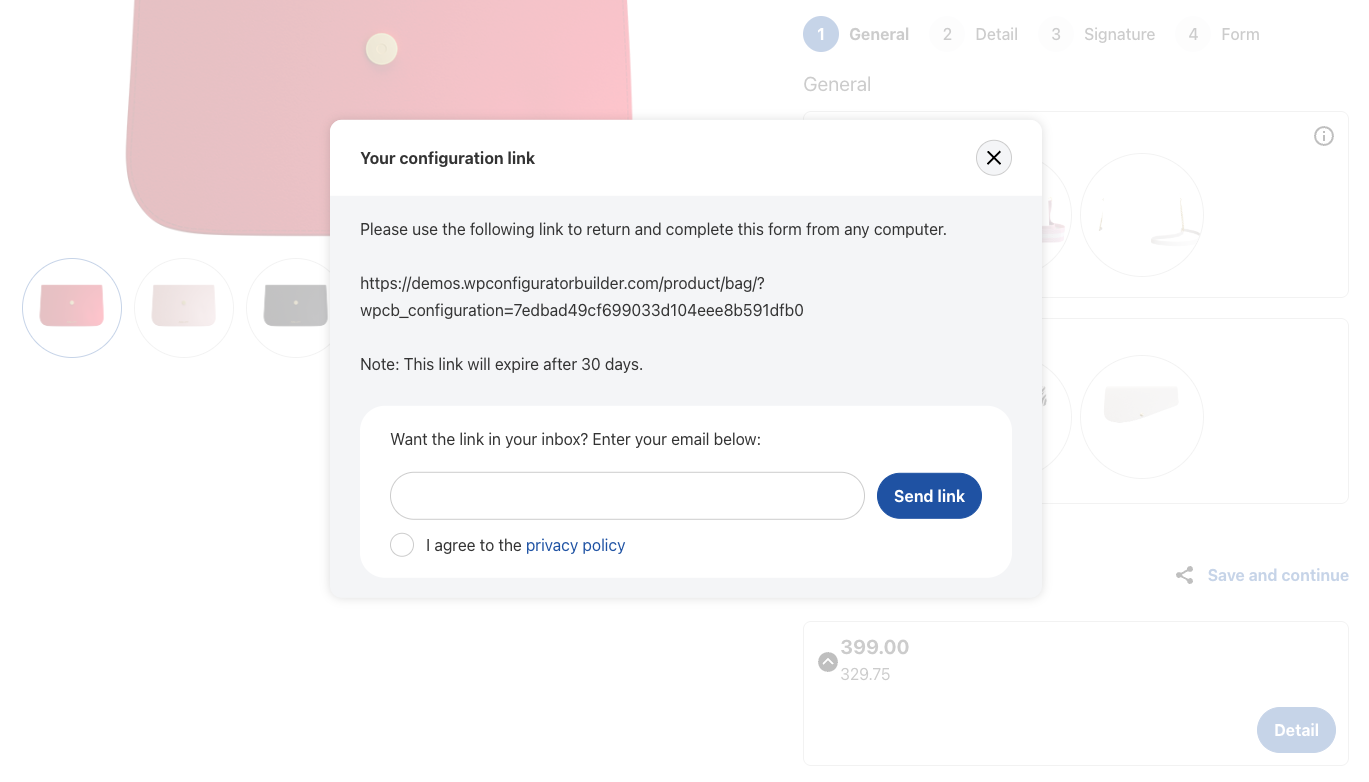
The WCB configurator builder form actions add-on also enables you to generate unique URLs that store all selected options. Instead of requiring customers to create an account, the save function can work by sharing, bookmarking, or emailing the link.
This is particularly useful if your product relies heavily on visual previewing, since customers often seek feedback from others before purchasing.
Using shareable links also naturally encourages more social sharing, bringing additional traffic to your store without extra marketing effort.
WCB configurator builder has built-in features for share links, wishlist and save for later. Start your 14 day trial period to check out these amazing features for free.
Creating a smooth and user-friendly saving experience
To get the most value from your save feature, it’s important to make the process clear and intuitive. Customers should immediately understand how and where their configuration will be saved.
Encouraging users to create an account helps ensure their designs remain accessible no matter what device they return on.
A clearly visible save button near the customization area creates a sense of convenience and reduces uncertainty. After saving, displaying a friendly confirmation message boosts trust and reassures customers that their configuration is stored safely.
If your tool allows sharing, providing a simple “share my configuration” button can further enhance engagement and bring in new shoppers.
A dedicated saved configurations page in their account area also plays a key role. When customers can easily find and reopen their saved designs, they feel supported and empowered during their decision-making.
How save and continue features benefit conversions
Saving configurations doesn’t just improve user experience, it can positively impact your store’s sales performance. Customers who save their designs tend to return multiple times, increasing session duration and engagement signals that search engines view favorably.
Additionally, configurations that are shared with friends or colleagues often generate new traffic, giving you an organic boost in visibility.
From a conversion standpoint, saved designs reduce hesitation. Shoppers feel more confident purchasing when they can revisit their customized product at their convenience.
Overall, this feature acts as a powerful bridge between interest and purchase, helping customers move more comfortably through the buying process.
Final thoughts
A “save my configuration” feature can transform the way customers interact with your WooCommerce product configurator. By giving shoppers the freedom to return to their personalized designs anytime, you dramatically enhance their experience and increase the likelihood they’ll complete a purchase.
Best of all, you can implement this feature using simple, non-technical tools like configurator plugin add-ons, wishlist systems, or favorites plugins.
As customer expectations continue to evolve, offering a smooth and flexible saving experience can set your store apart and strengthen both engagement and conversions.