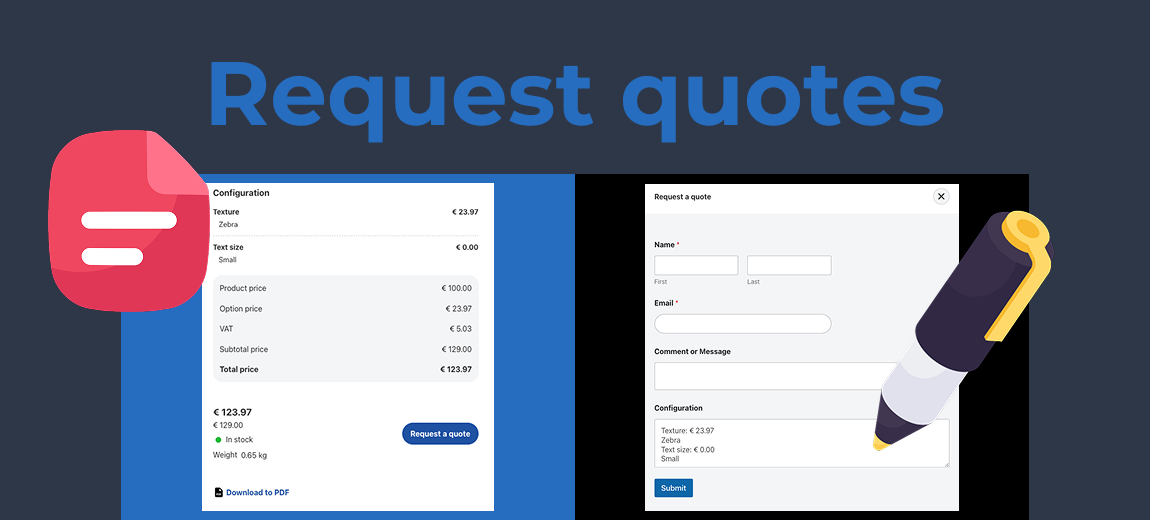
If you’re selling customizable or high-value products through WooCommerce, offering a “request a quote” feature can greatly enhance your customer experience.
Instead of requiring buyers to make an immediate purchase, you give them the ability to configure a product and submit an inquiry for a tailored quote. This is ideal for businesses selling made-to-order items, B2B products, or services with complex pricing.
With WCB configurator builder, you can visually showcase customizable product options and collect detailed quote requests directly through your WooCommerce store. In this guide, we will explain how to set it up using the WCB configurator builder plugin.
What is “request a quote” in WooCommerce?
“Request a quote” is a feature that replaces the typical eCommerce purchase flow with a more flexible inquiry-based model.
Instead of adding a product to the cart and going through checkout, the customer configures a product and submits a form to request pricing or availability details.
This feature is especially useful when:
- Products require customization
- Pricing depends on quantity, materials, or project scope
- You sell B2B and negotiate pricing
- You offer services, not just physical goods
In WooCommerce, enabling this option means the “add to cart” button is replaced with a “request a quote” button. You then collect customer details and product selections, allowing you to respond with a personalized offer or convert it into an order.
What is WCB Configurator Builder?
WCB Configurator Builder plugin is a WordPress plugin that allows store owners to build interactive product configurators. It supports real-time previews, advanced pricing rules, and flexible user input options.
One of its most valuable features for custom product sellers is the ability to replace or extend the standard “add to cart” button with a “request a quote” form.
This functionality is especially useful when product pricing depends on customer-specific requirements such as size, volume, materials, or design specifications.
Benefits of using a request a quote feature
Setting up a quote system using WCB Configurator Builder offers several advantages:
- It helps qualify leads before they become customers.
- It allows you to handle custom pricing for complex or variable products.
- It improves your sales workflow for B2B or volume-based pricing models.
- It gives customers a lower-commitment alternative to immediate purchase.
- It creates opportunities for negotiation and personalization of offers.
Use cases for request a quote in WooCommerce
Many types of businesses benefit from enabling quote requests:
- Furniture retailers
Custom sofas, modular tables, or built-to-order cabinetry that need a quote based on size, materials, and finish options. - Printing services
Collect detailed input on paper type, quantity, color finish, and delivery schedule before quoting a final price. - Manufacturers and fabricators
Produce items that depend on precise customer specifications, such as molds, custom parts, or industrial components. - Apparel companies
Uniforms or branded merchandise that need to assess logo design, embroidery options, and bulk quantities. - Wholesale suppliers
Volume discounts or custom pricing tiers that vary based on the order size and the buyer’s profile.
These scenarios all benefit from the flexibility of quote-based workflows over fixed-price checkout systems.
How to set up request a quote in WooCommerce
Here are the steps to implement a request-a-quote workflow in WooCommerce using WCB:
Step 1: Install WCB Configurator Builder
First, install the WCB Configurator Builder plugin from the WordPress plugin repository:
- Go to the WordPress admin dashboard.
- Navigate to Plugins > Add New.
- Search for “WCB Configurator Builder.”
- Click Install, then Activate.

Step 2: Create a configurable product
- Navigate to Products > Add New.
- Choose “Simple” or “Variable” product depending on your needs.
- Add product title, description, price and featured image.
Step 3: Create configuration options
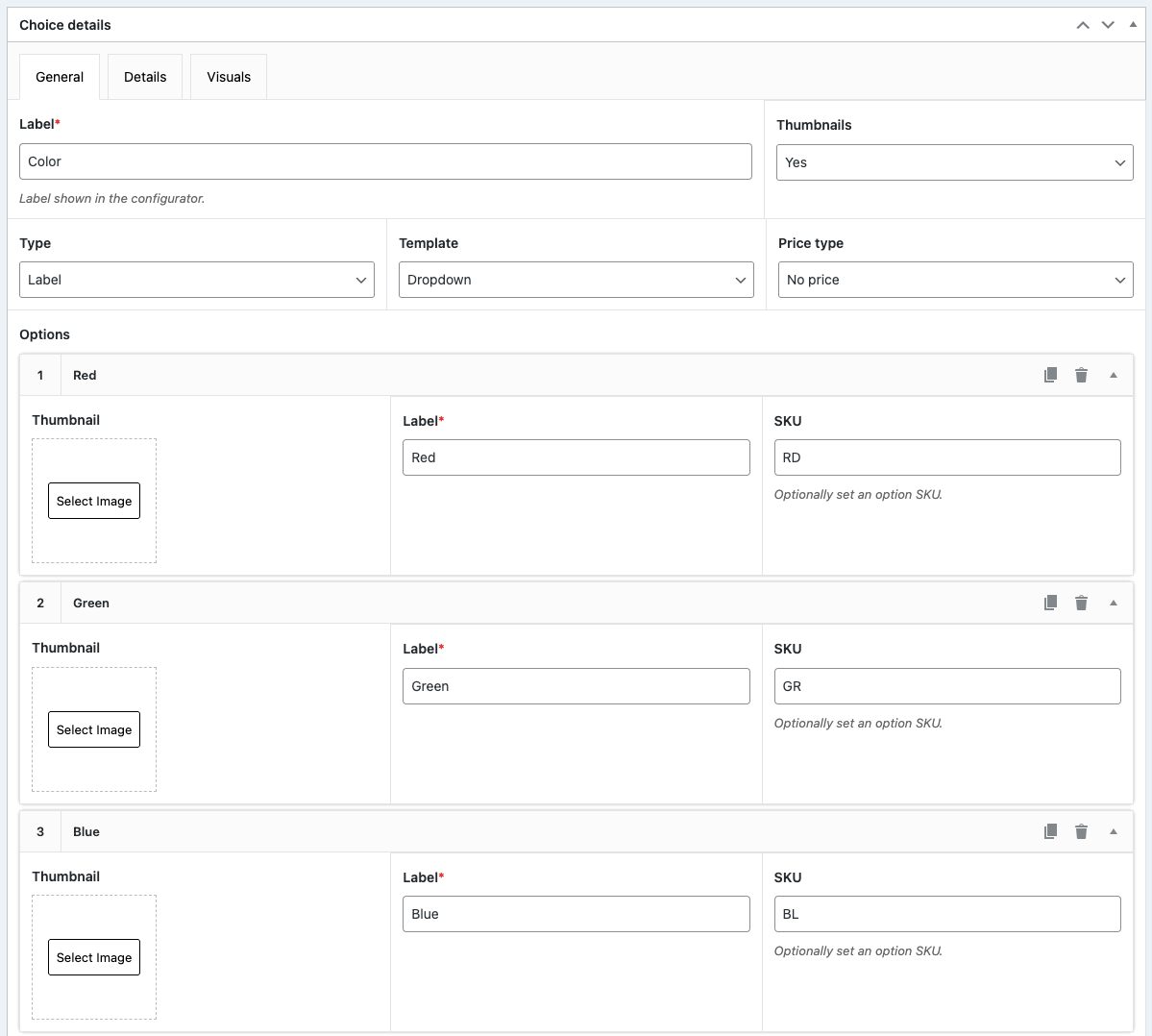
- Head over to WCB > Choices
- Define your configuration choices and options (e.g., Material, Size, Finish).
Step 4: Create a configuration
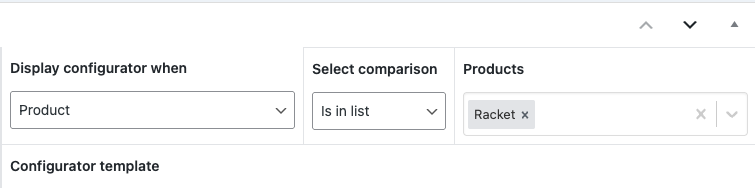
- Head over to WCB > Configurations and add a new configuration
- Link the configuration to your product
- Add the configuration options to the form builder
Step 5: Create the quote form
WCB allows you to integrate the request a quote feature with form plugins like WPForms, Contact Form 7 or Gravity Forms to collect the quote details.
You can add fields such as:
- Customer name
- Email address
- Phone number
- Company (optional)
- Message or special instructions
- Preferred quantity or timeline
You can also add additional fields, such as file uploads or project specifications if you like.
Step 6: Set up notifications
To make sure quote requests are seen and processed quickly:
- Go to your form settings
- Enable notifications for new quote submissions.
- Add relevant team members to receive these emails.
- Customize the email content if needed.
WCB will pass the quote request to the relevant form fields with all selected product options, any uploaded files, and the customer’s message.
Step 7: Enable request a quote mode for the configuration
Go back to your configuration form:
- Scroll to the Configuration data section and open up the Actions tab.
- Replace the default “Add to cart” action with “Request a quote”. This will change the button on the product page to a quote submission form rather than sending the product to checkout.
- Enter your form shortcode of the form you just created with your favorite form plugin in the Request quote form shortcode field
- Choose to display form inline or in popup

Step 8: Respond to quotes
Once you receive a quote request, you can:
- Review the submission details.
- Respond manually by email with a custom offer.
- Use a quoting plugin to generate a downloadable quote document.
- Convert the quote into an official WooCommerce order if accepted.
WCB also works with additional plugins such as YITH Request a Quote or WooCommerce Request Quotes to support more advanced workflows.
Bonus: Display add to cart and request quote actions at same time
With WCB Configurator Builder form actions add-on, you can also show add to cart and request quote buttons at the same time!
This is perfect for store owners who would like their customers to be able to choose to add directly to cart, or request quote to ask for additional product details.
Conclusion
Setting up a request a quote system in WooCommerce using WCB Configurator Builder is ideal for stores that offer customizable, complex, or high-value products.
It gives your customers the flexibility to explore options and initiate the buying process without immediate commitment, while giving you the tools to qualify and convert leads effectively.
WCB Configurator Builder makes it simple to build visual product experiences and collect rich customer data through quote requests, helping you improve your conversion rate and customer engagement.
If you’re ready to upgrade your WooCommerce store with smart quoting features, start using WCB Configurator Builder today.
FAQ
Can I show estimated pricing while still using the quote feature?
Yes. WCB Configurator Builder allows you to show estimated prices based on selected options, even when using the Request a Quote form instead of the checkout process.
Will the quote include the selected configuration details?
Yes. When customers submit a quote, WCB includes all product selections, input values, and calculated totals in the submission.
Is this compatible with other WooCommerce quote plugins?
Yes. WCB integrates smoothly with plugins such as YITH Request a Quote or WooCommerce Request Quote. You can use WCB for visual configuration and hand off the submission to a more robust quote management tool.