If you run a WooCommerce store that sells products with variations (such as clothing, furniture, or custom-built electronics), providing detailed visuals for each option is essential.
WooCommerce’s default functionality only allows a single image per variation, which limits how effectively you can showcase your products.
In this guide we will walk you through how to overcome that limitation by using WCB Configurator Builder, a powerful plugin that allows you to assign multiple images per variation. This not only improves the user experience but can also boost your conversions and reduce returns.
What does multiple images per variation mean?
In WooCommerce, a product variation is a unique combination of attributes like color, size, or material. For example, a t-shirt could be sold in red, blue, and black; each color is a different variation.
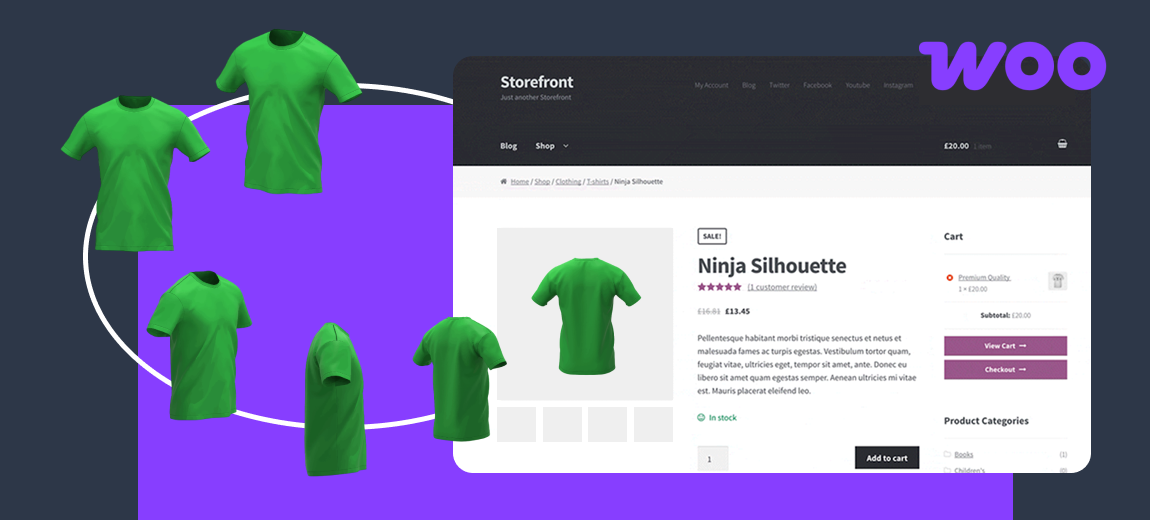
By default, WooCommerce allows only one image per variation. Multiple images per variation means you can assign a custom gallery of images to each variation. This could include different angles, close-ups, or lifestyle shots relevant to that specific option.
Example:
- A “Red leather sofa” variation would display images showing the red leather texture, front view, side view, and possibly the sofa in a living room setting.
- A “Blue fabric sofa” variation would have its own distinct set of images showcasing the blue fabric and different angles.
This level of visual clarity is especially critical for stores that sell configurable, made-to-order, or high-ticket items.

Why show multiple images per variation?
- Visual accuracy
Customers can see exactly what they are purchasing, avoiding confusion or unmet expectations. - Improved user experience
Switching between variations updates the image gallery in real time, creating a more dynamic and informative product page. - Increased conversion rates
Clear visuals lead to more confident purchasing decisions. - Reduced returns
When customers know exactly what they’re buying, they’re less likely to return the product. - Enhanced professionalism
Custom variation images help your brand stand out as modern and user-centric.
About WCB Configurator Builder
WCB Configurator Builder is a professional WooCommerce plugin that allows you to create dynamic, multi-step product configurators. It’s ideal for stores offering complex or customizable products.
Key features include:
- Dynamic image updates based on selected variations
- Multi-layer image composition
- Multiple image uploads per option
- Live preview of changes
- Drag-and-drop configurator builder
- No coding required
How to show multiple images per variation in WooCommerce
Before you start, make sure the WooCommerce plugin is installed and active on your site.
Step 1: Install the plugin
- Download WCB Configurator Builder plugin
- Go to Plugins > Add New in your WordPress admin.
- Upload the plugin file and activate it.

Step 2: Create a new product
- Navigate to Products > Add New.
- Add a product title, description, price and featured image
- Save changes.
Step 3: Create customizable options
- Head over to WCB > Choices.
- Click the button “Add new” and set the label (e.g., “Choose Color” or “Choose Finish.”)
- Enter options for your customizable options
- Repeat for each customizable option
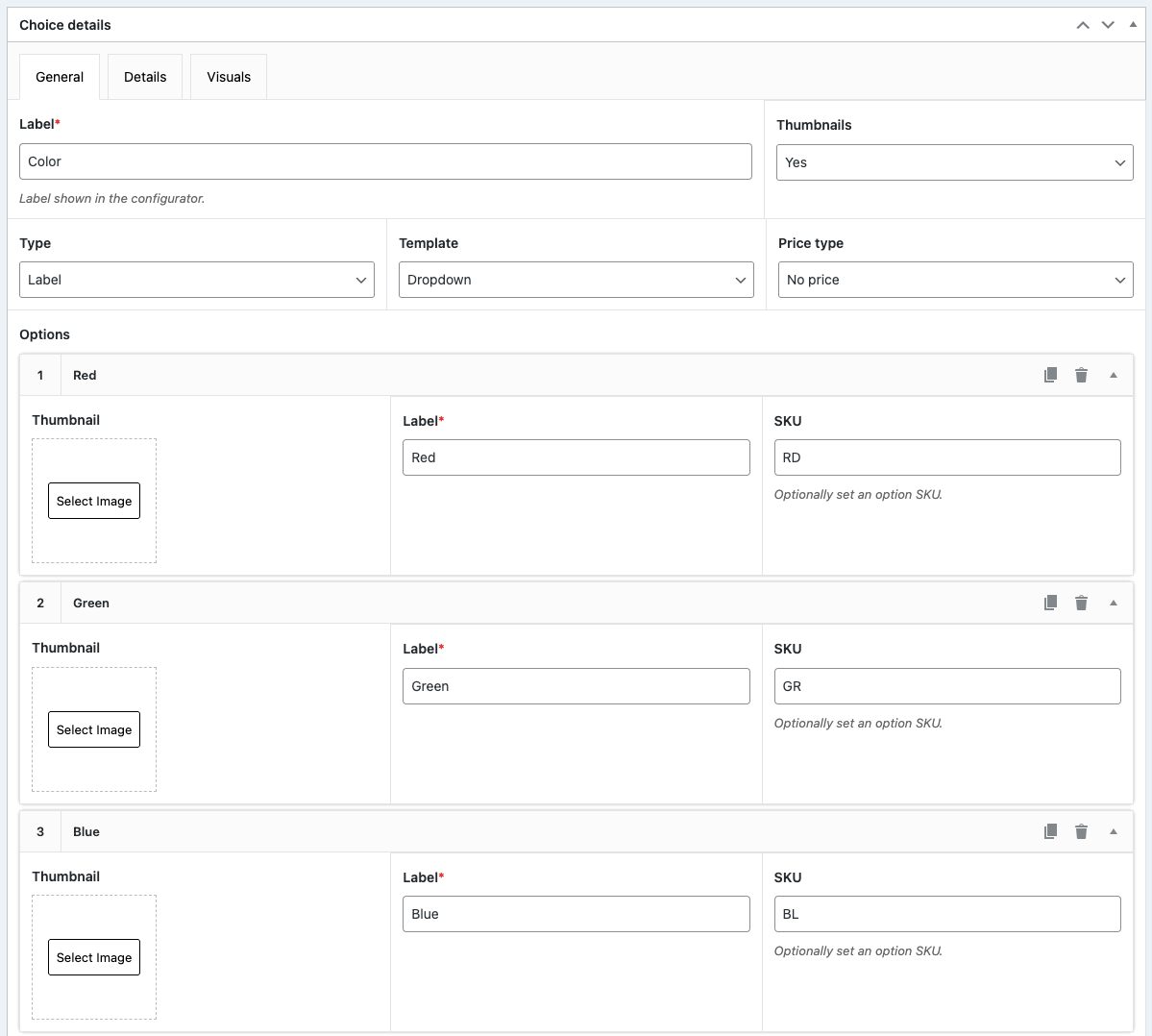
Step 4: Create configuration form
- Head over to WCB > Configurations
- Click the button “Add new” and set a title
- Add the customizable options to the configuration form
- Scroll down to “Configuration data” section, select “product” as display type and choose product to display configuration options for
- Also make sure template is set to third or fourth option. Otherwise gallery images won’t update.
- Save the changes

Step 5: Upload multiple images per variation
You can assign multiple images per configuration option in WCB > Visuals page
- Head over to WCB > Visuals and create a new visual group
- Assign the visual group to your configuration (and optionally select the product to be more specific)
- For each option (e.g., Red, Blue, Black), add a new group and upload multiple images showing that option from different perspectives.
- For each group, assign the rules when to display the images in the image gallery
- Use the live preview to test how configuration selections update the image gallery.
Optionally make use of our image layering system for more advanced visuals, such as adding accessories over base images.
To layer images, simply add multiple groups for the same selection and control the layer with the Layers field. Higher numbers will be displayed on top.

Step 6: Save and optimize
- Compress all images using an optimization plugin like ShortPixel or TinyPNG.
- Ensure the gallery functions correctly on desktop, tablet, and mobile devices.
- Publish or update the product.
Step 7: Customize gallery display
You can choose to show gallery arrow controls, label controls or thumbnails
- Head over to your WCB configuration form (WCB > Configurations)
- Scroll down to “Configuration data” section
- Open up the “Visuals” tab
- Choose gallery nav type (“labels”, “thumbnails”, “icons”)
- Add control for each view (e.g., “front”, “left”, “bottom”)

Use case scenarios
This setup is ideal for industries where visual detail matters. For example:
- Furniture
Show different materials and finishes for sofas or tables. - Fashion
Display all angles and fabric textures for each color of a garment. - Electronics
Allow users to preview custom color skins or accessories. - Automotive
Use image layering to build custom vehicles with paint, wheels, and interior packages. - Jewelry
Offer dynamic previews for metal types and gemstone combinations.
Conclusion
Allowing multiple images per variation in WooCommerce is no longer just a nice feature; it’s a crucial part of providing a professional and user-friendly shopping experience.
With WCB Configurator Builder, you can give customers the visual context they need to make confident purchases.
Whether you’re selling furniture, fashion, tech accessories, or custom-built products, this tool provides the flexibility to showcase each product variation with the clarity and detail your customers expect.
FAQ
Can WooCommerce support multiple images per variation by default?
No. WooCommerce only allows one image per variation. A plugin like WCB Configurator Builder is required to add this functionality.
Can I layer images for configurable products?
Yes! WCB Configurator Builder supports multi-layered images, ideal for building complex products like cars, bicycles, or furniture sets.
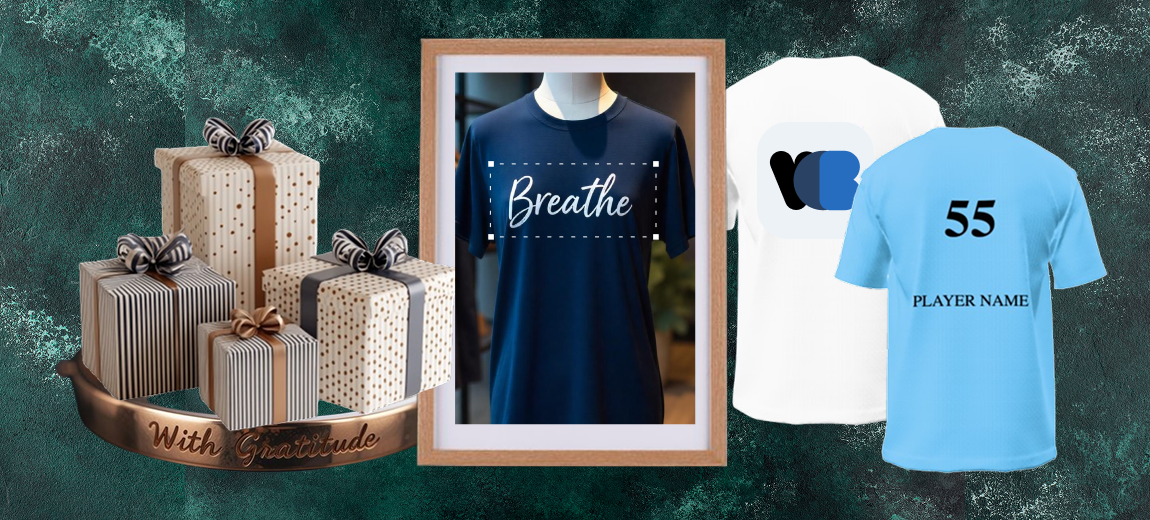
Can I add text and images to the product image?
Absolutely! You can personalize the product image with text and images using the text visual controls. For image uploads you need our advanced fields add-on