If you’re running a WooCommerce store, you’ve probably realized that the default product fields sometimes aren’t enough.
Whether you need to offer engraving options, custom text fields, gift wrapping, or product upgrades, adding extra product options is essential for delivering a tailored shopping experience.
One of the most popular ways to add extra product options is through a plugin like the WCB Configurator Builder plugin. WCB gives you full control over product options, layers, pricing, and logic, all within an intuitive builder interface.
In this guide, we’ll show you how to add extra product options to WooCommerce products using WCB Configurator Builder, step by step.
Why add extra product options in WooCommerce?
WooCommerce’s default product settings allow you to set basic attributes like size and color. However, they fall short when it comes to advanced customizations. Here’s what you can achieve by adding extra product options:
- Text fields for custom names or messages (e.g. “Happy Birthday, Sarah!”)
- Checkboxes for add-ons (e.g. gift wrapping)
- File uploads for custom artwork or logos
- Date pickers for bookings or delivery scheduling
- Conditional logic to show/hide fields based on user input
These enhancements not only increase user satisfaction but also allow you to charge extra for value-added services.
Why use WCB Configurator Builder for extra product options?
While WooCommerce supports simple and variable products, it lacks visual configuration tools and advanced customization out of the box. That’s where WCB Configurator Builder comes in.
With WCB Configurator Builder, you can:
- Add unlimited extra product options (text fields, images, colors, prices)
- Use visual layers to show real-time product previews
- Set conditional logic for option visibility (addon)
- Add dynamic pricing per option
- Create fully interactive, user-friendly product configurators
Add extra product options with WCB Configurator Builder
Step 1: Install and activate the WCB plugin
If you haven’t already:
- Go to Plugins > Add New
- Search for “WCB Configurator Builder”
- Click “Install” and then “Activate”

You’ll also need the WCB Pro plugin for advanced features like conditional logic and file uploads.
Step 2: Create a new configuration
Navigate to:
- WCB > Configurations > Add New
Set a name (e.g., “Custom Hoodie Builder”) and assign it to a product. This will turn a WooCommerce product into a fully configurable item.

Step 3: Add extra product options
Go to WCB > Choices and click add new choice. Now you can begin adding the product options you need. Common extra product options are:
- Color swatches: let users choose fabric or design colors
- Text fields: for custom names, messages, or monograms
- Image uploads: allow users to upload logos or artwork
- Dropdowns or radio buttons: for selecting sizes, fits, or upgrades
- Checkboxes: for add-ons like gift wrapping or rush delivery
Each option allows:
- Price adjustments (+/-)
- Required toggle
- Tooltips or helper text

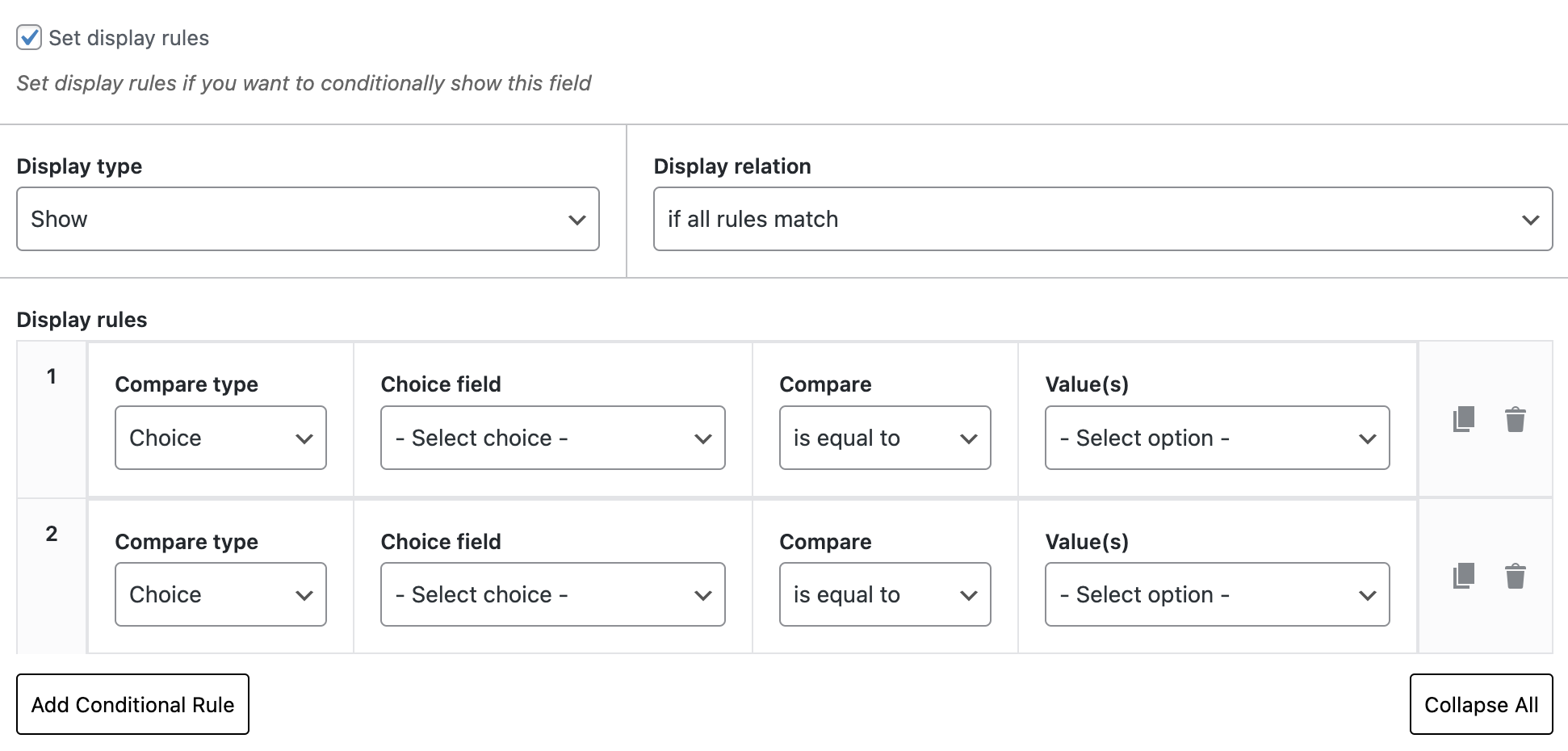
Step 4: use conditional logic (optional)
Need to show options only if a certain selection is made?
WCB Pro lets you apply conditional logic:
- Show “Custom Text” field only if “Add Engraving” is selected
- Offer color selections only if “Custom Design” is enabled
Go to the specific field in the configuration, check conditions and define your rules.
Step 5: configure visual layers (recommended)
If your product has visual changes based on selections, like showing a red hoodie when “Red” is selected:
- Go to WCB > Visuals
- Upload transparent PNG images per variation
- Link each image layer to the corresponding option
- WCB will handle dynamic previews as customers choose

Step 6: preview and publish
Use the Preview button in the top right hand corner to test your configurator before publishing.
Once everything is set:
- Link the configurator to a WooCommerce product
- Publish the product
- Go to your storefront and test the user experience
Tips for success with WCB product options
- Keep it simple: don’t overwhelm users with too many choices on one screen
- Group related options: organize by type: size, customization, accessories, etc.
- Use (short) descriptions: help users understand each option
- Optimize for mobile: WCB is mobile responsive, but test every layout
- Price smartly: offer options with added value to increase AOV (average order value)
Final thoughts
The WCB Configurator Builder plugin transforms WooCommerce from a basic store into a powerful product customization platform. Whether you’re building a custom apparel shop or a personalized gift business, adding extra product options using WCB is simple, scalable, and profitable.
Now that you know how to create a highly customizable product using WCB, go ahead and build unique shopping experiences your customers will love.
FAQ
How many options can I add for each choice?
Depends on your server speed, but we are confident the plugin handles up to 50 attribute options per choice (or more). There is practically no limit to the amount of options you can add.
Do I need WCB Pro for text fields?
No, text inputs is a free feature of the WCB Configurator Builder.
Will this work with variable products?
Yes you can extend WooCommerce variations with custom options as well. But WCB can also replace the need for WooCommerce’s built-in variations by giving you full control through our own option system.
Does WCB support dynamic pricing per option?
Absolutely. You can add fixed or percentage-based price adjustments for each option.