If you sell customizable products through WooCommerce, you’ve likely searched for ways to let customers personalize items before adding them to the cart. This is where a WooCommerce product configurator comes in.
In this guide, we’ll explain what a WooCommerce product configurator is, how it works, and how you can set one up using the WCB Configurator Builder plugin, one of the most powerful tools for creating visual product customization experiences in WordPress.
What is a WooCommerce product configurator?
A WooCommerce product configurator is an interactive tool that allows customers to personalize products based on predefined options. Instead of choosing from simple dropdowns or swatches, users can see their choices reflected in real-time, such as changing colors, adding text, selecting accessories, or customizing parts.
In WooCommerce, this means replacing standard product options with a dynamic, visual interface. Product configurators are especially popular for:
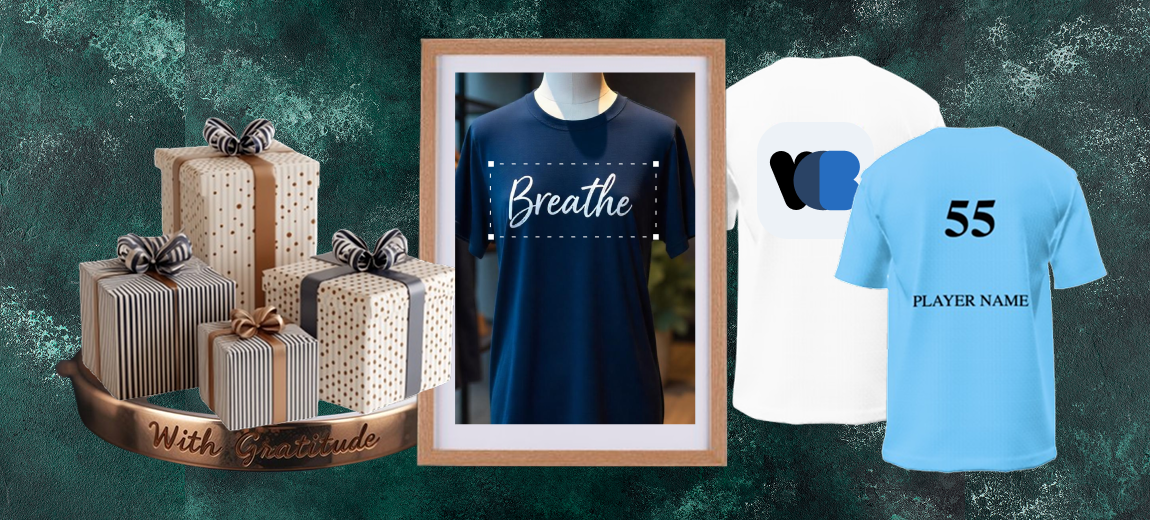
- Custom apparel (T-shirts, hats, shoes)
- Furniture and home decor
- Electronics
- Jewelry
- Bicycles and vehicles
- Print-on-demand products
How does a WooCommerce product configurator work?
A product configurator usually works by layering images or applying logic based on user input.
Here’s a simplified breakdown of how it works:
- Image layers or 3D model: a static image or model represents the base product.
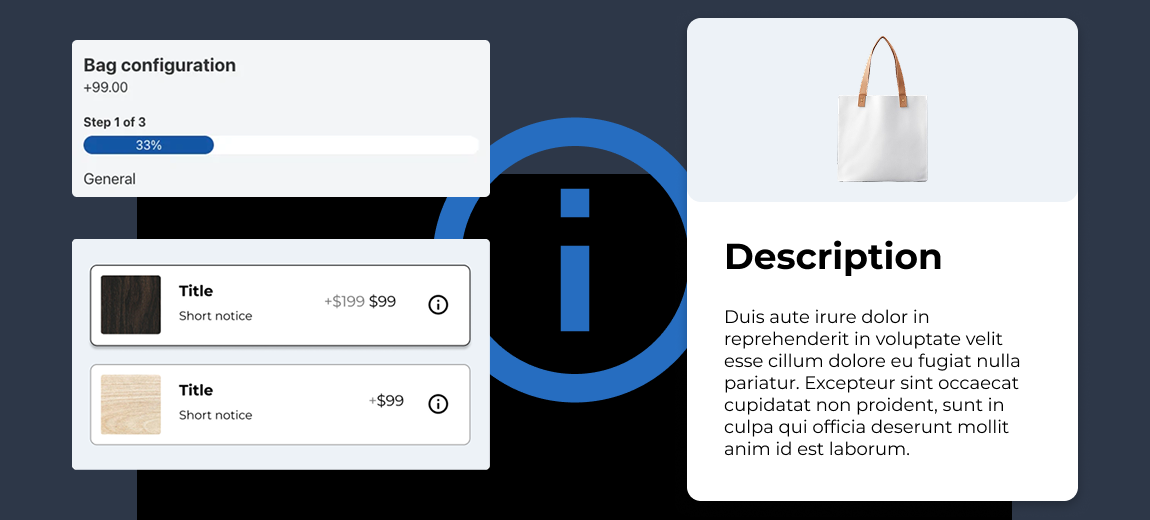
- User options: customers can select from various components (e.g., color, size, materials).
- Live preview: as users make changes, the preview updates in real-time.
- Dynamic pricing updates: dynamic pricing updates based on the selected configuration.
- Add to cart: the final, customized product is saved and added to the WooCommerce cart.

Benefits of using a product configurator in WooCommerce
Adding a product configurator to your WooCommerce store can drastically improve the customer experience. Benefits include:
- Increased conversion rates
Interactive tools boost engagement and time-on-site. - Higher average order value
Customization often allows for upselling options. - Reduced product return rates
Customers know exactly what they’re ordering. - Better UX/UI
Enhances the overall professionalism and usability of your store. - Streamlined custom orders
Easily process and fulfill made-to-order requests.
Common features in WooCommerce product configurators
A well-built WooCommerce product configurator should include:
- Drag-and-drop builder interface
- Layered image support (for color/material changes)
- Conditional display (show/hide options based on selections)
- Live price updates
- Mobile responsiveness
- Shortcodes integration
- Custom text input or image upload
- Compatibility with WooCommerce variations and inventory
Why choose WCB Configurator Builder?
The WCB Configurator Builder plugin is one of the most versatile and user-friendly options for building advanced product configurators on WooCommerce.
Designed for coders and non-coders, WCB allows you to create highly interactive and visual product customization experiences directly within your WordPress dashboard.
How to set up a WooCommerce product configurator with WCB
Follow these simple steps to set up your first configurator:
Step 1: Install WCB Configurator Builder plugin
- Go to your WordPress dashboard.
- Navigate to Plugins > Add New.
- Search for WCB Configurator Builder or upload the premium version if purchased.
- Install and activate the plugin.

Step 2: Create the configuration options
- Create dropdowns, button groups, swatches or input fields
- Adjust pricing for each option if needed

Step 3: Add a new configurator
- Go to WCB Configurator > Add New.
- Name your configurator and assign it to a product (or use shortcode display)
- Upload your base product image
- Select your desired template (or build your own)
- Add all the created choices and inputs to the configuration form
- Use conditional logic to control which options appear based on previous selections (add-on)
- Choose configuration action(s) in the Actions tab (add to cart, send email, request quote)

Step 4: Add image layers
You can configure your image layers for the options in WCB > Visuals page
- Create a new visual group
- Add additional layers (e.g., alternate colors, optional parts).
- Assign each layer to a configuration option

Step 5: Publish and embed
- Save and publish your configurator.
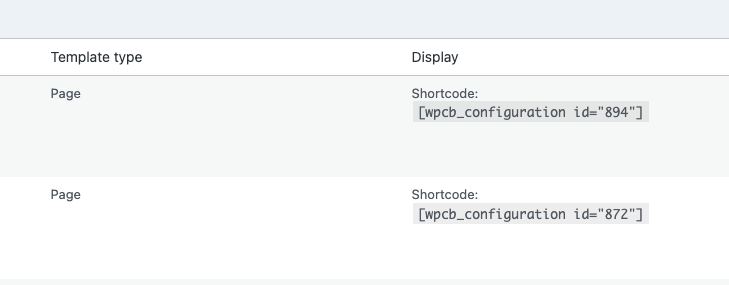
- Use the shortcode generated by WCB to embed the configurator into your product page or landing page.
Step 6: Test the experience
Navigate to the product page as a customer would, go through the customization steps, and ensure the final output matches what you expect in the cart.
Final thoughts
Creating a WooCommerce product configurator doesn’t have to be complicated. With the WCB Configurator Builder, you can offer a fully customized and interactive shopping experience without any coding knowledge.
Whether you’re selling custom apparel, print-on-demand products, or configurable gadgets, WCB gives you the power to stand out in a competitive e-commerce market.
FAQ
Will the plugin work with my theme?
The plugin is optimized to work with all well-coded themes and page builders.
Will this work with variable products?
Yes you can extend WooCommerce variations with custom options as well. But WCB can also replace the need for WooCommerce’s built-in variations by giving you full control through our own option system.
Does WCB support dynamic pricing per option?
Absolutely. You can add fixed or percentage-based price adjustments for each option.
Can I set minimum/maximum item selections?
Yes. You can control how many options users must or can select per group with our advanced fields add-on