Documentation

Home » Documentation » Choices » Choice types

Choice types

In this article

The WP Configurator Builder supports various types of choices, including:

  1. Label
  2. Color
  3. Font
  4. URL
  5. Linked product (pro)
  6. Template (pro)

Rest assured, all types can be used for all templates. Just make sure to select the types and templates that make most sense to you and your customers.

1. Label

Label is the default type you will find yourselves using most of the time. It is excellent for regular options in dropdowns, option lists, button groups and cards.

You can optionally enter a different value in the “Value” field. This value will be used in visual updates. For example, to change font sizes, font colors, etc.

2. Color

The second type is color. Color values are best used for visual color updates, and in the color swatches template.

We also support color pickers, but you will need to use an input for that.

3. Font

The next type is font. This type is used when you want the customer to be able to enter text on the product image in a custom font.

Make sure the custom fonts are loaded properly on the page, otherwise the font update won’t work (or the fonts will look weird).

If you want to add new fonts that are not present in your theme, you can add custom font scripts in WCB > Settings > Advanced tab.

4. URL

The URL type is often used to link multiple configurators together. It’s basically an alternative for linked variation products, where each variant contains it’s own single product page.

This can also be useful when you want to simplify the configuration forms and reduce the amount of conditional display rules.

5. Linked product

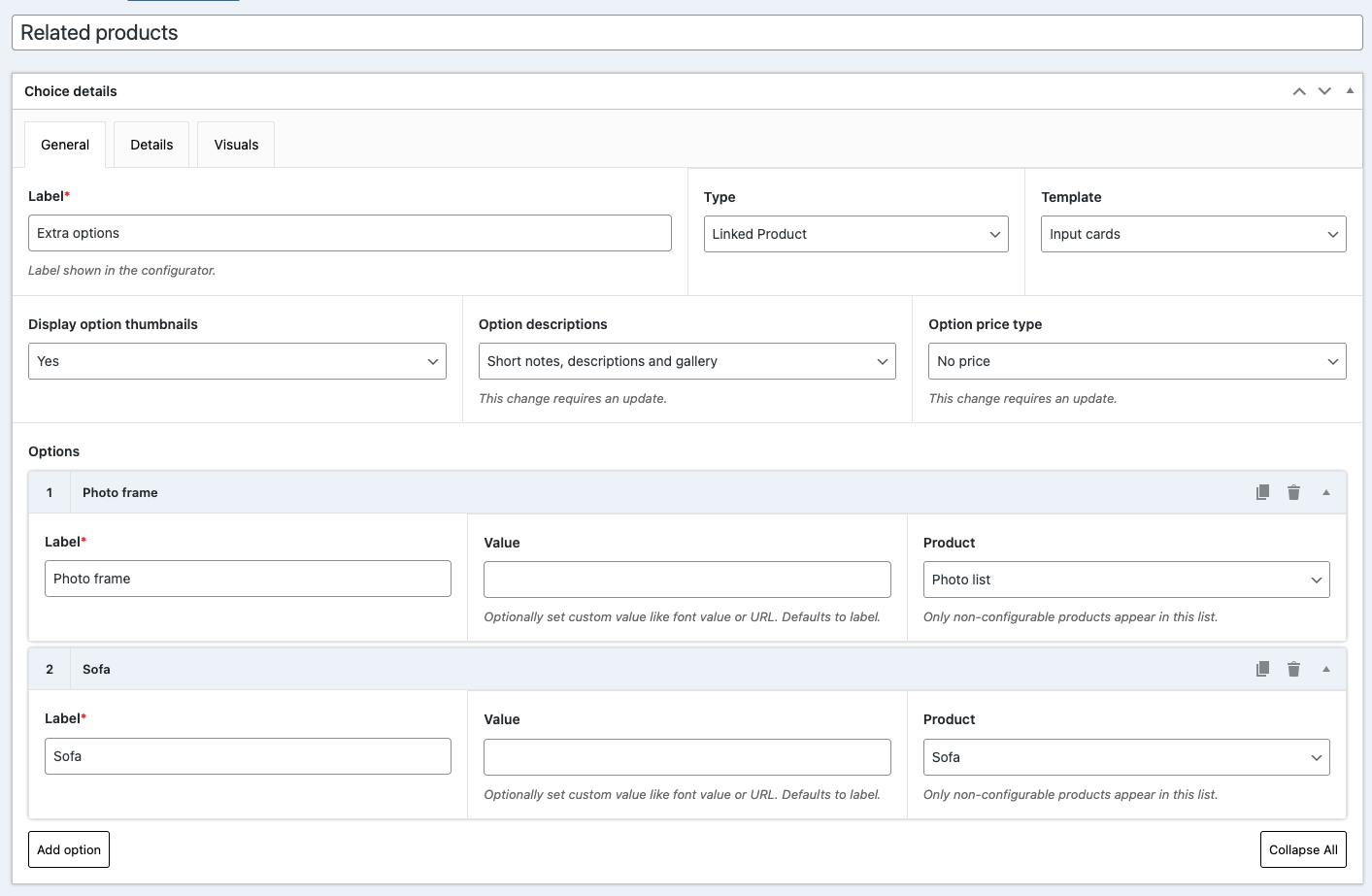
If you are on the pro version (or have the inventory management add-on installed), you can also link products to configuration options to sync product information like thumbnail, title, price, sku and stock positions.

This allows you to keep your (product) data clean and centralized.

6. Templates

Finally, we have the template type. The template type allows you to link a configuration to a WCB template, which contains a set of predefined configuration field and value pairs.

This can be very helpful if you want to create some predefined configuration templates to speed up the customization process and allow customers to explore various designs quickly.

You can create new templates in WCB > Templates.

Note: this is also a pro feature.

With the templates in place, you can now link the template to the option using the Template option type:

Next

Dropdown