Documentation

Home » Documentation » Configurator forms » Descriptions & tooltips

Descriptions & tooltips

In this article

The WP configurator builder supports various types of descriptions and information panels to help guide the users through the configuration process. A few examples are:

  1. Field short description
  2. Field detailed descriptions (panel)
  3. Configurator option notes
  4. Configurator option descriptions (panel)
  5. Swatch inline labels
  6. Swatch summary
  7. Swatch tooltips (coming soon)
  8. Custom HTML blocks


1. Field short description

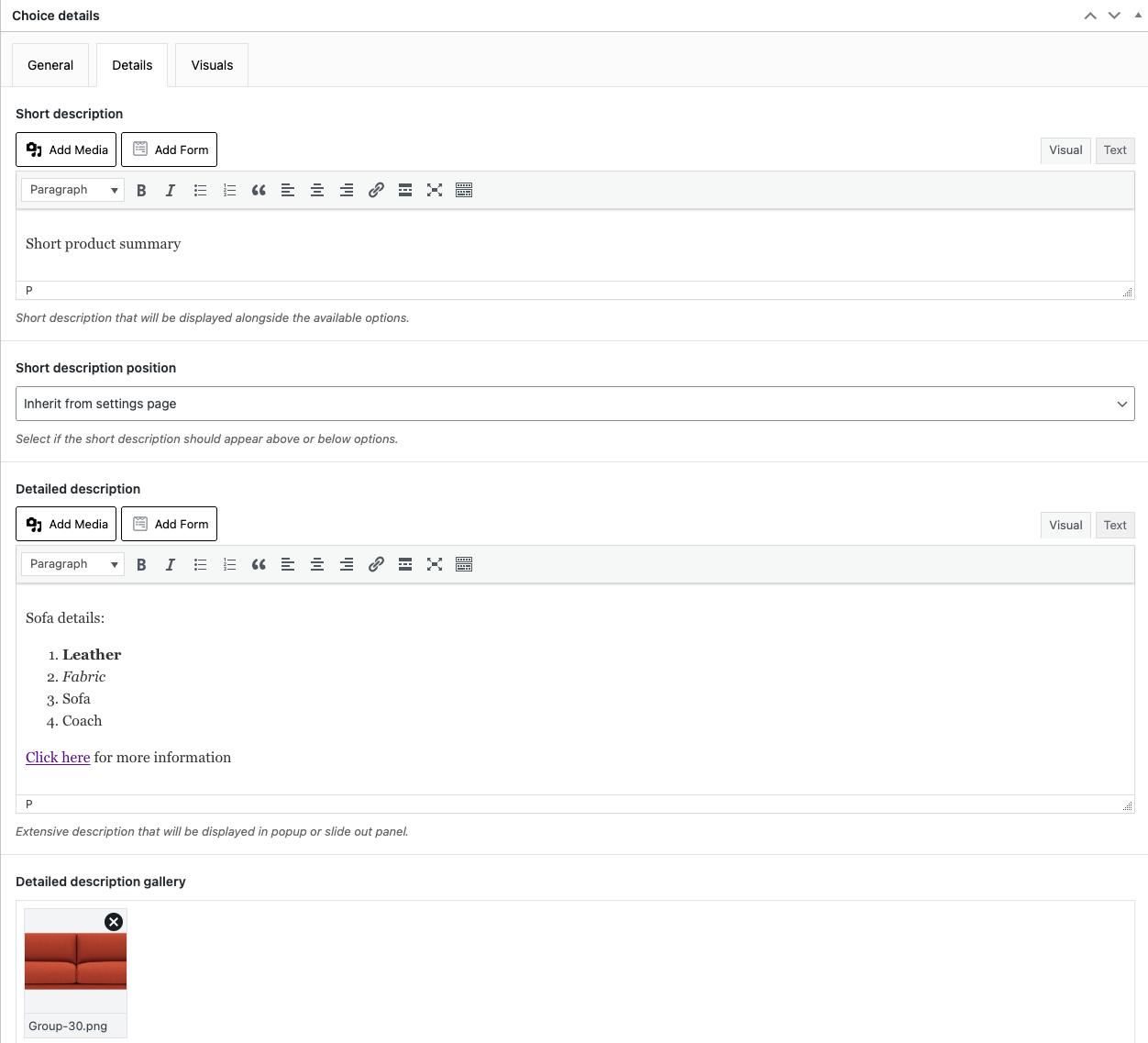
You can add short descriptions to choices and input fields to inform the customer what the field is about. This should be kept short and concise so it does not overwhelm the user.

2. Field panel description

Sometimes a short description is not enough. Or you simply cannot keep it short. If you want to add a more detailed explanation, you can use the field panel description for this. This description will show up in a panel or popup and can be viewed by clicking on the info button.

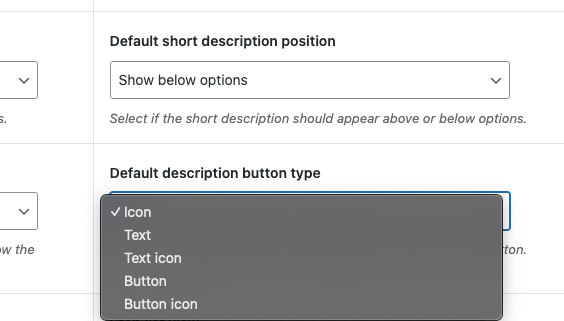
You can customize the appearance of the detailed description button in WCB > Settings > General: Default description button type.

Note: This only applies to the field description. Option descriptions will hold the info icon at all times. But you can change this with a custom hook if you really want to.

3. Configurator option notes

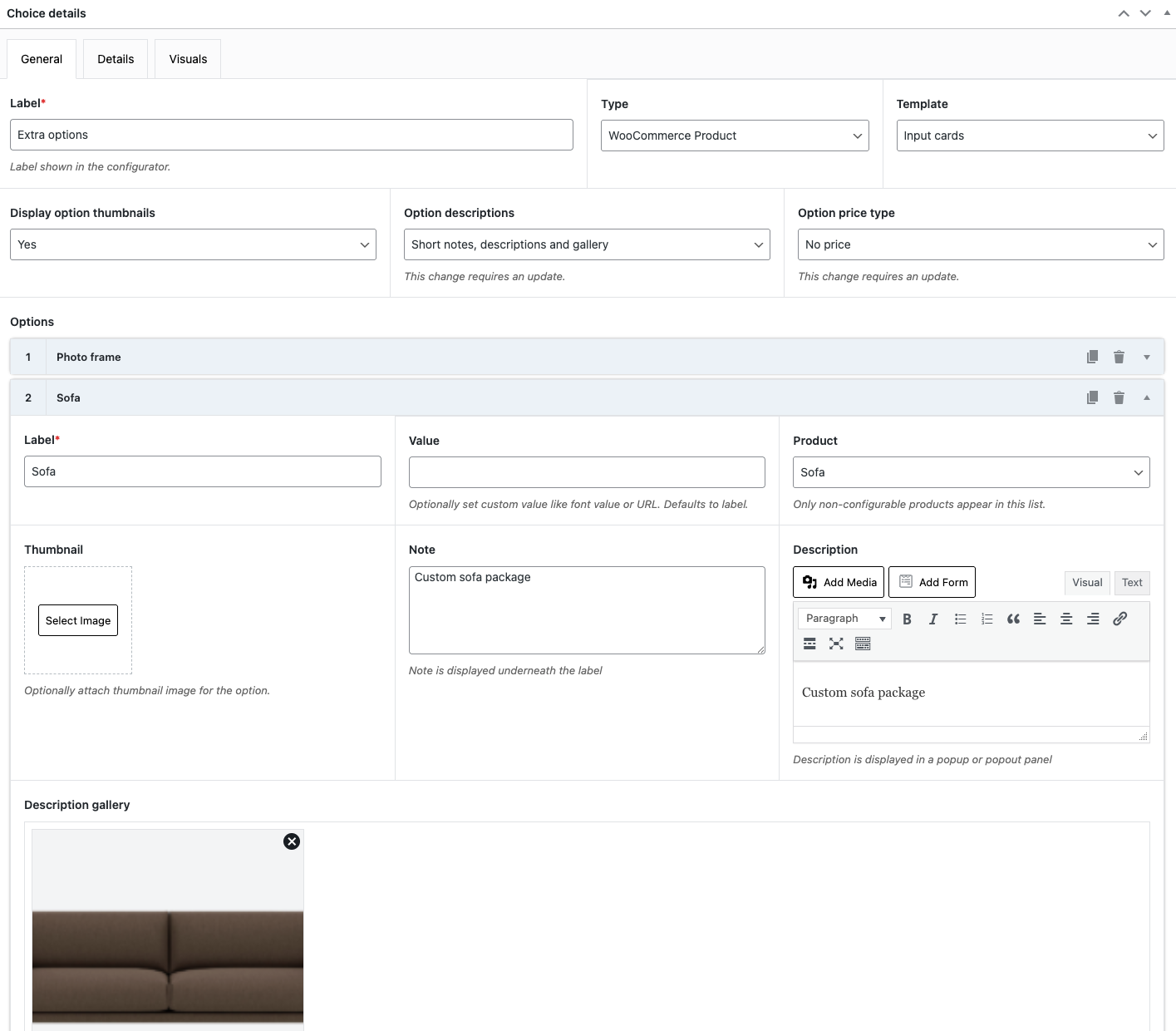
You can add a short note to each option as well to give it some more context. Head over to your WCB Choice edit page and locate the field “Option descriptions”. Select the fields you want to display for each option and save the choice.

Now each option will contain the given fields and you can start adding in short notes, description and images as you please.

4. Configurator option descriptions

Just as field descriptions, you can also add a detailed description for each option. Gallery images are supported as well. This allows you to explain each option carefully and with visual support.

5. Swatch inline labels

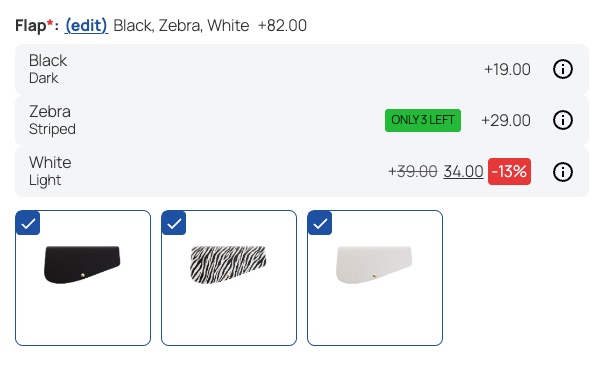
For swatches we support inline labels. This reduces guess work and allow you to describe each option individually.

6. Swatch summary

If you don’t want to display inline labels, you can also just show summary of the selected options.

Instead of showing the labels and prices inline, this shows the labels and prices of selected options above or below the swatches. You can change the display position in WCB > Settings > General: Default options summary position.

7. Swatch tooltips

We are working on tooltips at the moment.

8. Custom HTML block

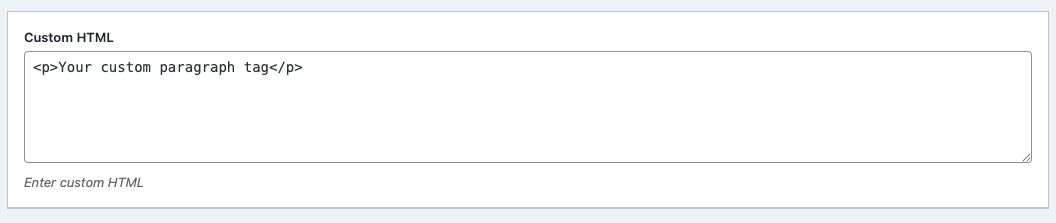
Finally, we have the custom HTML block in our configurator builder. This allows you to (conditionally) display info messages and warnings when invalid combinations are selected or why certain options have disappeared.

Previous

Block theme & page builders

Next

Conditional field display