Documentation

Home » Documentation » Visuals » Update 3D camera view

Update 3D camera view

In this article

Collecting camera positions

You can update the 3D viewer to navigate to a specific part of the 3D model when updating a certain attribute.

For example, when you update the rims of a car, you can zoom the camera onto the wheel to get a good look at the changes you make.

In this article we will walk you through the process of how to update camera position for choices.
TIP

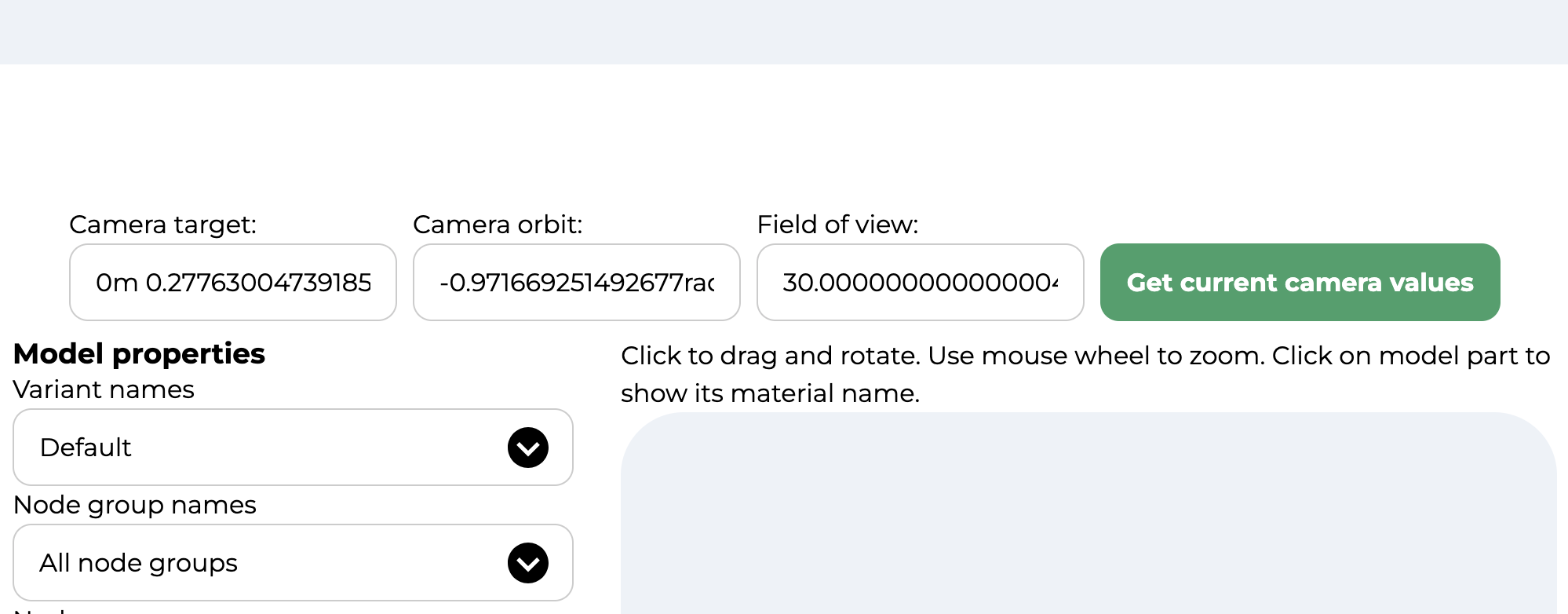
You can collect the camera values in our 3D sandbox. Simply load your 3D model and click the button “get current camera values”.

Choice camera updates

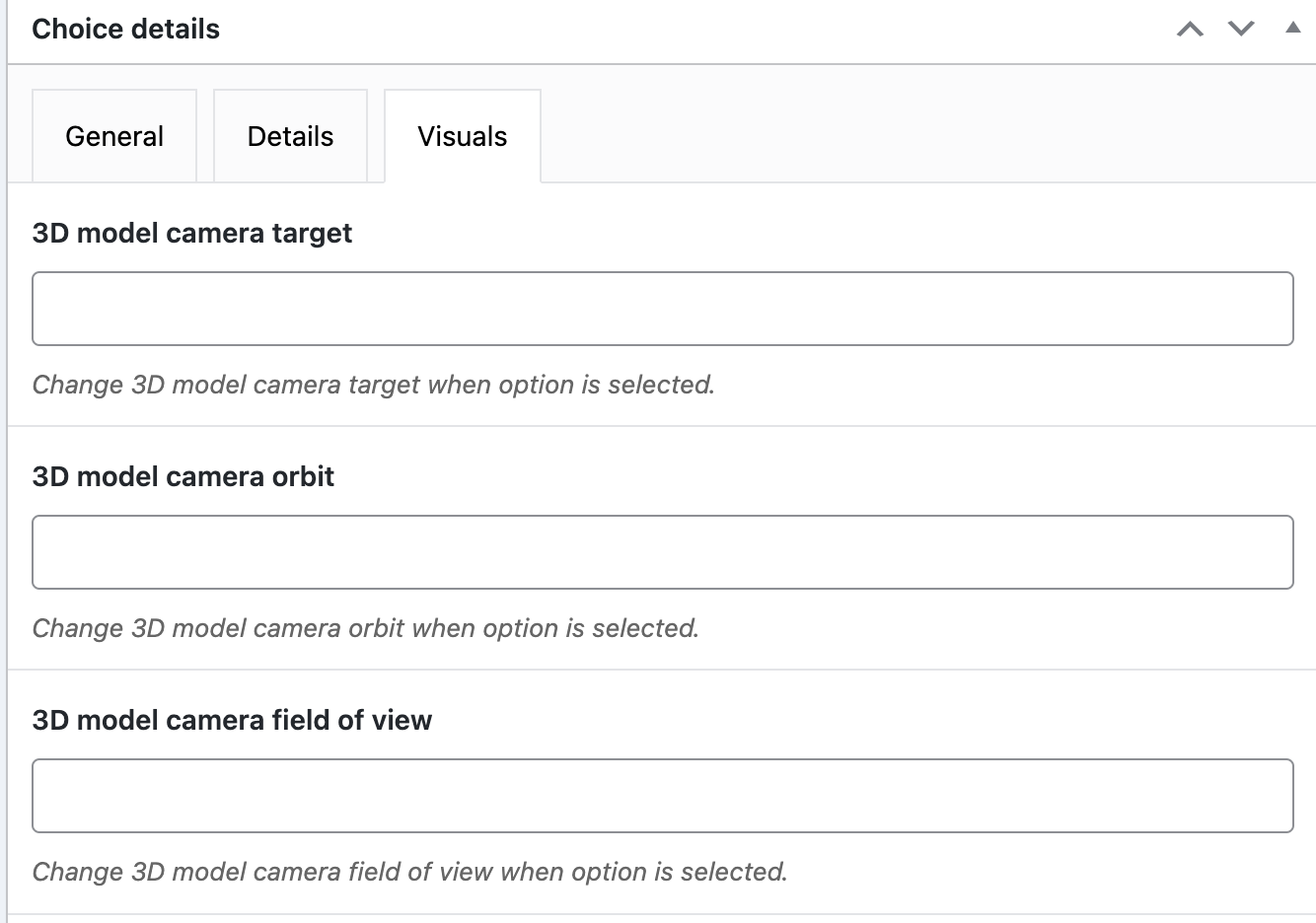
When you have collected the 3D model camera properties, head over to WCB > Choice > Visuals tab.

Here you will find 3 fields: target, orbit and field of view.

Paste the values in the respective fields and save the attribute.

Now the viewer should update to the respective camera position when changing options.

Change default camera settings

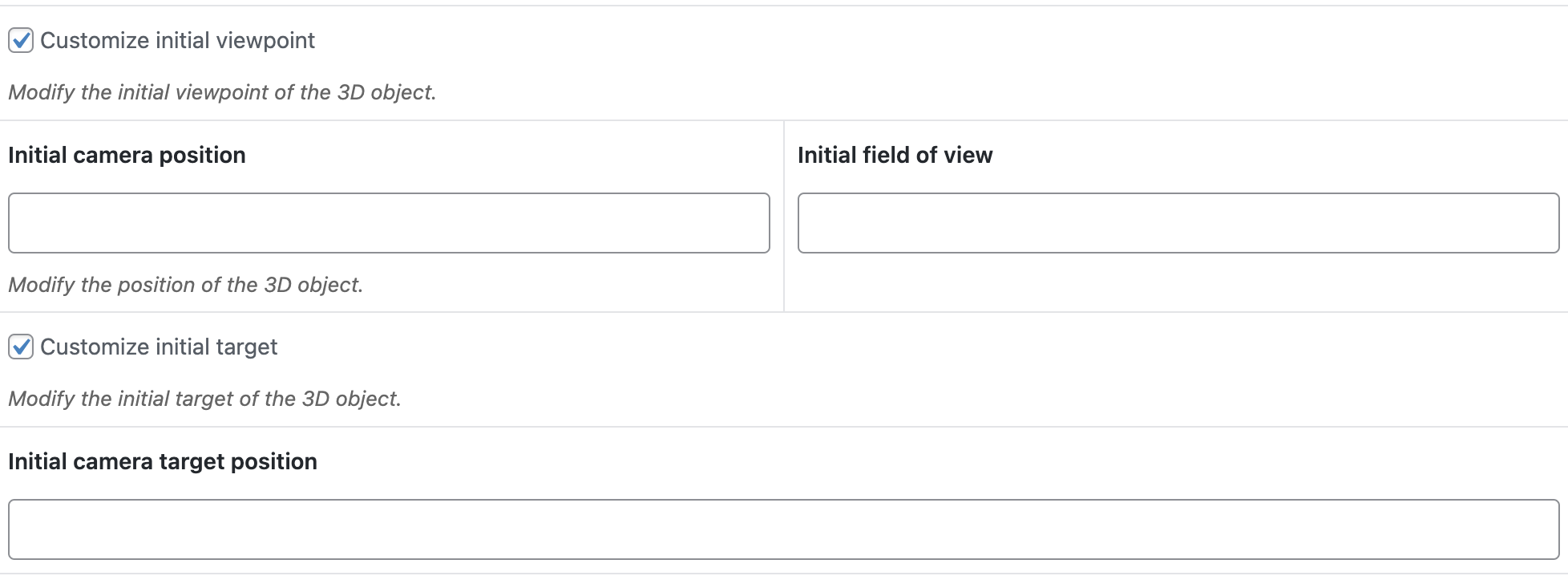
You can also change the default 3D viewer camera settings. Head over to WCB > Configuration and open up the “Viewer” tab.

Here you will find options to change the camera settings:

  1. Initial camera position: orbit
  2. Initial camera target position: target
  3. Initial field of view: field of view
Previous

Display 3D model hotspots

Next

Update 3D viewer scenes