Overview
Each configuration form contains various template options you can configure and personalize to make the configuration appear as desired.
There are four categories:
- Template options
- Visual options
- Product options
- Action options

Documentation
Each configuration form contains various template options you can configure and personalize to make the configuration appear as desired.
There are four categories:
In the template options you can choose the main template you want to use as described in the previous article.
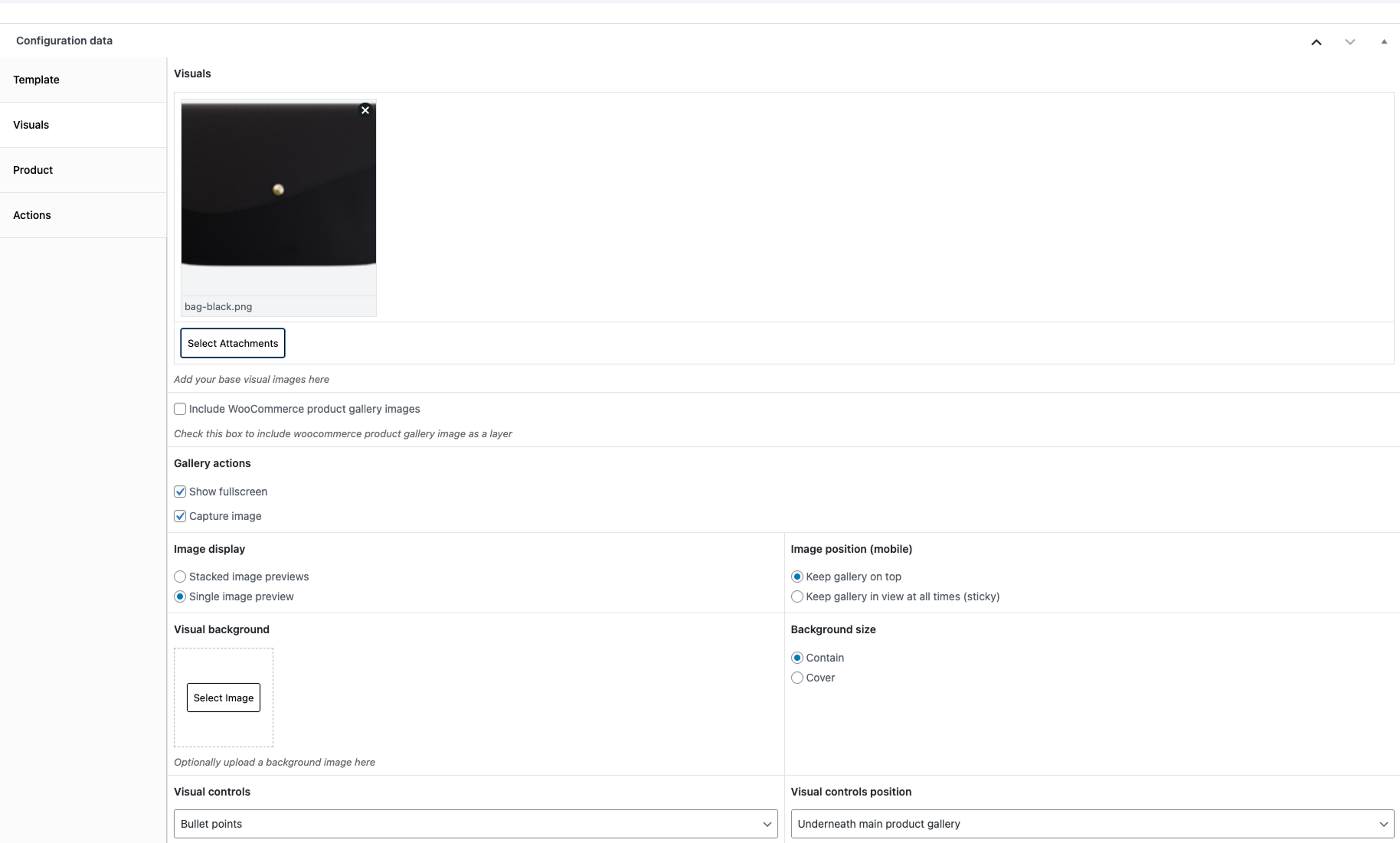
In the visual options you can control the display of the visual representation of the configuration. Depending on your configuration visual type this is either the image gallery or the 3D model viewer settings
You can upload base images, available gallery actions and gallery thumbnail controls.
Next, we have the product settings. Here you can configure the base product calculation. This can either be fixed price or tiered table price or even a custom formula. For the latter options you need the advanced calculation add-on.
The price formatting settings can be configured in WCB > Settings > Price
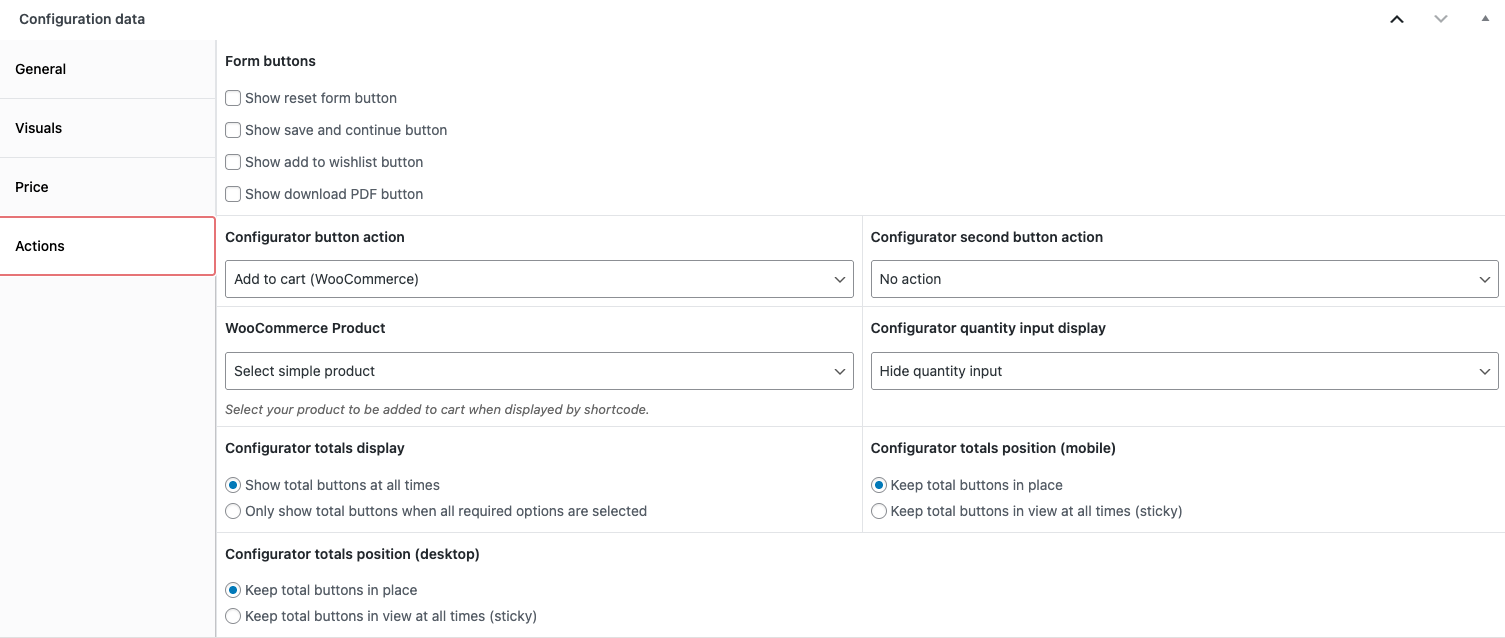
Finally you can control the configuration form actions in the “Actions” tab. This tab contains the button actions you want to incorporate in the form. For example, add to cart and request a quote.
If you want a second button action in the form, you need to have the form actions add-on installed.