The swatches template works best for displaying a lot of color or image swatches options.
Documentation
Swatches
In this article

Create the swatches choice
To create a new swatches choice, head over to WCB > Choices and add new choice
Next, select Swatches as your template and choose your preferred type (image or color).
Finally, add in the available options to the options list.
Note: swatches field is intended for image or color options only.
Presentation options
For the swatches template you can control the following presentation options:
- Items per row
- Inline labels
- Tooltips
- Single / multiple options
- Display summary
Display swatches as slider
If you have the advanced fields add-on installed, you can also choose to display the swatches as a slider.
This saves you a lot of screen space, which could be very beneficial if you have lots of options.

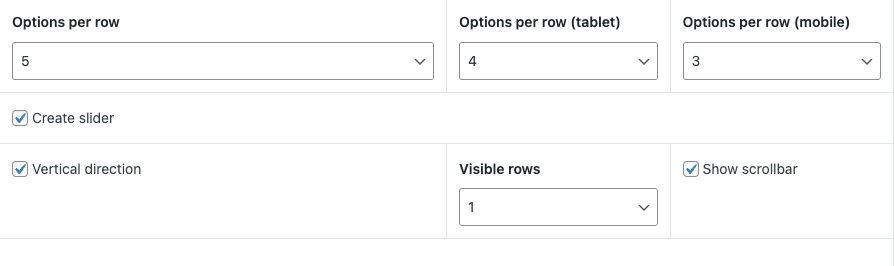
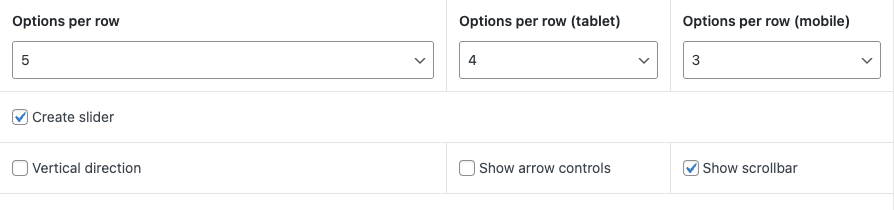
You can find settings to activate the slider display in the “Details” tab
The slider will use the options per row as well.
So this does not differ much from the regular swatch display.
Horizontal slider
For the horizontal slider, you can control arrows and scrollbar display
Vertical slider
For the vertical slider, you can control amount of rows visible and scrollbar display