
This page is only applicable for you if you intend to display the configuration on your WooCommerce single product pages. If you use shortcode or block display, this is not necessary.
Documentation
Page builder settings
In this article
The new WordPress site editor and Elementor templates pages contain WooCommerce single product page template.
In this article we will show you how to customize the default single page template to make sure your WCB configurations are displayed perfectly on the product pages.
We will cover two templates:
- Default WordPress site templates
- Elementor template
Template customizations
To make sure the configuration displays correctly on the WooCommerce single product pages, a few additional classes are required:
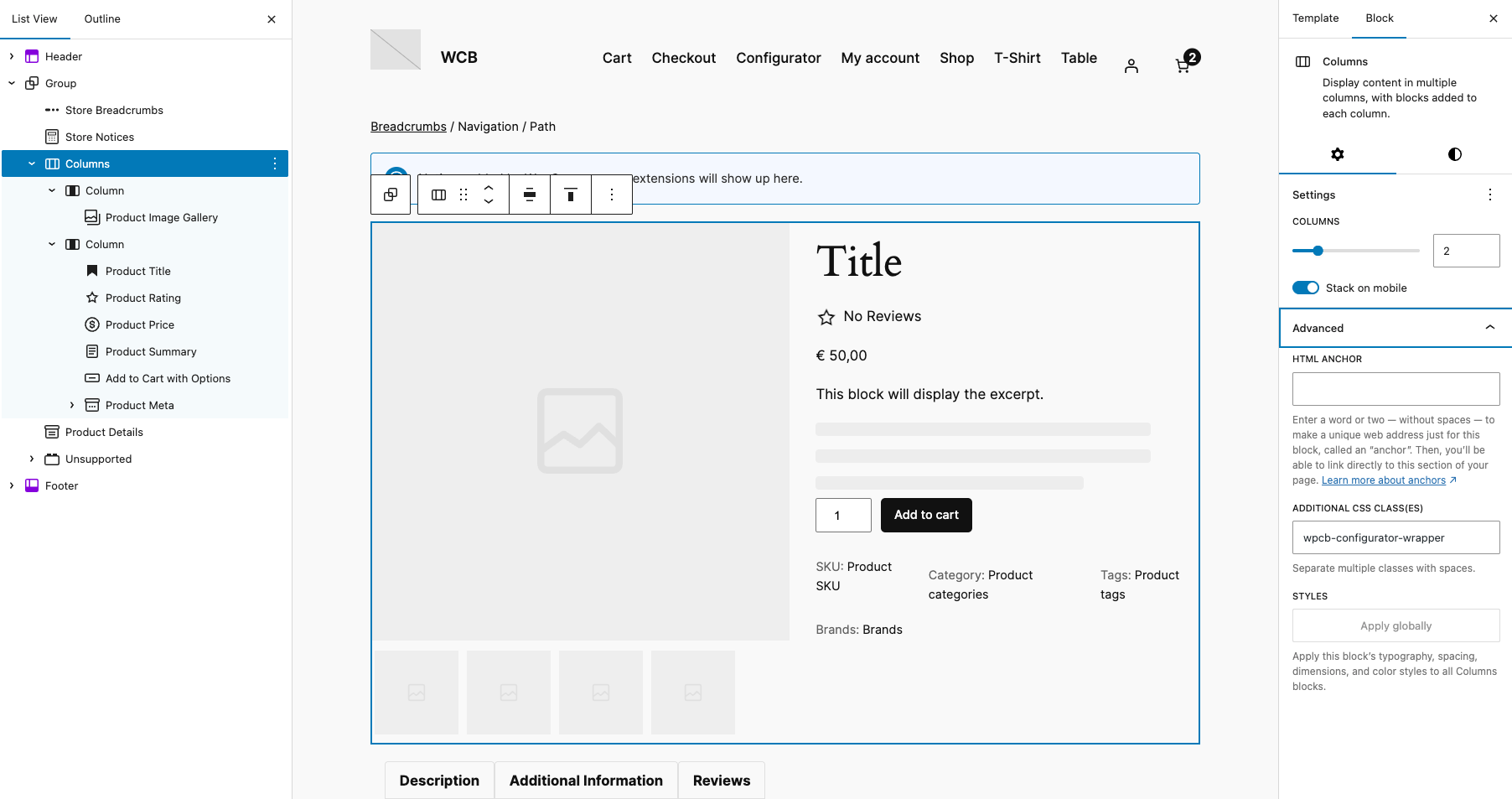
- For the column wrapper: wpcb-configurator-wrapper
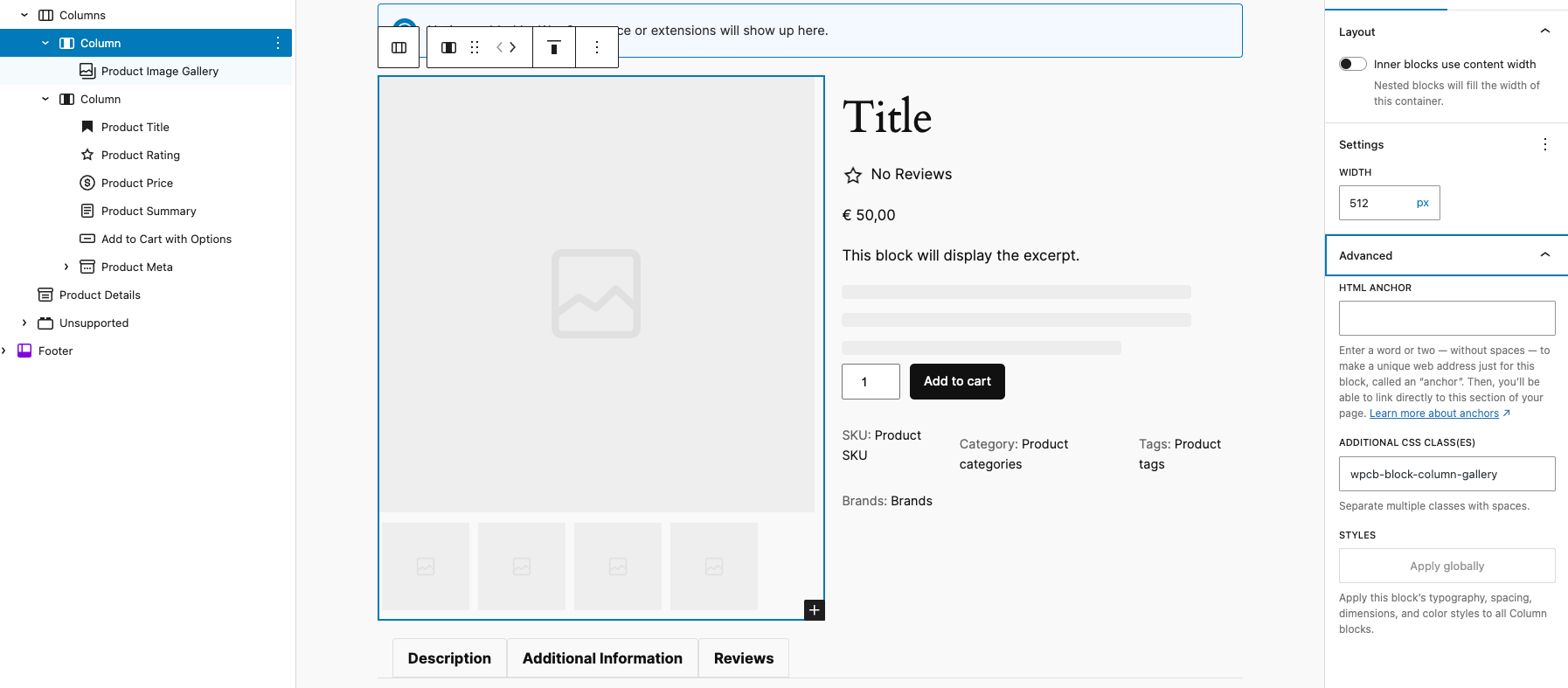
- For the gallery column: wpcb-block-column-gallery
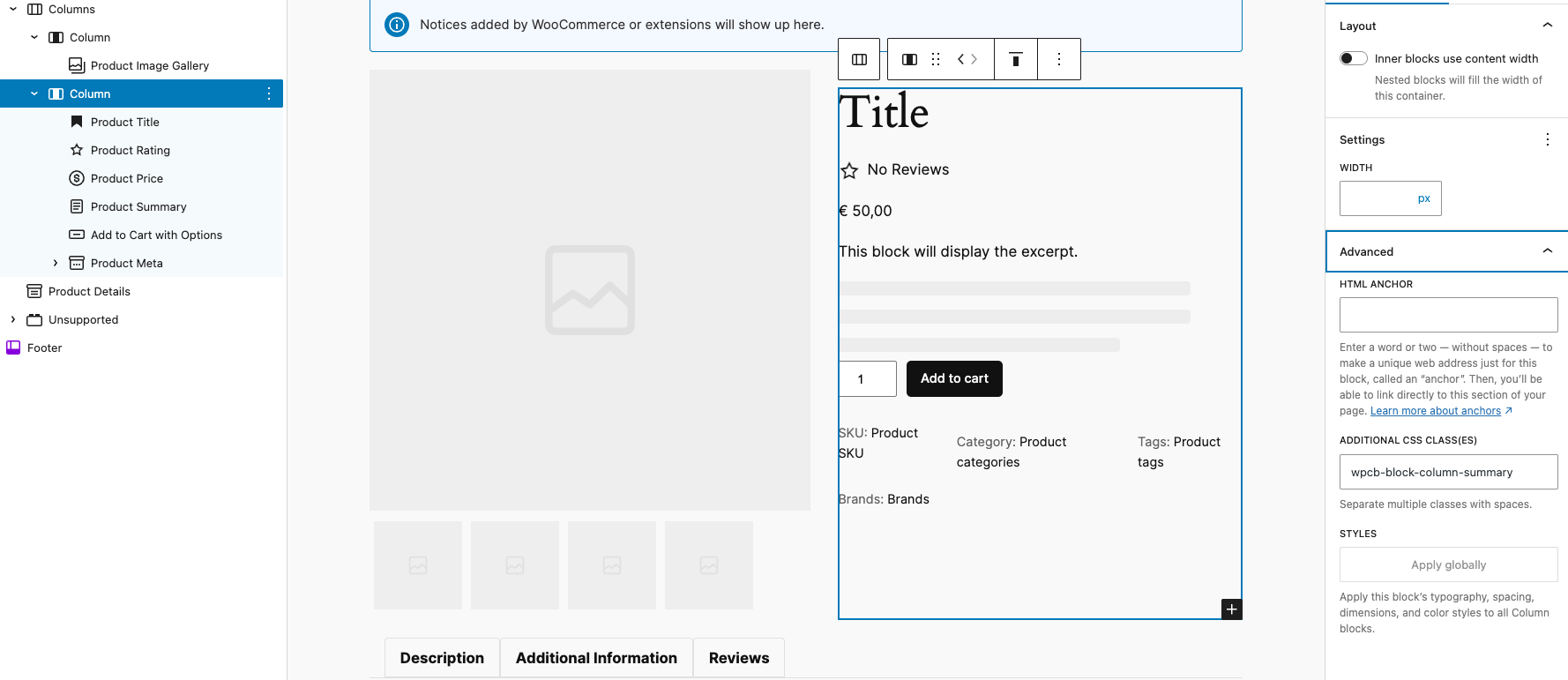
- For the product summary column: wpcb-block-column-summary
This helps the plugin find the correct columns to adjust the layout styles
WordPress site template
The new versions of WordPress come with a built in Site editor. With WooCommerce installed, you can also customize the single product page templates here.
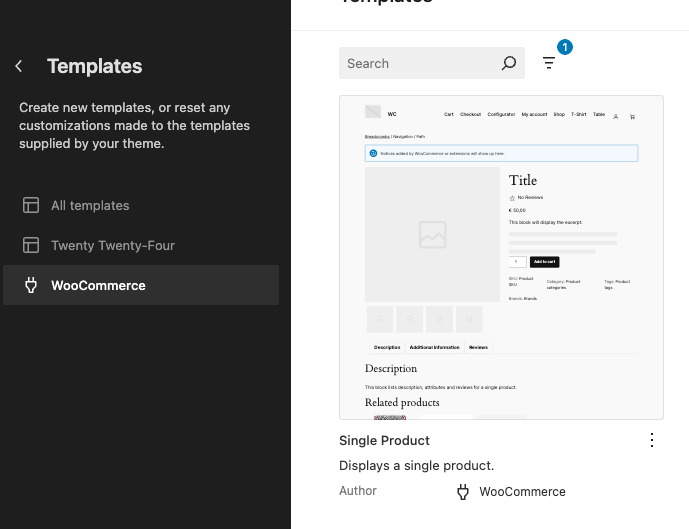
Head over to your site editor templates and open up the Single Product template
Locate the column group and open up the Advanced tab of the block settings and add the wrapper class “wpcb-configurator-wrapper”.
Next, select the gallery column and enter “wpcb-block-column-gallery” in the custom class name
Finally, select the summary column and enter “wpcb-block-column-summary”
Elementor template
Instructions coming soon