Documentation

Home » Documentation » Getting started » Setup guide

Setup guide

In this article

If you have successfully installed and activated the plugin, you are presented with a quick setup guide to configure the main plugin settings, like visual type (2d or 3d), labels, colors, fonts and price formats.

You can also configure these options later on and skip the setup guide for now.

All the options can be found on the Settings page, as we will show in the next page.

General

In the first step, you can choose between 2D images and 3D models as your main visual settings. You can override the visual display for each configurator (and choice) if you want to have a hybrid setup.

You can also choose to show loading indicator when updating visuals.

Configuration

The second step covers the configuration settings. Here you can configure configuration form behavior, like activating first options on page load, allow to uncheck optional options, and collapse attributes on values select.

Appearance

Next up is appearance. Here you can customize the configuration form colors, fonts and border style.

Labels

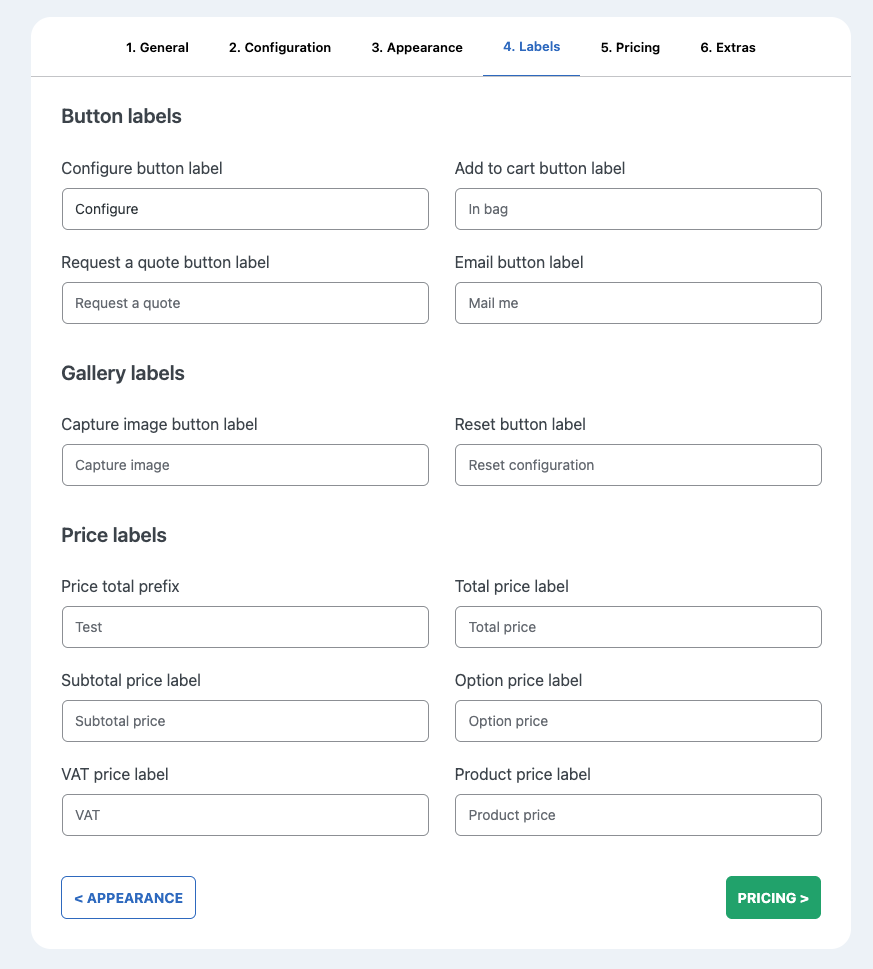
In the fourth step you can set the default button labels and price labels. On the settings page, you have more granular control of each label in the configuration form.

Pricing

The fifth and last step of the setup page, you can control the price formatting. Enter a symbol, separators and number of decimals.

Note: if you have WooCommerce installed, you still need to configure the settings here. We don’t use the WooCommerce price settings for configuration price formatting.

You can also customize price display, like add a plus symbol in front of additional prices, set a label to indicate free options and show price differences only (instead of full option prices).

Extras

The final step does not contain any settings. It shows you the next steps you can take, which includes:

  1. Starting a 14 day trial to check out all our amazing features
  2. Browse add-ons
  3. Read documentation
  4. Review all settings in the settings page.
  5. Import a demo configuration to see how the plugin works
Previous

Download and installation

Next

Configure plugin settings