Adding unit pricing to your WooCommerce store helps customers understand exactly what they’re paying for, especially when dealing with customizable or bulk products.
With WCB Configurator Builder, you can dynamically calculate and display unit price based on customer-selected options. Unit prices are perfect for products priced by square meter, per item, per length, or per weight.
In this guide, you’ll learn how to set up unit pricing in WooCommerce using WCB Configurator Builder step-by-step.
What is unit price in WooCommerce?
Unit price is the cost of a product per standard unit (e.g., per kg, per meter, per item). This is especially useful when:
- Selling products with variable sizes (tiles, fabric, wood)
- Displaying cost per piece or portion
- Offering products in bulk or wholesale
- Complying with pricing transparency laws (in some regions)
What is WCB Configurator Builder?
WCB Configurator Builder is a powerful plugin that allows you to create interactive, customizable product experiences in WooCommerce. It enables real-time price updates, custom product logic, and visual configuration.
With WCB, you can configure advanced pricing rules like:
- Flat fees
- Percentage-based pricing
- Quantity-based pricing
- Unit-based pricing
How to set up unit price in WooCommerce with WCB Configurator Builder
Here’s how to implement unit pricing using WCB Configurator Builder:
Step 1: Install WCB Configurator Builder
- Log into your WordPress dashboard
- Navigate to Plugins > Add New
- Search for WCB Configurator Builder
- Click Install > Activate

Step 2: Create or edit a Product
- Go to Products > Add New (or edit an existing product)
- Choose Simple Product or Variable Product based on your needs
- Optionally set a base price for the product or enter “0” as regular price.
Step 3: Create a new user input field
To enable unit pricing, add a WCB numeric input field:
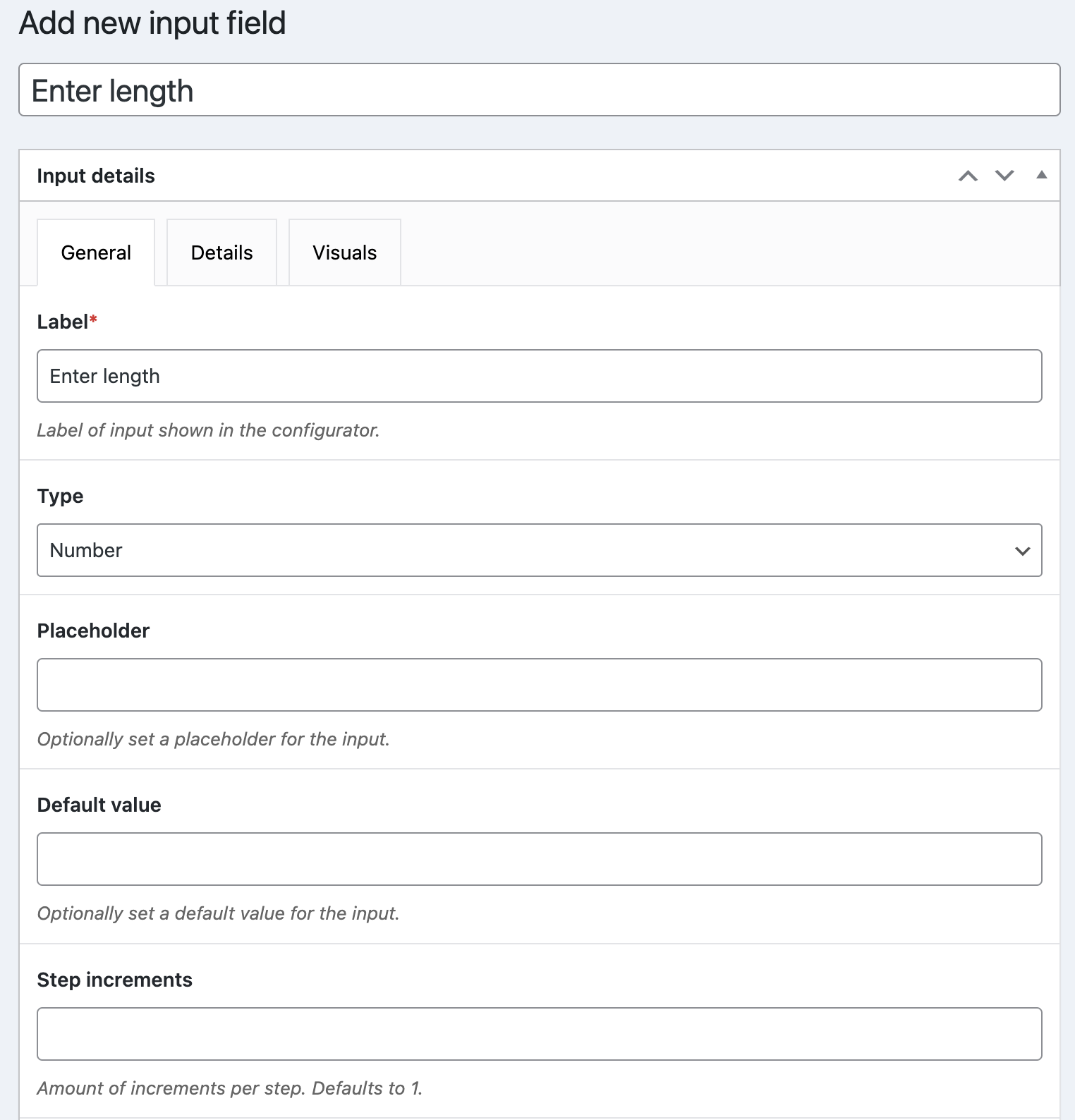
- Head over to WCB > Input fields and click Add new
- Enter a label called “Enter length” or “Set quantity”
- Select input field type: Number
- Optionally set min/max values and step intervals
Step 4: Set unit price logic
We will now change the input price type to calculate unit prices:
- Change price type of the input field to “unit price”
- In price field, enter the price per unit (e.g., “5”, “0.25”)
- In unit field, enter the unit the price applies to (e.g., “per meter”, “per unit”)
Example:
Unit price = $5 per meter
User input = 8
Input price = $5 x 8 = $40
WCB handles this calculation automatically and updates the total price in real-time on the frontend.

Step 5: Create WCB configuration for the product
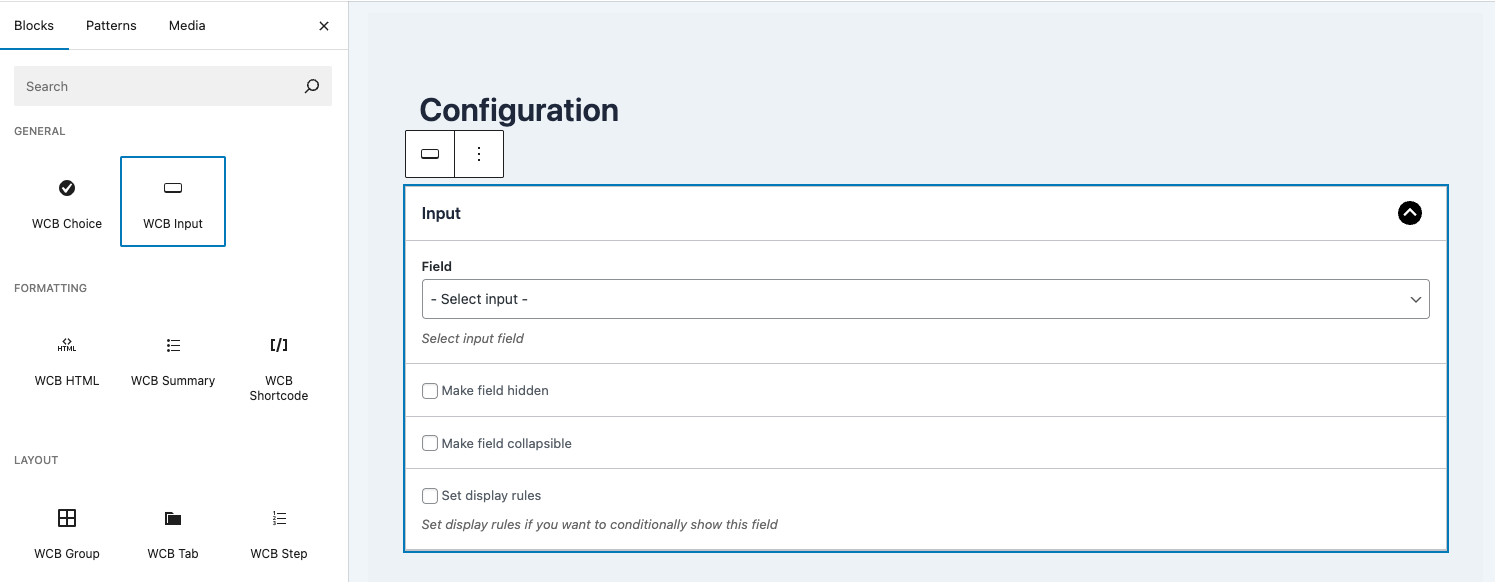
- Head over to WCB > Configurations
- Create a new configuration
- Add the unit input field to the configuration form
- Link configuration to the product
Step 6: Test and publish
- Test the unit price field integration
- When satisfied with the result, publish the product
Bonus: Add length x width calculator (area-based pricing)
If your product requires area-based pricing (e.g., tiles or flooring):
- Add two input fields: Length (m) and Width (m)
- Use custom formula: Total Area = Length:value x Width:value x Unit price (fixed number)
This turns your WooCommerce store into a powerful unit pricing calculator without writing custom PHP!
Get our advanced price calculation add-on to create formula and quantity tiered base product prices
Why use unit pricing with WCB Configurator Builder?
- Transparency
Show customers exactly what they’re paying per unit - Real-time updates
Instant price changes based on user input - Scalability
Works for multiple product types (tiles, food, fabric) - No coding
Easy setup through the visual builder - Better UX
Improve trust and conversion rates
Best use cases for WooCommerce unit pricing
| Product type | Unit | Pricing example |
| Fabric & textiles | Per meter | $12/meter x 3 = $36 |
| Tiles & flooring | Per square foot/meter | $5/m² x 15 m² = $75 |
| Bulk food products | Per kg/lb | $3/kg x 4 = $12 |
| Custom stickers | Per piece | $0.50 x 100 = $50 |
| Digital downloads | Per page or minute | $1/page x 30 = $30 |
Final thoughts
Adding unit pricing to your WooCommerce store with WCB Configurator Builder enhances pricing accuracy, customer trust, and conversion rates (especially for customizable and bulk products).
Whether you sell flooring, fabric, or food, WCB makes it easy to offer per-unit pricing with live calculations without writing code.
Start using WCB Configurator Builder today and turn your WooCommerce site into a smart, customer-friendly pricing engine!
FAQ
Can I use different units like kg, m², or pieces?
Yes! You can define any custom unit in the input unit field. Just make sure the input field represents the correct quantity or measurement (units should match the price calculation unit)
Can WCB calculate area or volumes?
Yes. You can create multiple input fields (e.g., Length × Width × Height) and apply custom pricing formulas using WCB’s advanced calculation logic (add-on).
Is unit pricing compatible with taxes and shipping?
Yes. The total price calculated using unit logic is passed to WooCommerce’s cart and checkout system like any regular price.