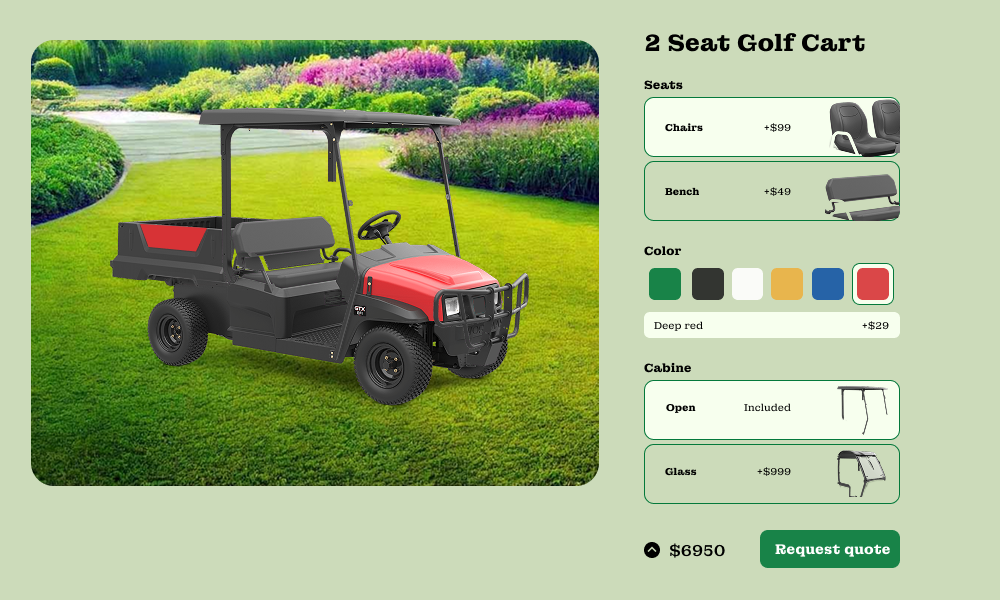


What are composite products for WooCommerce?
Composite products for WooCommerce allow you to create complex, customizable product bundles.
A composite product is essentially a product made up of multiple components that customers can select from a pre-defined set of options.
By offering composite products, you provide your customers with the flexibility to build their perfect bundle, which is particularly useful for businesses that sell multi-part items, kits, or services that require several steps to complete.
Composite product components can include:
- Individual products (e.g., different pieces of a product set like a laptop, charger, and carrying case).
- Product variations (e.g., size, color, or material options).
- Add-ons / custom fields (e.g., custom engravings, gift wrapping, or accessories).
- Customizable options (e.g., choose specific features like a keyboard style or monitor resolution).
Benefits of composite products in WooCommerce


When a component of a bundle is sold, it automatically updates the inventory for that specific product, reducing the risk of overselling.


You can also offer bundle discounts to incentivize customers to buy multiple items together, which can help increase conversions.
WooCommerce professionals use WCB to save a lot of time

“Perfect templates, great features, fast and very powerful for a Woocommerce site”

Unlock the full power with WCB pro
Experience the full power of the WCB configurator builder plugin. Create multi step forms, apply conditional logic, and more
Why should you use composite products in WooCommerce?

This personalization gives customers more control over their purchase, making them more likely to complete the sale. For example, if you sell electronics, a customer could choose a laptop, pick accessories like a mouse, laptop bag, and even a warranty, all within one purchase.

Rather than hunting for related items across your store, customers can select everything they need in one place. This seamless process leads to faster decisions and higher conversion rates.
Offering a composite product can lead to an increase in the average order value (AOV) because customers are more inclined to purchase related items in a single transaction.

This makes managing your store easier while still offering a wide range of options to customers. For example, rather than listing every combination of a printer and ink cartridge, you can bundle the printer with compatible ink options in one composite product.

For example, if a customer adds a basic camera to their bundle, you can recommend a more expensive model or additional accessories like a tripod or memory cards.

Recommended add-ons



How to set up composite products in WooCommerce
Before you start, make sure to have the WCB plugin installed and active. To create composite products, you also need to have the advanced fields add-on installed and active. This allows you to link WooCommerce products together in a configuration to create composite product builder.
Step 1: Configure product options
Once you’ve installed the WCB configurator plugin, go to WCB > choices and create a new choice. From there, select the WooCommerce Product option in the Type field.
Now you will be able to choose the products that make up the bundle, including any product variations, add-ons, or customizations.
Next, create a choice with the corresponding options for each component. For example, if you’re creating a computer bundle, you might have components for the processor, memory, storage, and graphics card.
You can choose whether each component is required or optional, as well as whether customers can select one or more options for each.
Step 2: Create your composite product configuration
Next, go to WCB > Configurations and create a new configuration. Here you can add all the components to the configuration.
To display the composite options on the product page, make sure to link the configuration to a product. You can configure display rule on the configuration page.
Step 3: Configure pricings
Pricing is a critical part of composite products. By default the plugin will use the product base price for the items in the bundle. But you can also set a fixed price for the whole bundle.
You can also create tiered pricing when customers purchase more items. Pricing flexibility is key to encouraging customers to buy more.
Step 4: Test and launch
Before making your composite product live, test it to ensure everything is working smoothly. Check the pricing, customization options, and inventory management to make sure everything functions as expected. Once you’re satisfied, publish the product on your store.
Best practices for composite products
Simplify the process
Avoid overwhelming customers with too many choices. Keep the selection process simple and intuitive to ensure a smooth user experience.
FAQ
Can customers edit the bundle after adding it to cart?
Yes, you can edit the bundle from cart page but you need to return to the product page to edit the options.
Does WCB support inventory tracking for each bundled item?
For real inventory syncing, you can connect options to product SKUs using the WCB inventory add-on.
Do I need to create separate products for each add-on in WooCommerce?
No, with WCB Configurator Builder, you don’t need to create separate WooCommerce products for each add-on unless you want to track inventory or assign unique SKUs. You can simply include the add-on as a field within the configuration and apply a price.
Can I add conditional logic to show or hide add-ons?
Yes. WCB Configurator Builder allows you to set conditions for each field with the conditional display add-on, so you can show or hide specific add-ons based on previous selections. This is helpful for creating dynamic forms and simplifying the customer experience.
Can I offer free add-ons alongside paid ones?
Absolutely! You can set the price of any add-on to zero. This is useful for promotional offers like “free gift wrap” or “free engraving” while still giving customers the choice to opt in.
Does the plugin have a limit on amount of configurations?
No, the plugin does not have limit on amount of configurations you can create. You can create unlimited amount of configurations in WordPress.
Can I set minimum/maximum item selections?
Yes. You can control how many options users must or can select per group with our advanced fields add-on
Does WCB integrate with the WooCommerce checkout flow?
Yes. All customizations, pricing, and options are passed to the WooCommerce cart and order summary.
Will this work with variable products?
Yes you can extend WooCommerce variations with custom options as well. But WCB can also replace the need for WooCommerce’s built-in variations by giving you full control through our own option system.
Will the plugin work with my theme?
The plugin is optimized to work with all well-coded themes and page builders.