Offering discounts based on quantity purchased (known as tiered pricing) is a smart eCommerce strategy for increasing average order value, encouraging bulk purchases, and serving B2B customers.
With the WCB Configurator Builder plugin, you can easily create tiered product discounts using a powerful visual interface; no coding required.
In this guide, you’ll learn step-by-step how to build dynamic, quantity-based pricing rules using WCB Configurator Builder in your WooCommerce store.
What are tiered product discounts?
Tiered product discounts allow you to set different unit prices based on how many items a customer purchases. For example:
- Buy 1 – 4 units: $20 each
- Buy 5 – 9 units: $18 each
- Buy 10+ units: $15 each
This pricing model is perfect for:
- Wholesale stores
- Custom-made or print-on-demand products
- Subscription boxes
- Services billed by quantity
Why use WCB Configurator Builder for tiered pricing?
The WCB Configurator Builder plugin is a block-based WooCommerce product configurator that lets you:
- Add extra product fields like dropdowns, numbers, and checkboxes
- Define advanced pricing logic (using formulas or price tables)
- Display real-time price updates on product pages
This makes it the perfect tool for setting up tiered pricing based on quantity, measurements, or other inputs.
How to set up tiered product discounts with WCB Configurator Builder
Prerequisites
- WooCommerce installed on WordPress
- WCB Configurator Builder Pro or advanced price calculations add-on
- At least one product in your WooCommerce catalog
Step 1: Install and activate WCB Configurator Builder
- In your WordPress dashboard, go to Plugins > Add New
- Search for WCB Configurator Builder and install it
- Upgrade to WCB Pro or install the advanced calculation add-on

Step 2: Create or edit a product
- Go to Products > Add New or choose an existing product
- Go to WCB > Configurations > Add new to add a new configuration
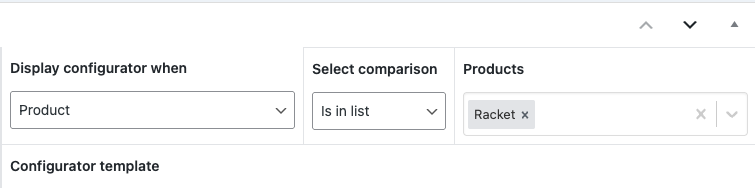
- Link configuration to the product in display field
Step 3: Add a quantity input field
- Go to WCB > inputs and add a WCB input field
- Choose Field Type: Number
- Label it “Quantity”
- Set:
- Min: 1
- Step: 1
- Label: Quantity
- Add input field to the configuration
This field will capture the quantity entered by the customer.
Alternatively, you can base tiered product quantities on the WooCommerce product quantity field.
Step 4: Define tiered pricing with a table
- Install TablePress plugin
- Set up a TablePress table with the product pricings

Step 5: Show the dynamic price on the product page
- Go to WCB > Configuration > Price tab and set price type to table
- Select tiered price table
The price will update in real time as users change the quantity field.

Step 6: Test and publish
- Enter different quantities and verify that the pricing updates correctly
- Add the product to cart and confirm the correct total flows to checkout
- Publish the product when you’re ready to go live
Tip: Show tiered pricing table on the product page
You can show a simple tiered pricing table below the form by checking the option “Show tiered price table” on the configuration page to communicate the discount structure clearly:
| Quantity | Price |
| 1 – 4 | $20 |
| 5 – 9 | $18 |
| 10+ | $15 |
This boosts trust and increases conversion rates by showing customers exactly how much they’ll save.
Final thoughts
Using WCB Configurator Builder, setting up tiered product discounts in WooCommerce is fast, flexible, and beginner-friendly.
Whether you’re running a wholesale store, selling custom products, or offering incentives for bulk purchases, WCB lets you define advanced pricing logic, without writing code. You also get complete control over how products are priced and displayed.
FAQ
Can I apply tiered pricing to multiple products with WCB Configurator Builder?
Yes! Each product can have its own configuration, or you can duplicate setups using reusable configuration templates.
Does WCB Configurator Builder support live cart updates?
Yes, calculated prices from the configurator flow directly into the cart and checkout totals
Is coding required to use WCB for tiered pricing?
Not at all! All pricing logic can be defined visually in the TablePress tables.