Managing product option weights in WooCommerce is critical when shipping cost depends on product weight. If your products have multiple configurations, assigning the correct weight per option ensures accurate shipping calculations and customer satisfaction. With WCB Configurator Builder, you can easily assign and control your option weights.
In this article, we’ll walk you through how to manage option weights with WCB Configurator Builder, why it matters, and how to optimize your setup for conversions and logistics.
What is WCB Configurator Builder?
WCB Configurator Builder is a WooCommerce plugin that allows store owners to create configurable products with custom options, conditional logic, live previews, and weight-based calculations. It is ideal for stores selling:
- Apparel with size/fit options
- Custom furniture with material add-ons
- Bundled or build-your-own products
- Any item where options affect price, weight, or appearance
Unlike standard WooCommerce variations, WCB gives you granular control over each product option, including the ability to assign individual weights per option.
Why managing option weights matters
By default, WooCommerce only considers the base product weight. But in real-world cases, your product options can significantly impact the total weight. And by extension, the shipping cost.
Examples:
- A “Large” T-shirt weighs more than a “Small”
- Adding a metal frame to a table adds 5 kg
- Choosing extra battery packs for electronics increases weight
If these aren’t accounted for, you risk undercharging shipping or losing money on orders.
How to manage option weights in WooCommerce
Follow the next steps to assign and manage dynamic option weights using WCB Configurator Builder.
Prerequisites
- WCB Configurator Builder Pro installed and active
Or the WCB configurator builder plugin and WCB inventory management add-on installed and active. - WooCommerce installed and active
Weight management is not included in the free version of the plugin, so make sure you have the correct license for access to this feature.
Step 1: Create your custom options
Navigate to WCB > Choices and add new choice:
- Click Add new choice
- Enter a title (e.g., Size, Material, Add-ons).
- Add individual options
- Repeat for each group
For example:
- Size: Small, Medium, Large
- Frame Type: Wood, Aluminum, Steel

Step 2: Assign weights to each option
Each option in WCB allows you to define:
- Additional weight
- Price adjustment (additional cost for option)
Enter the additional weight value for each option:
| Option | Weight (kg) |
| Small | 0.2 |
| Medium | 0.3 |
| Large | 0.4 |
| Steel Frame | 5.0 |
These values will be added to the base product weight dynamically at checkout.
Step 3: Create a new configurable product
- Go to WCB > Configurations and add new configuration
- Add the custom options to the configuration form
- Scroll down to the Configuration data tab and set the Configuration display to Product
- Select the products you want to display the weight options for
If you don’t have products created yet, head over to Products > Add New and create a new WooCommerce product. Choose Simple or Variable product as the product type (WCB supports both).

Step 4: Check weight-based shipping integration
To ensure WooCommerce uses the adjusted weight:
- Go to WooCommerce > Settings > Shipping.
- Make sure you’re using a weight-based shipping method, like:
- Table Rate Shipping
- Flat Rate + Conditional Logic
- Plugins like Weight Based Shipping for WooCommerce
This ensures the total product weight reflects all selected options.
WCB plugin does not facilitate custom shipping cost calculation. You need an additional plugin for this. The WCB plugin only sets custom weight values for cart items based on given configuration options.
Step 5: Test and validate
- Add the product to your cart
- Select different options and observe the cart weight
- Check if the shipping rate updates accordingly
Tip: Use WooCommerce shipping calculators to confirm behavior.
Bonus: dynamic previews with WCB
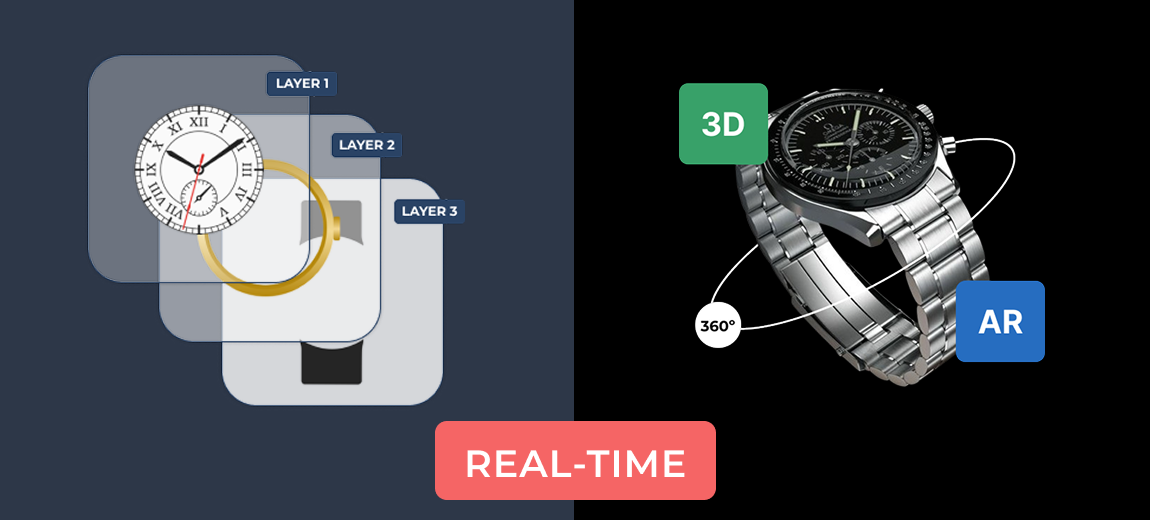
One of the biggest advantages of WCB Configurator Builder is the ability to visually preview changes. If an option affects the weight and the appearance (e.g., a larger size or material change), you can show it in real-time, improving engagement and trust.
You can link visuals to the configuration options in WCB > Visuals
Final thoughts
If your WooCommerce store sells configurable products where option weights impact shipping, WCB Configurator Builder is the tool you need!
It offers full control over option-based weights, pricing, logic, and visuals, delivering a powerful product configurator experience that scales with your business.
By managing option weights correctly, you avoid shipping errors, increase transparency, and improve customer satisfaction with a single plugin!
FAQ
Does WooCommerce support option weight by default?
No. You need plugins like WCB Configurator Builder to add weight logic to product options.
Will WCB Configurator Builder work with my shipping plugins?
Yes, WCB integrates well with most WooCommerce-compatible shipping plugins that calculate rates based on product weight
Will this work with variable products?
Yes you can extend WooCommerce variations with custom options as well. But WCB can also replace the need for WooCommerce’s built-in variations by giving you full control through our own option system.
Is WCB compatible with Elementor or Gutenberg?
Yes, WCB works with both. You can insert configurator products on any page or template. Or transform WooCommerce pages by linking the configuration to a WooCommerce product.