Home » Documentation » Configurator forms » Form display

Form display

In this article

Form display options

You can display your configuration forms in various ways, including but not limited to:

  1. Using shortcode (Elementor)
  2. Using WCB template block (Gutenberg)
  3. Modify WooCommerce product page form
  4. Display in custom WooCommerce product tab
  5. Display in popup

Shortcode display

You can use a configuration shortcode to embed the form on any post or page. Simply include the shortcode on the page and the form will show up accordingly

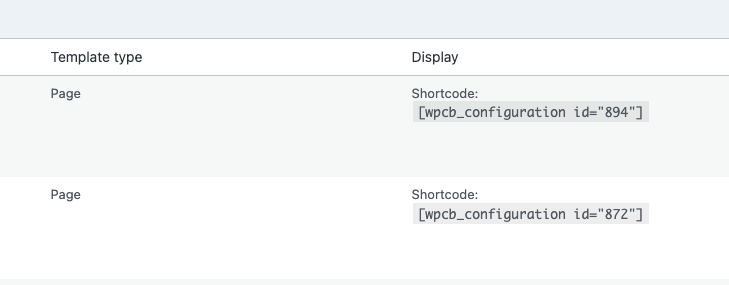
You can find the shortcode you need to use in the configuration overview table. Make sure you have selected Shortcode as display type for the configuration form.

Gutenberg block

If you are using the Gutenberg editor, you can best display the configuration template with our WCB template block shortcode. Regular shortcodes could mess up the form layout in some themes.

You can find the WCB Configuration block in the “Widgets” section of the Gutenberg blocks.

Modify WooCommerce product form

You can also modify and extend the default WooCommerce product form.

To achieve this, go over to your configuration form and scroll down to the General tab in the Configurator data section. Here you can configure the form display.

Locate the field “Configurator template display” and set it to “Show on page”. Also, set “Configurator page display” and “Replace default WooCommerce product display”.

Result:

Display in WooCommerce product tab

You can also display the configuration form underneath the product summary in a custom product tab. The custom product tab will be added in automatically by our plugin.

Simply go over to your configuration form, scroll down to the General tab in the Configurator data section and set “Configurator page display” to “Show in product tabs”

Result:

Display in popup

Finally, you can display configuration form in a popup. This might be useful if the product visualization is not the main part of your website page.

Or you want the customer to be able to access the configuration form from multiple instances on the page.

To achieve this, set field “Configurator template display” to “Show in popup” and save the configuration.

Result:

Display rules

The configuration form display rules determine when the configuration form will appear. You can choose from three types:

  1. Shortcode: displays when shortcode is called
  2. Product: displays for specific products
  3. Product category: displays for all products in the given product category
Previous

Form builder

Next

Pre-built templates