Want to let customers personalize your WooCommerce products with custom names, messages, or notes? Whether you’re selling custom mugs, engraved jewelry, or printed T-shirts, allowing users to add their own text can significantly boost conversions and average order value.
With the WCB Configurator Builder plugin, you can easily add a custom text input field to any WooCommerce product. No coding required.
In this guide, you’ll learn step-by-step how to add a custom text input field to a WooCommerce product using WCB.
Why use WCB Configurator Builder for custom text inputs?
WCB Configurator Builder offers far more flexibility than standard WooCommerce fields or variations. It allows:
- User-friendly text input or textarea fields
- Real-time pricing adjustments (charge more for customization)
- Conditional logic to display fields only when needed (add-on)
- Seamless integration with WooCommerce cart and checkout
- Support for live preview layers if you want to show the text on product images

Products for custom text input fields
- Custom T-shirt slogans
- Name engraving for jewelry
- Personalized mugs or bottles
- Wedding favors with guest names
- Corporate gifts with messages
- Custom notes for packaging
Add a custom text field to a product using WCB
Prerequisites
- WordPress site with WooCommerce installed
- WCB Configurator Builder plugin (free or pro)
- WCB Pro recommended for full input field support
Step 1: Install WCB Configurator Builder
- Go to your WordPress Dashboard
- Navigate to Plugins > Add New
- Search for WCB Configurator Builder
- Click Install, then Activate
If you haven’t yet, get the WCB Pro version for access to advanced input types like date pickers, color pickers, file uploads, and more.
Step 2: Create a new configuration
- Navigate to WCB > Configurations > Add New
- Give it a name like “Custom Mug Configurator”
- Link it to a WooCommerce product under Linked Product
This sets up the base configuration for your custom product.
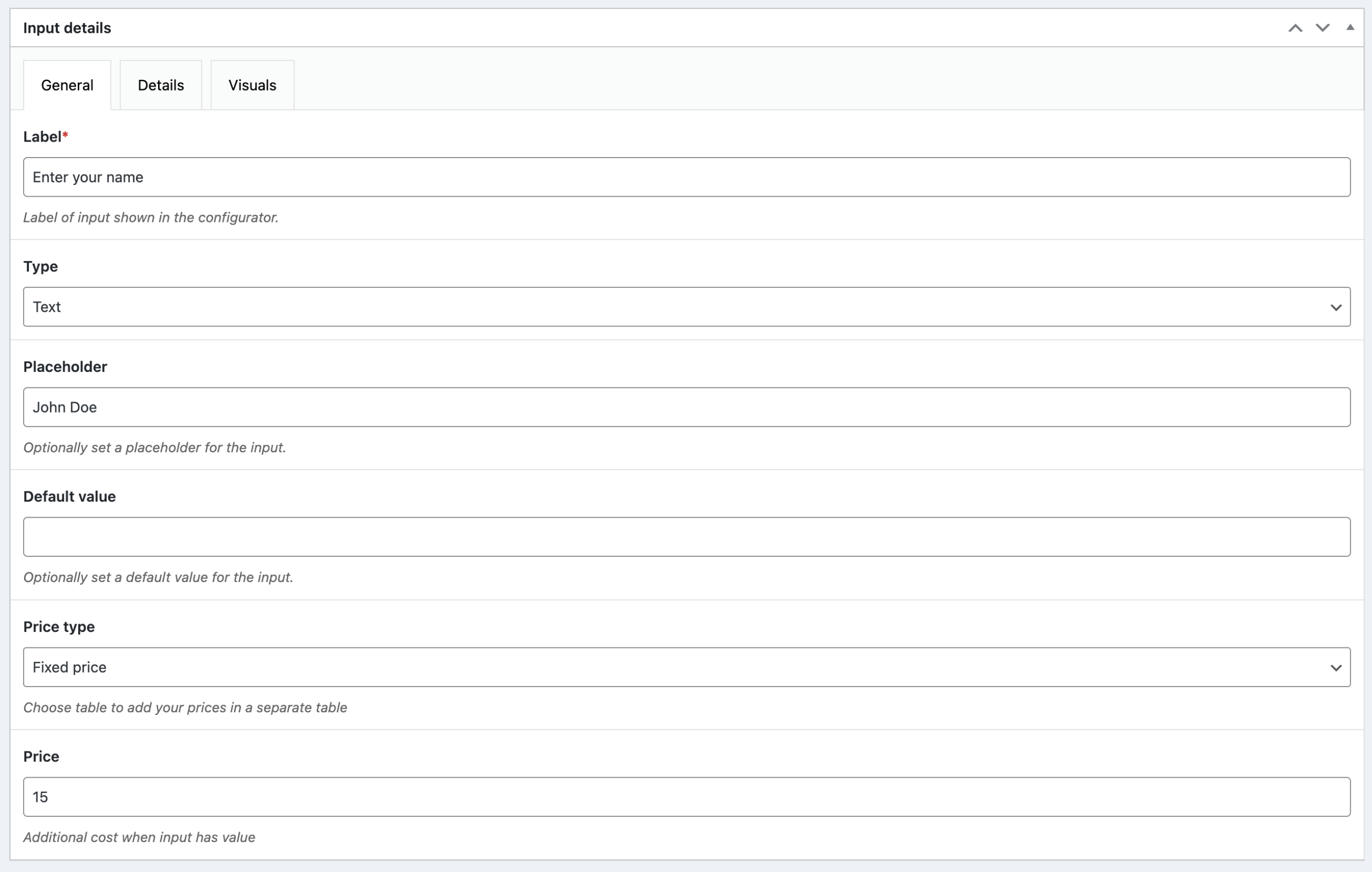
Step 3: Add a custom text input field
- Head over to WCB > Inputs > Add new to create a new input field
- Enter a title (e.g. call it “Personalization”)
- Choose Field Type:
Select Text for single-line input (like a name)
Or select Textarea for multi-line input (like a message) - Configure the Field:
- Label: “Enter Name” or “Custom Message”
- Placeholder: “e.g. John” or “Write your message…”
- Required: Enable if the field must be filled in
- Price: Add an optional price (e.g. +$15 for engraving)
- Save the input field
Step 4: Customize display settings (Optional)
- Enable Conditional Logic to show the text field only if a checkbox like “Add Personalization” is selected (addon)
- Customize fonts and spacing in your theme or page builder
- Use notes to explain input length limits (e.g. “Max 20 characters”)
Step 5: Preview & test
- Use the Preview Configurator button to check how the field displays
- Go to the linked product on your live store
- Add some custom text and test the Add to Cart button
- Ensure the text input shows correctly in:
- Cart
- Checkout
- Order details
- Admin order view
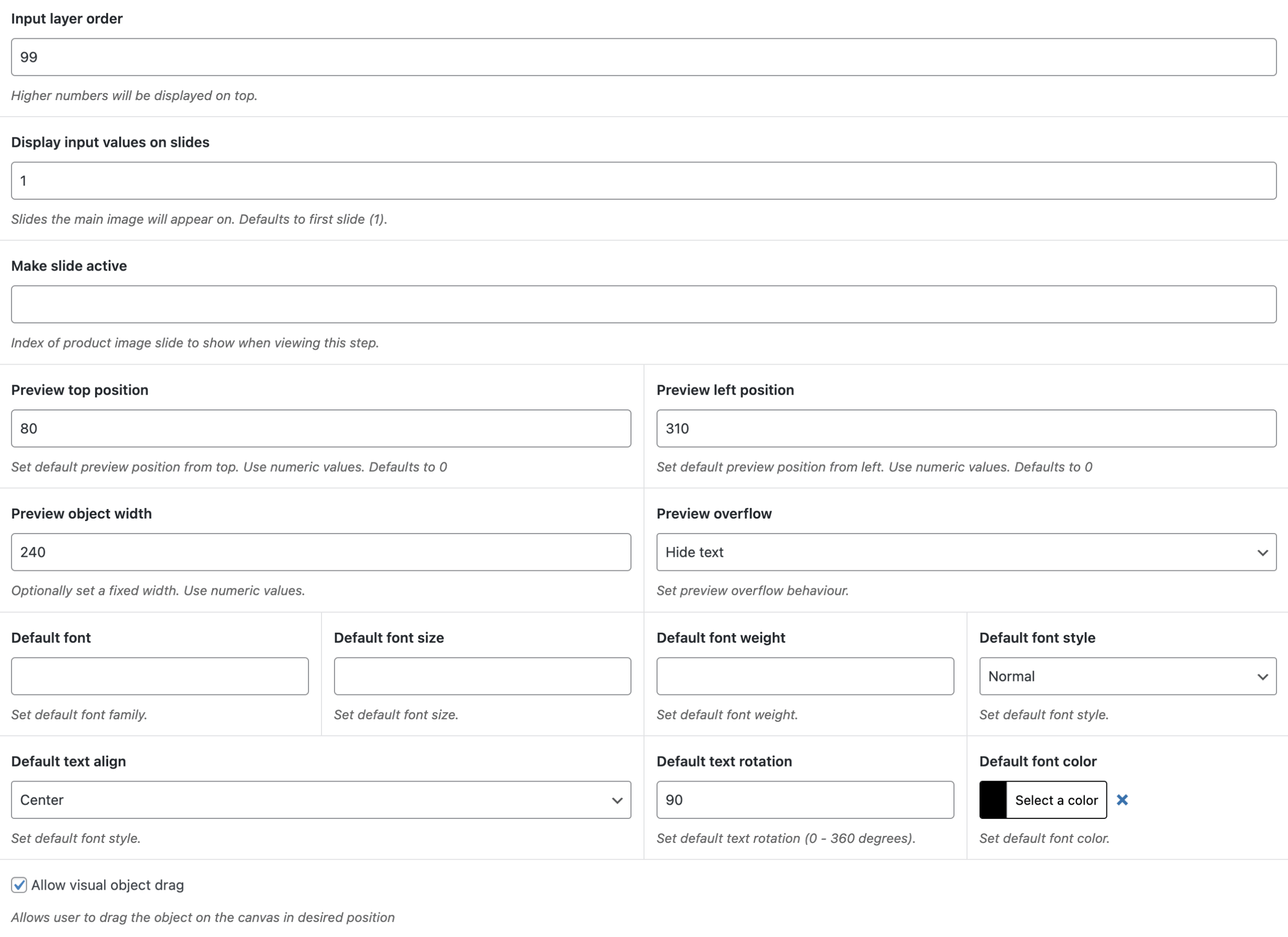
Bonus: show live preview of text on the product image
If want to display the entered text on top of the product image:
- Head over to the Visuals tab of the newly created input field
- Position the text on the product mockup by defining a top and left offset
- Style the font, color, and alignment as desired
This adds a “what you see is what you get” experience to your product page — great for customized gifts or print-on-demand products.
Final thoughts
Adding a custom text input field to WooCommerce products using WCB Configurator Builder is a game-changer for personalized product businesses. You get full design control, dynamic pricing, and a smooth customer experience. All without touching a line of code!
Whether you’re selling one-of-a-kind gifts or building a custom product empire, WCB makes it easy to scale your WooCommerce store with personalization.
FAQ
Do I need WCB Pro for text fields?
No, text inputs is a free feature of the WCB Configurator Builder.
Can I charge extra for custom text?
Absolutely. You can set a fixed or percentage-based price for the field.
Will the text show on the order confirmation email?
Yes, customer inputs appear in the order summary, admin dashboard, and email notifications.